
Using Custom Media Hosting in Postcards
By default, when you export an email with its images hosted online, Postcards hosts those images and your custom fonts for you. With custom media hosting, you connect your own storage instead, such as an Amazon S3 bucket, and Postcards uploads the images and custom fonts in your exported emails there. Your emails then load them from your storage or your own domain.
You can connect Amazon S3, Cloudflare R2, DigitalOcean Spaces, Wasabi, Backblaze B2, or any other S3-compatible storage.
Important: Custom media hosting is available on the Pro and Agency plans. It's set up per workspace, so each workspace can use its own storage. See Postcards pricing for what each plan includes.
Before You Start
You'll need these from your storage provider:
- A bucket for your email images and fonts. The files must be publicly readable, because your recipients' email apps load them straight from the bucket or from your CDN.
- An access key ID and secret access key. For safety, create a key that can only upload to this bucket.
- The bucket's region, and for every provider except Amazon S3, its S3 API endpoint.
- CORS settings that let email apps load font files, if your emails use custom fonts. Postcards uploads your custom fonts to the bucket too.
Connect Your Storage
- Open Workspace Settings from the left sidebar and go to the Media Hosting tab.
- Fill in the form:
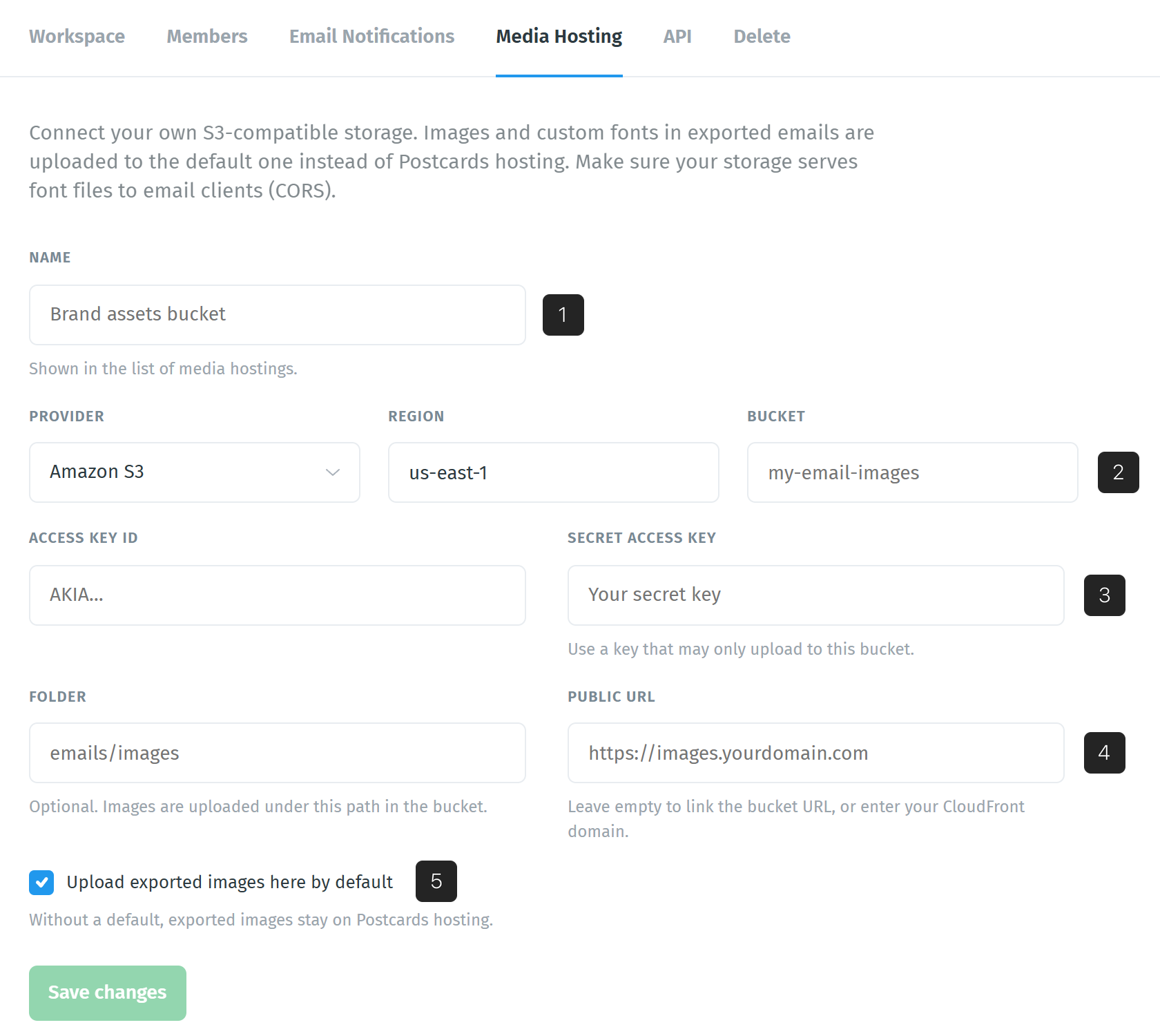
- Name: a name to recognize this storage by, for example "Brand assets bucket". It's shown in your list of media hostings.
- Provider, Region, and Bucket: choose your storage provider, then enter your bucket's region and name. The form changes slightly depending on the provider (see the table below).
- Access key ID and Secret access key: the key Postcards uses to upload files to your bucket.
- Folder (optional) and Public URL: the folder sets a path inside the bucket for your images, such as emails/images. The public URL is the address your emails use to load the images, for example your CDN domain. For most providers you can leave it empty to link the bucket's own URL.
- Upload exported images here by default: leave this ticked to use this storage for your exports. Without a default, exported images stay on Postcards hosting.
- Click Save changes.
Important: Saving doesn't check your keys. After you save, open the storage again with Edit and click Test connection to make sure Postcards can upload to your bucket (see Test the Connection).
Provider Settings
The Provider menu lists the storage services Postcards supports:
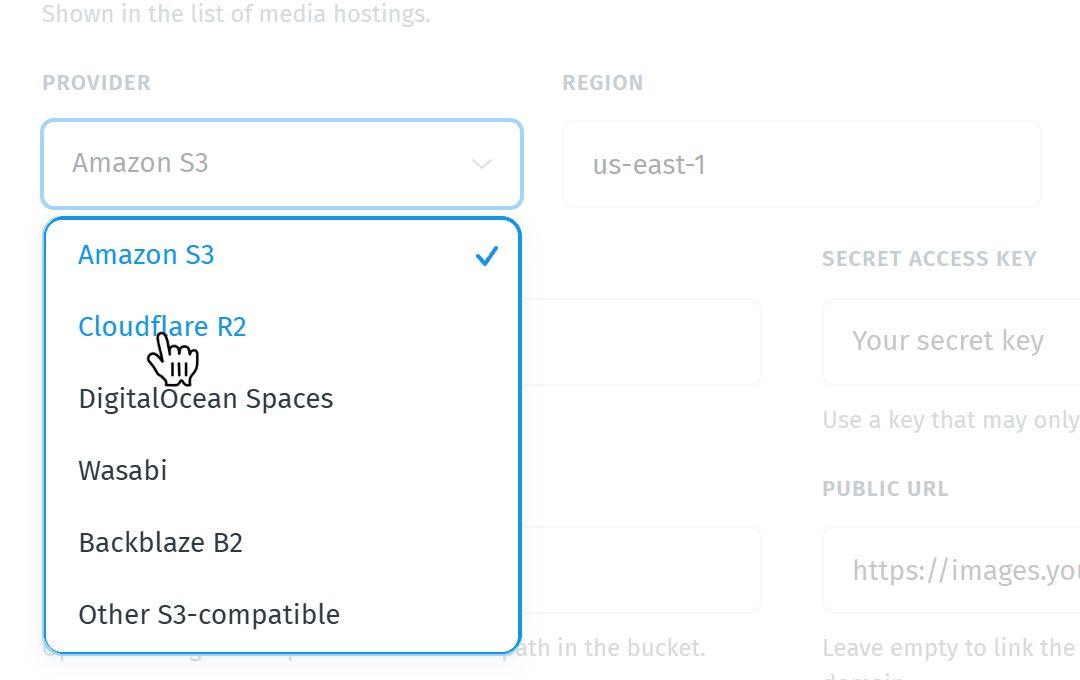
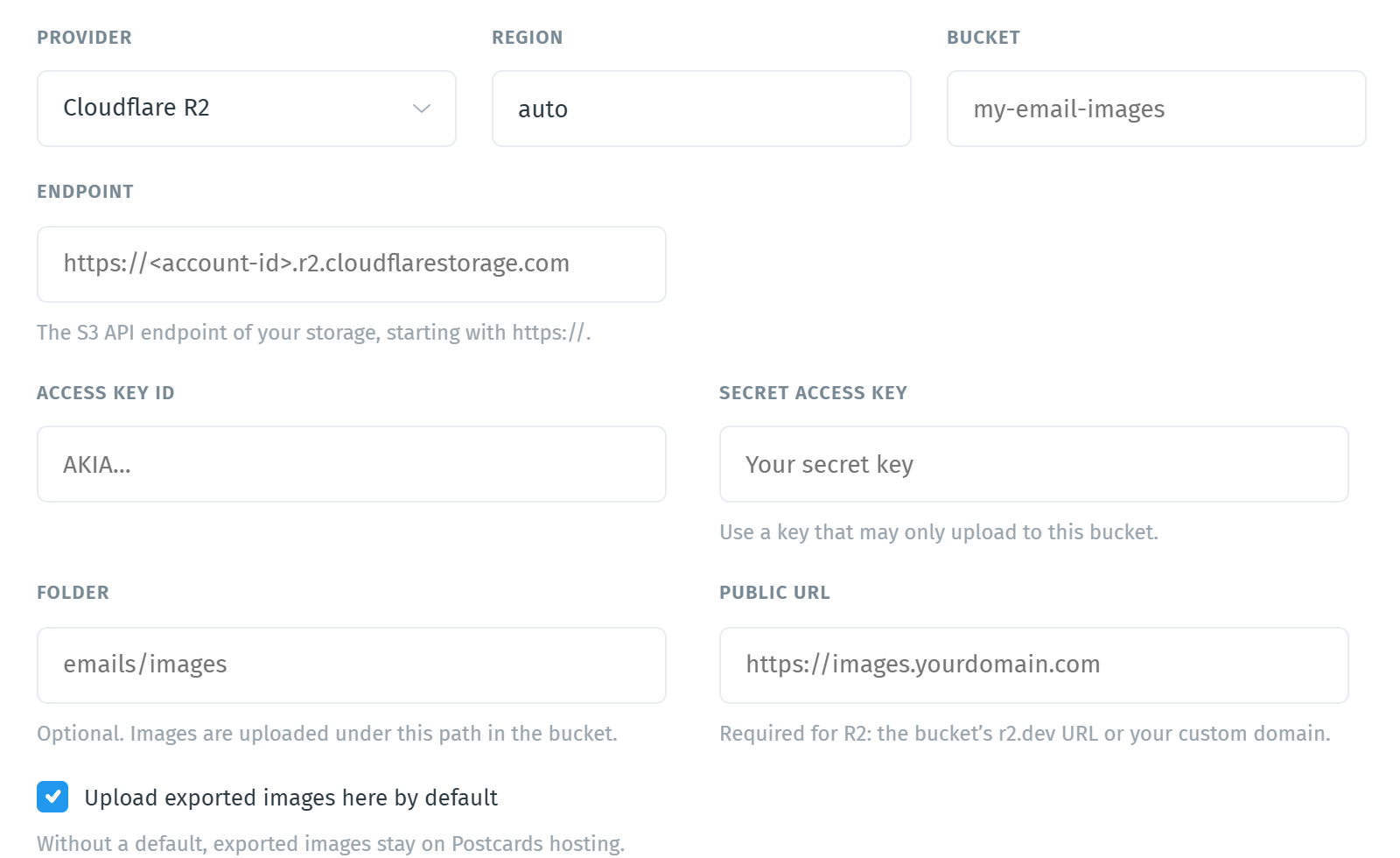
For every provider except Amazon S3, the form adds an Endpoint field: the S3 API endpoint of your storage, starting with https://. Here's what each provider expects. The values in the table are examples; use the ones from your provider's dashboard.
| Provider | Region (example) | Endpoint (example) | Public URL |
|---|---|---|---|
| Amazon S3 | us-east-1 | Not needed | Optional. Leave empty to link the bucket URL, or enter your CloudFront domain. |
| Cloudflare R2 | auto | https://<account-id>.r2.cloudflarestorage.com | Required. The bucket's r2.dev URL or your custom domain. |
| DigitalOcean Spaces | nyc3 | https://nyc3.digitaloceanspaces.com | Optional. Leave empty to link the Space URL, or enter its CDN endpoint. |
| Wasabi | us-east-1 | https://s3.us-east-1.wasabisys.com | Optional. Leave empty to link the bucket URL, or enter your CDN domain. |
| Backblaze B2 | us-west-004 | https://s3.us-west-004.backblazeb2.com | Optional. Leave empty to link the bucket URL, or enter your CDN domain. |
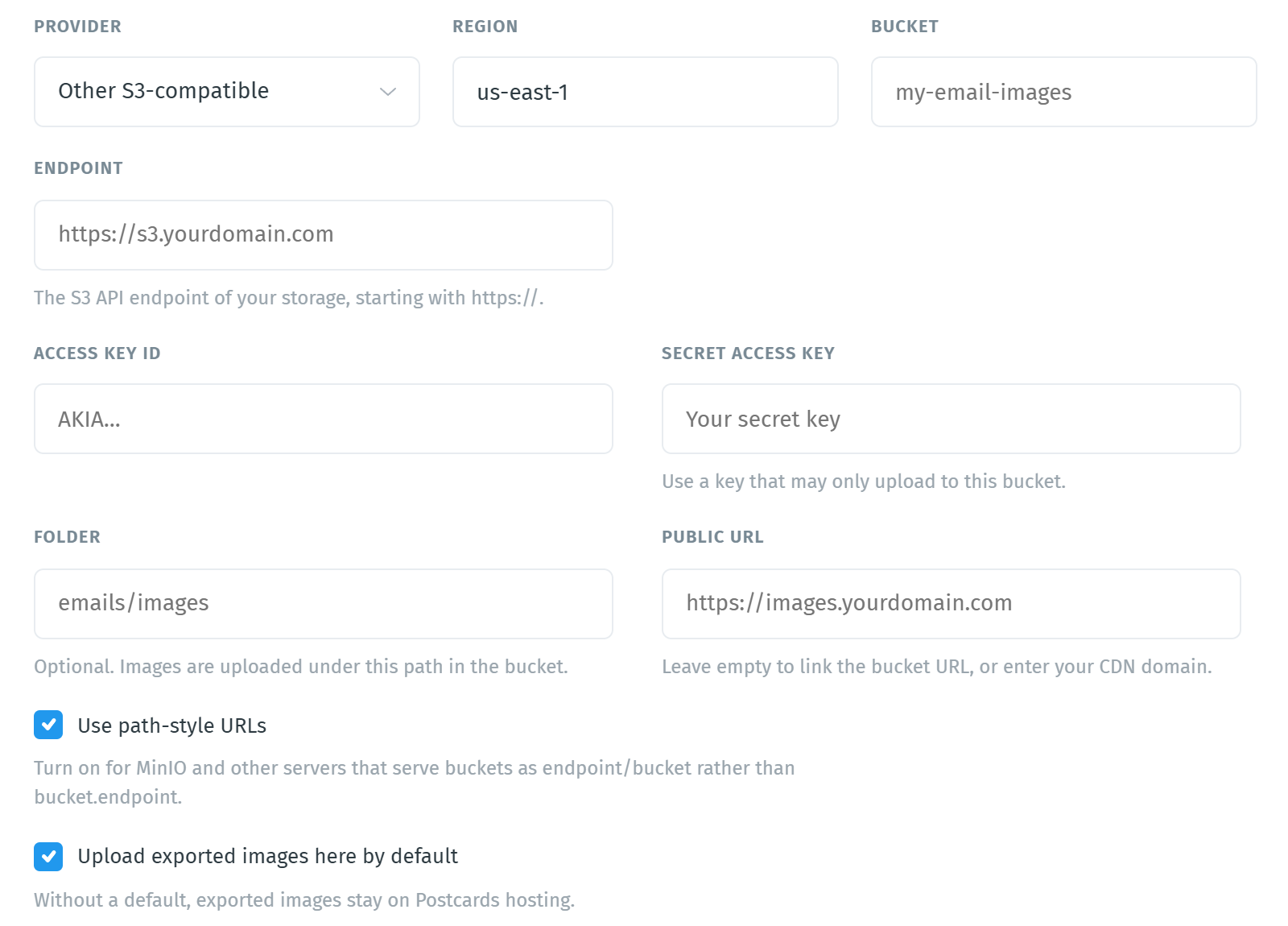
| Other S3-compatible | us-east-1 | Your server, such as https://s3.yourdomain.com | Optional. Leave empty to link the bucket URL, or enter your CDN domain. |
For Cloudflare R2, the Public URL is required: enter the bucket's r2.dev URL or your custom domain.
With Other S3-compatible, you can also turn on Use path-style URLs. Turn it on for MinIO and other servers that serve buckets as endpoint/bucket rather than bucket.endpoint.
Manage Your Media Hostings
After you save, the Media Hosting tab lists every storage option in the workspace: Postcards hosting (listed as Postcards CDN in the Storage column: this is where Postcards keeps your images and fonts by default, not the Enable CDN hosting export option) and the storage you connected, with its bucket, folder, provider, and region. The one your exports use is marked Default.
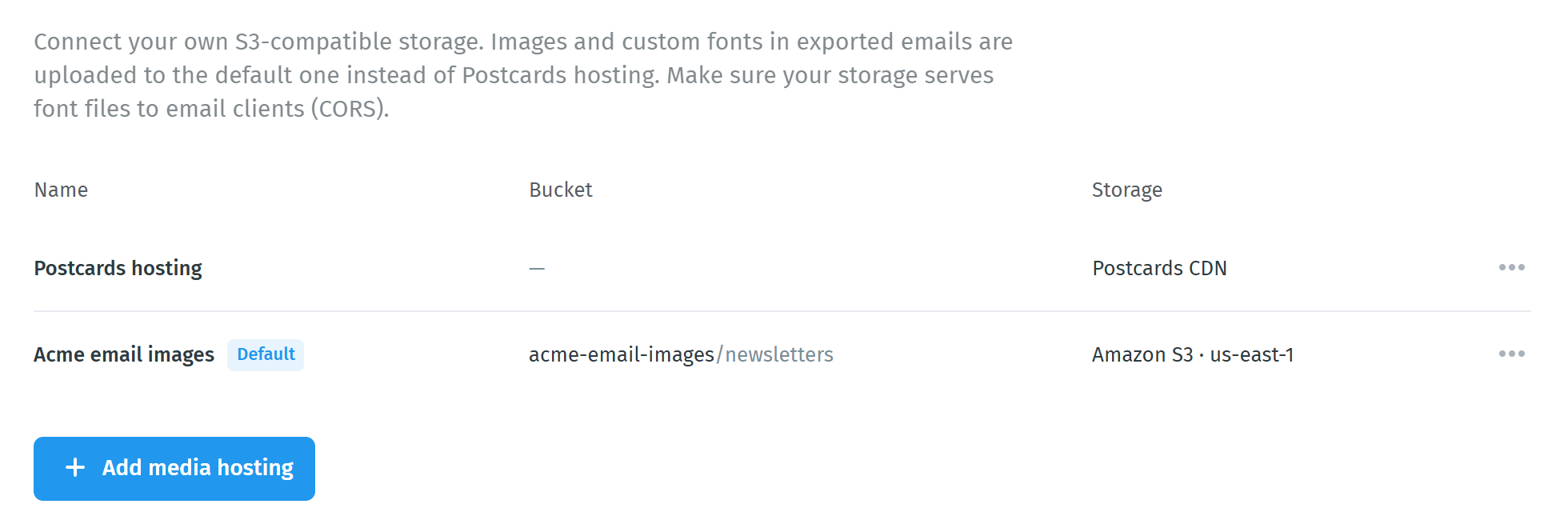
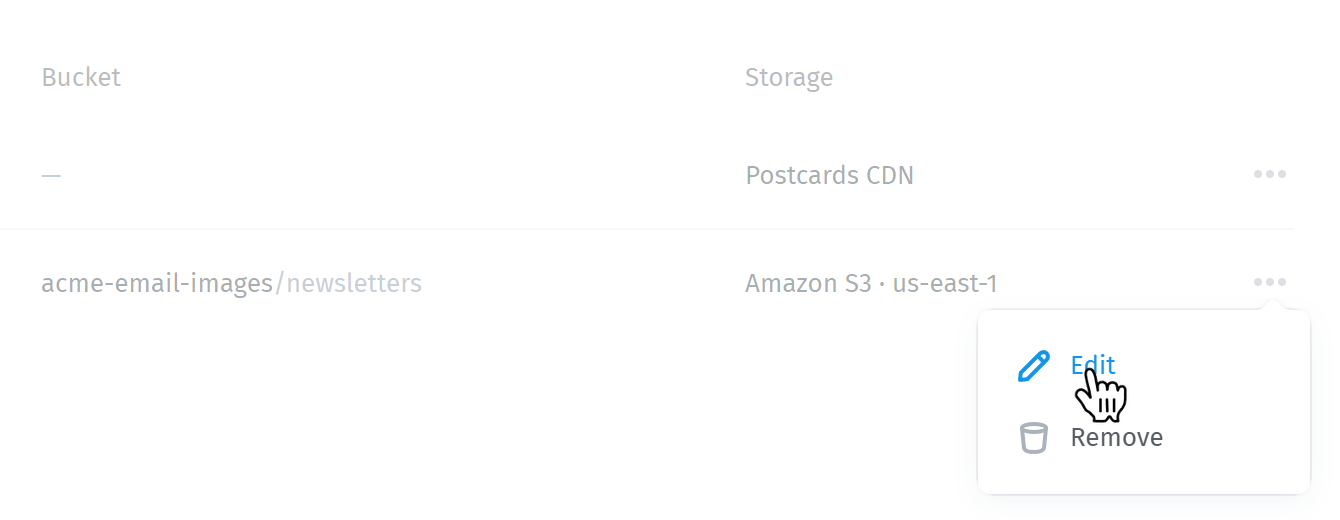
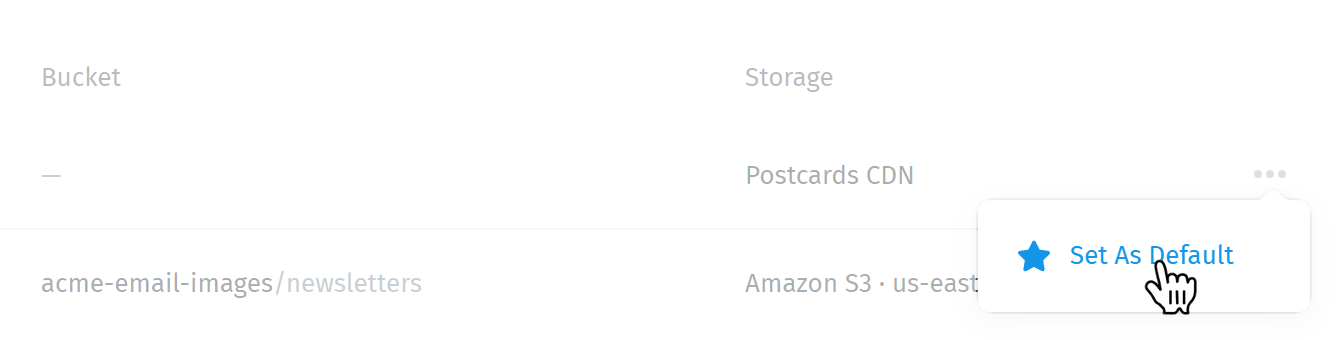
Click the ••• menu on a row to manage it:
- Edit: change the settings of a storage you connected, or test its connection.
- Remove: disconnect it from the workspace.
- Set As Default: make this hosting the one your exports use. To go back to Postcards hosting, choose Set As Default on the Postcards hosting row.
To connect more storage, click Add media hosting. Only one hosting can be the default at a time.
Test the Connection
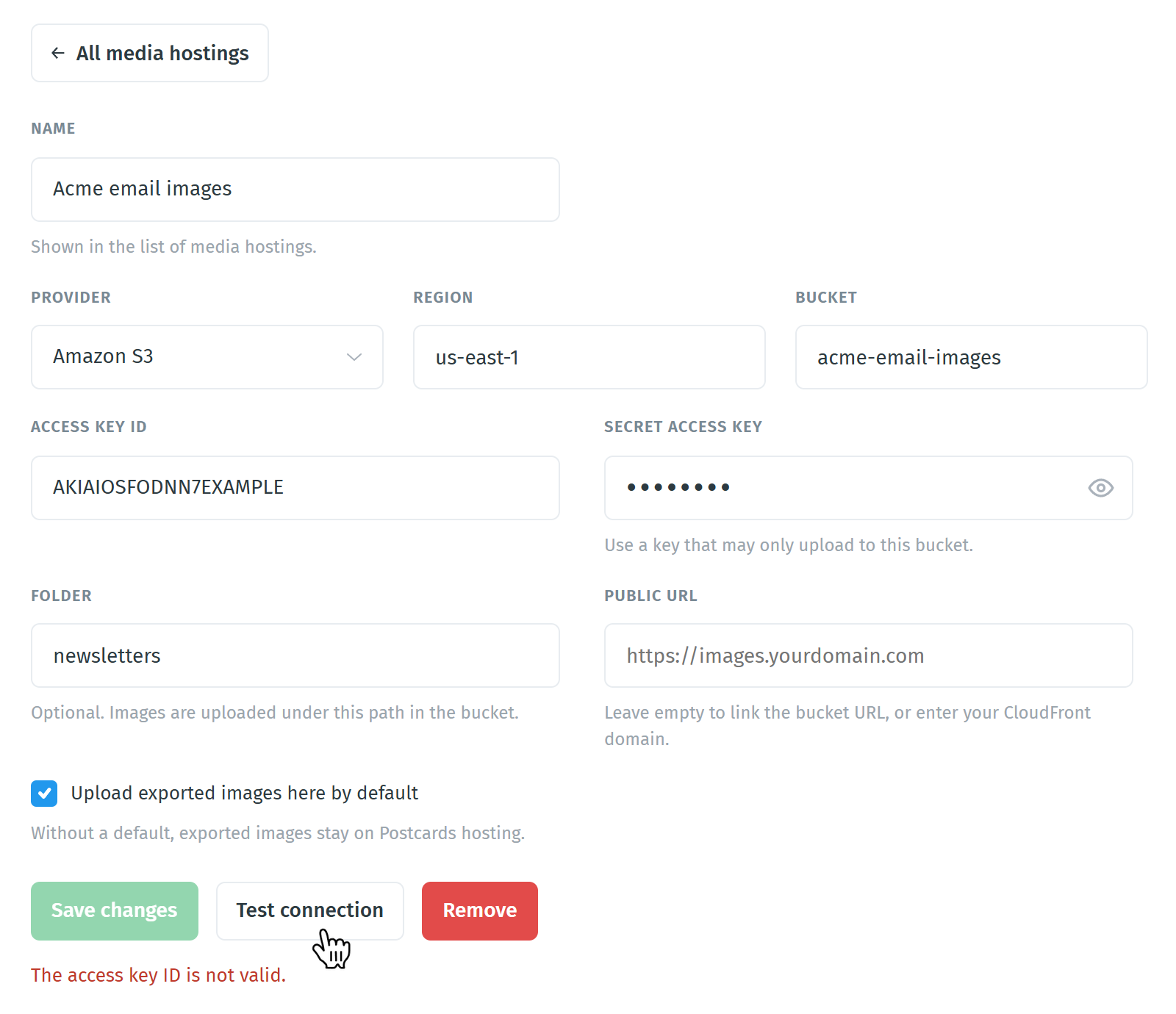
Choose Edit in the storage's ••• menu and click Test connection. When everything works, you'll see Test image uploaded and publicly readable. Removed again. If something is wrong, a message under the buttons tells you what to fix, such as "The access key ID is not valid." Correct the field, click Save changes, and test again. Click All media hostings to go back to the list.
Remove a Storage
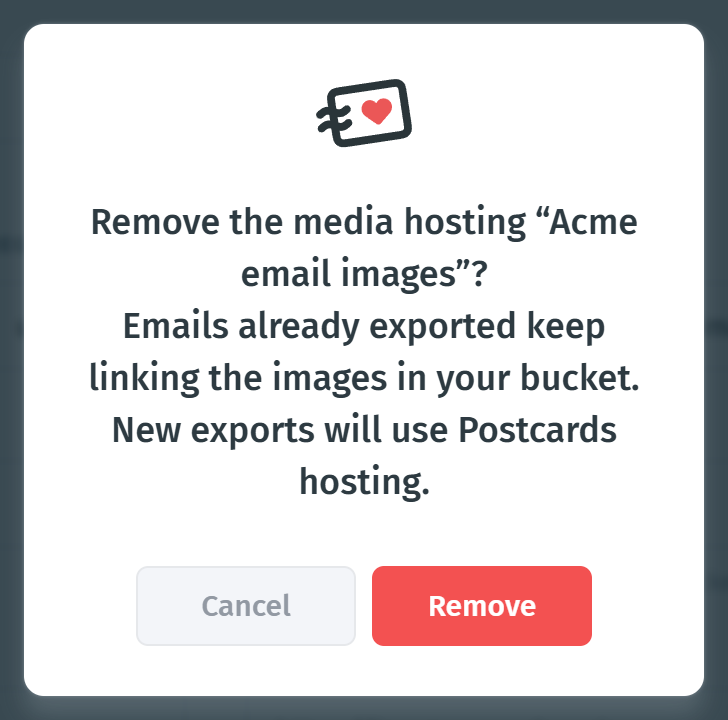
Choose Remove in the storage's ••• menu (or in its Edit view) and confirm. Emails you've already exported keep linking the images in your bucket. New exports use Postcards hosting.
Exporting with Your Storage
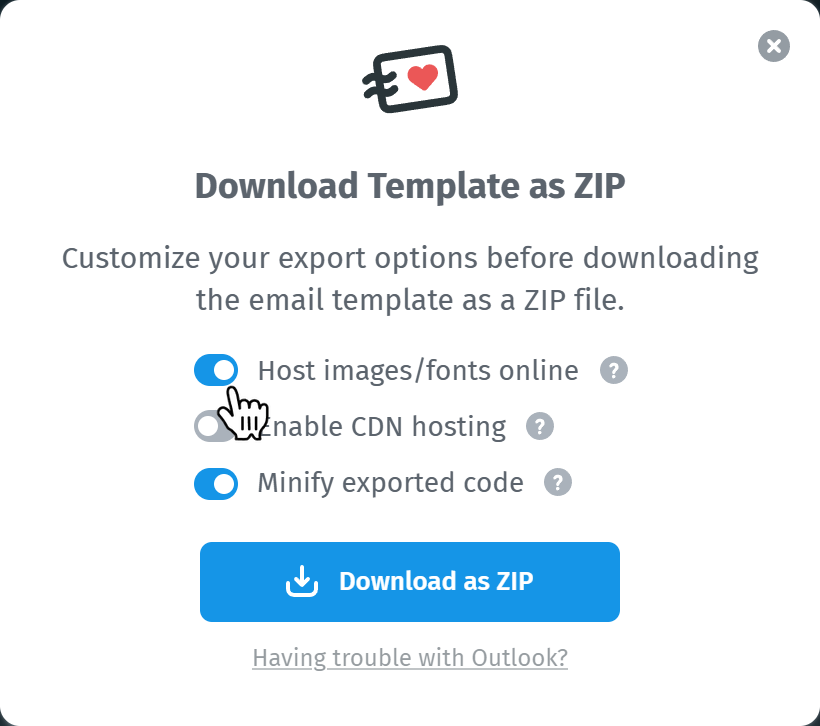
You don't pick the storage when you export. Every export that hosts your images online uploads your images and custom fonts to the workspace's default media hosting and links them in the exported HTML: Download as ZIP (with Host images/fonts online turned on), Copy Email Code, Send to Email Platform, Save as Outlook Template, and exports through the Postcards API and MCP.
Note: Custom fonts are uploaded to your storage too, so make sure your storage serves font files to email clients (CORS). Enable CDN hosting can't be used together with your own media hosting, so leave it off while your own storage is the default.
For the other export options, see Exporting Email Templates.
Tip: Some email platforms block images from domains they don't trust. For example, Salesforce needs your image domain added to its Trusted URLs. When you use your own storage, add your bucket's or CDN's domain there instead of the Postcards one.
Frequently Asked Questions
Do I have to use my own storage?
No. Postcards hosting stays available and is the default until you choose another one.
Can I connect more than one bucket?
Yes. Click Add media hosting for each one. Your exports use whichever is set as Default.
What happens to emails I already exported if I remove my storage?
They keep linking the images in your bucket. Only new exports switch to Postcards hosting.
What happens to the files in my storage if I cancel my paid plan?
Nothing. Postcards only deletes files from its own servers, so the images and fonts in your storage stay where they are.
Why are my images or fonts broken in the exported email?
Check that the files in your bucket are publicly readable, that the Public URL points to the right address, and run Test connection from the storage's Edit view. If only your custom fonts don't show, check that your storage lets email apps load font files (CORS).