
Understanding AI Credits
AI Credits (✦) are the shared currency behind every AI feature in Postcards. Whenever the AI does work for you- generating an email, rewriting text, analyzing your design, or converting imported HTML- the cost is measured in credits.

Credits belong to your workspace, not to you personally. Every member of a workspace draws from the same balance, and each workspace has its own separate pool. If you belong to several workspaces, each one has its own credits.
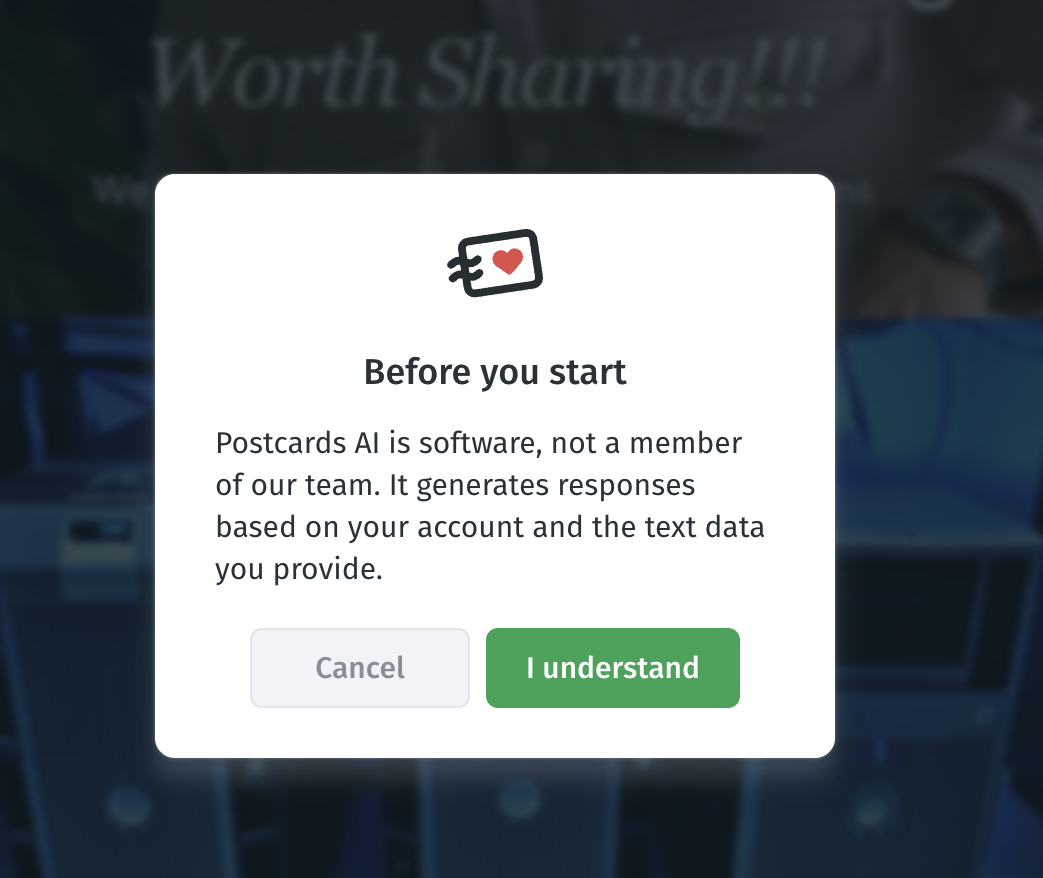
Note: Before you use an AI feature, Postcards shows a short notice letting you know that you’re interacting with AI, not a person. Click the button to confirm, and you can continue. This is required under the EU AI Act.
How You Get Credits
- Monthly plan allowance. Every paid plan includes a monthly credit allowance — the higher your plan, the more credits you get each month. You can see the exact amount for each plan on the Postcards pricing page.
A few things to know about the monthly allowance:
- It resets on your billing date (your plan's billing anniversary — not the calendar month).
- Unused plan credits don't roll over — the balance starts fresh each cycle.
- The free plan includes no credits, so AI features require a paid plan (Lite or higher).
- The one exception is Import HTML: Start includes 5 free Basic imports per month, which don't use credits. See Importing HTML Emails into Postcards below.
- Credit packs. If you need more than your monthly allowance, you can buy credit packs at any time. Packs come in a few sizes, and larger packs offer better value per credit. You'll see the current options and prices when you open Add More Credits (checkout opens in a new tab).
Pack rules:
- Purchased credits never expire. They stay in your balance until used.
- Packs can be purchased by workspaces on a paid plan (Lite or higher). If you buy a pack while still on the free plan, the credits are held and granted automatically once your workspace upgrades.
Where to See and Buy Credits
The quickest place to check your balance is your profile menu — click your avatar in the top-right.

The AI Credits card shows your balance, a progress bar, when your allowance resets, and a link to your Usage history. Click Usage history in your profile menu to see your workspace's recent AI activity — each entry shows what was requested, when, which model ran it, and what it cost.
Failed runs show ✦ 0 — proof you weren't charged. Click any entry to reopen it in the AI chat with the same prompt pre-filled.

If you've bought credit packs, the card also shows your purchased credits — which never expire — alongside your plan allowance. From the same card, click Add More Credits to buy a pack.
Your balance also appears in Workspace Settings → Workspace tab, where the Plan card shows your remaining credits and reset date alongside your billing details, with a ⊕ button next to the balance for buying packs from there as well.

If your balance drops below 1,000, the AI Generator shows a low-credits banner so you're not caught off guard mid-project.
Buying credits takes a minute: click Add More Credits (or the ⊕ in Workspace Settings)

Choose a pack and complete the checkout, which opens in a new tab. The credits land in your workspace balance.
How Spending Works
- Plan credits are spent first, then pack credits. Your monthly allowance is always used up before your purchased balance is touched — so packs act as a safety net that never expires.
- Failed runs are free. If an AI action fails on our side, you're not charged.
- Cancelling depends on the feature. Pressing Stop in the AI Generator chat costs nothing. But Import HTML and prompt enhancement are charged up front — cancelling them still uses the credits (with Import HTML, you keep the preview generated so far and can accept it). AI Copywriter and Visual Insights can't be cancelled mid-run.
- Going "into the red." A generation that's already running is allowed to finish even if it overshoots your remaining credits, so your balance can dip slightly negative — at most one generation's worth. While you're at or below zero, all credit-consuming AI actions are blocked (generation, enhancement, Copywriter, Visual Insights, Import HTML). Everything that doesn't use credits keeps working normally — editing, exporting, and any content already generated. The deficit is cleared by your next credit-pack purchase or absorbed into your next monthly allowance.
What Each Feature Costs

Here's how each one uses credits:
AI Copywriter
Rewrites selected text by tone, custom instruction, or length. Every rewrite costs a flat ✦ 5 — the price never changes with text length, tone, or prompt. The cost is shown right on the Rewrite button.

AI Generator
Creates a full email from a prompt (Create With AI), reworks an existing project (Remix With AI), or makes follow-up edits through the AI chat. Cost is dynamic — it depends on the actual work involved, with a minimum of 100 credits per request and most generations landing between ~250 and ~1,500.
See Postcards AI Generator (article coming soon)

Choosing the Ultra model produces higher-fidelity results but costs more than Basic. Your settings also affect the cost. The Ultra model produces higher-fidelity results but costs more than Basic, and thinking mode (Low, Medium, or High), available on both models, is included in the cost of each generation.
Optional prompt enhancement (the sparkle button) sharpens your prompt before generating. Its cost is dynamic — typically ~10–20 credits depending on prompt length — with an estimate shown on the button beforehand and the real charge after.
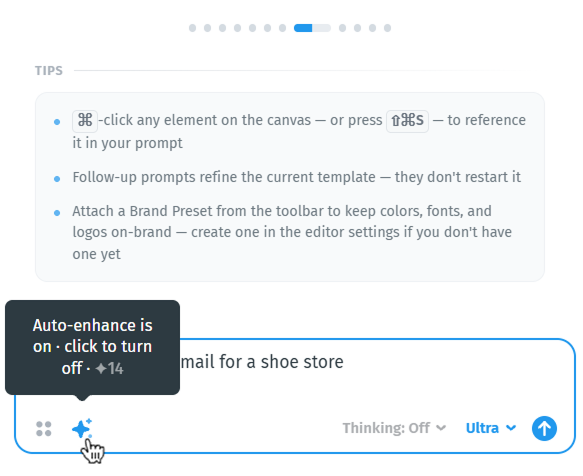
It's available on any paid plan, but the button only appears when the Ultra model is selected.
Free after generation: the Customize panel (palette, typography, imagery, text scale) restyles your generated design without using any credits; iterate there before regenerating.
Visual Insights
Scans your template for layout, spacing, contrast, and content issues. Cost is dynamic, with a minimum of 50 credits per run — larger, more complex templates cost more. The Analyze design button shows the estimate (e.g., ✦ ~150) before you commit. Re-analyzing after edits runs a fresh scan and uses credits again.

Import HTML
Converts an existing HTML email into an editable Postcards project. Cost is dynamic by size and complexity, with the ✦ estimate shown on each model card before you convert — updating in real time as it reads your file.

- Basic first draws on your plan's free monthly import quota (Start — 5, Lite — 15, Plus — 20, Pro — 50). After that, Basic imports are charged in credits on paid plans.
- On the free Start plan, only Basic is available, and imports stop once the 5 monthly imports are used up. Choosing Ultra shows an upgrade prompt.
- Ultra is always charged in credits — the free quota doesn't apply.
- Sending an email to your import address is free. The draft it creates doesn't use your quota or credits until you start the conversion.
- The full estimated cost is charged up front when conversion starts. If the import fails on our side, the credits are returned automatically. Cancelling does not refund, because you keep any preview generated so far and can still accept it.
See Importing HTML Emails into Postcards.
When You Run Out
If you don't have enough credits for an action, Postcards shows an out-of-credits dialog with your options:
- Buy a credit pack — instant, and pack credits never expire.
- Upgrade your plan — raises your monthly allowance going forward.
- Wait for your reset — your plan allowance returns on your billing date.
On the free Start plan, once your 5 monthly imports are used, you can upgrade or wait for your next reset to import again.
Frequently Asked Questions
- Do unused credits roll over?
Plan credits don't — they reset each billing cycle. Purchased pack credits never expire.
- Do my teammates share my credits?
Yes. Credits belong to the workspace, so all members draw from the same balance.
- I'm in several workspaces. Which credits do I use?
Whichever workspace you're working in. Each workspace has its own balance and its own plan.
- How many credits does my plan include?
See the Postcards pricing page for the current allowance on each plan, or check Workspace Settings → Workspace tab for your workspace.
- Can I use any AI features on the free plan?
Yes, Import HTML with the Basic model — up to 5 imports per month, no credits needed. Other AI features and the Ultra model require a paid plan.
- Does sending an email to my import address use credits?
No. Receiving the email and creating the draft is free. Your import quota or credits are only used when you start the conversion.
- Are failed generations charged?
No, if an AI action fails on our side, you're not charged.
- If I cancel, do I get my credits back?
It depends. Stopping an AI Generator chat run is free. But Import HTML and prompt enhancement are charged up front, so cancelling them still uses the credits. With Import HTML, you keep the preview generated so far and can accept it.
- Can I buy credits on the free plan?
Packs require a paid plan (Lite or higher). If you buy one while on the free plan, the credits are granted automatically once your workspace upgrades.
- Why is my new month starting with fewer credits?
If your balance went negative last cycle (a generation started on your last credits), the deficit is deducted from your new allowance.