
Preview & Share Email in Postcards
Before you export or send a campaign, it's worth checking how your email looks and getting feedback on it. In the top-right corner of the editor, click the blue button with the eye icon and the small arrow. The menu has four options:
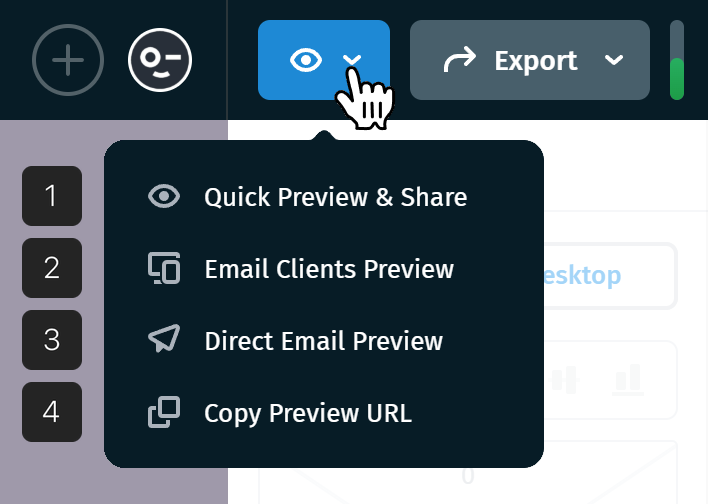
- Quick Preview & Share opens a full preview where you can switch devices and color modes, set who can view the link, and share it.
- Email Clients Preview generates screenshots of your email in real email clients.
- Direct Email Preview sends a test email to your inbox and up to four other addresses.
- Copy Preview URL copies a link to the preview without leaving the editor.
Quick Preview & Share
Selecting Quick Preview & Share replaces the editor's top bar with a preview toolbar:

- Mobile / Desktop: see how your layout adapts to each screen size.
-
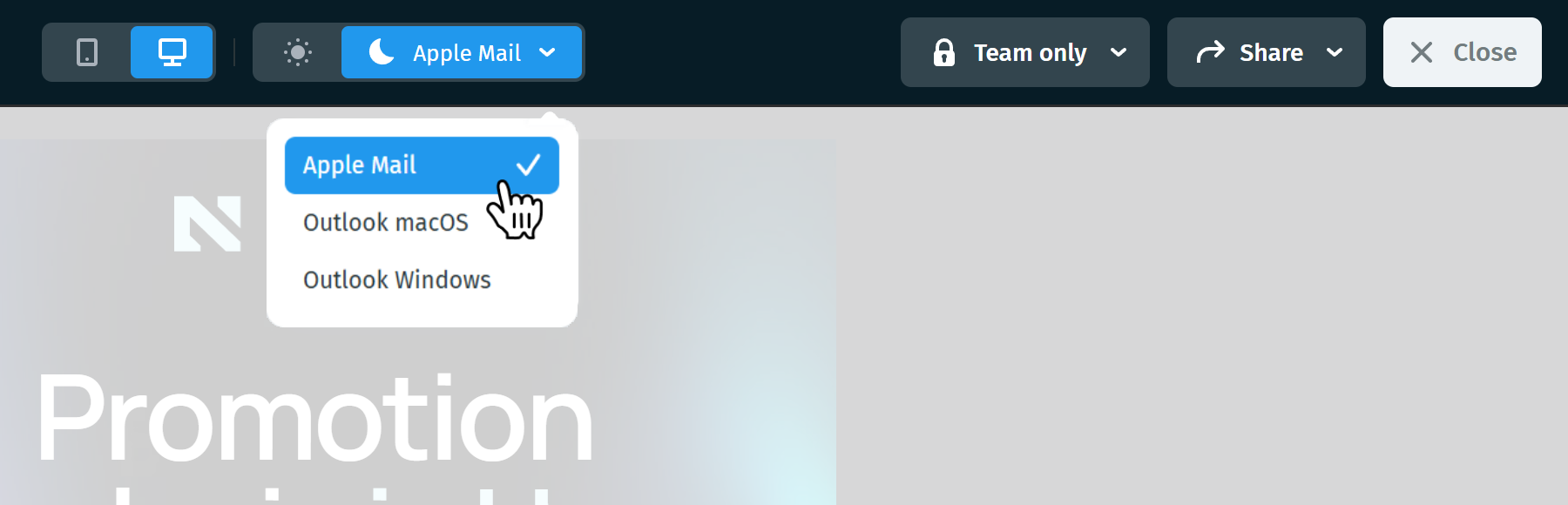
Light / Dark mode: see how your email looks in each color scheme. When you switch to dark mode, a client selector appears next to the toggle with Apple Mail, Outlook macOS, and Outlook Windows, so you can compare how each of them handles dark mode.
-
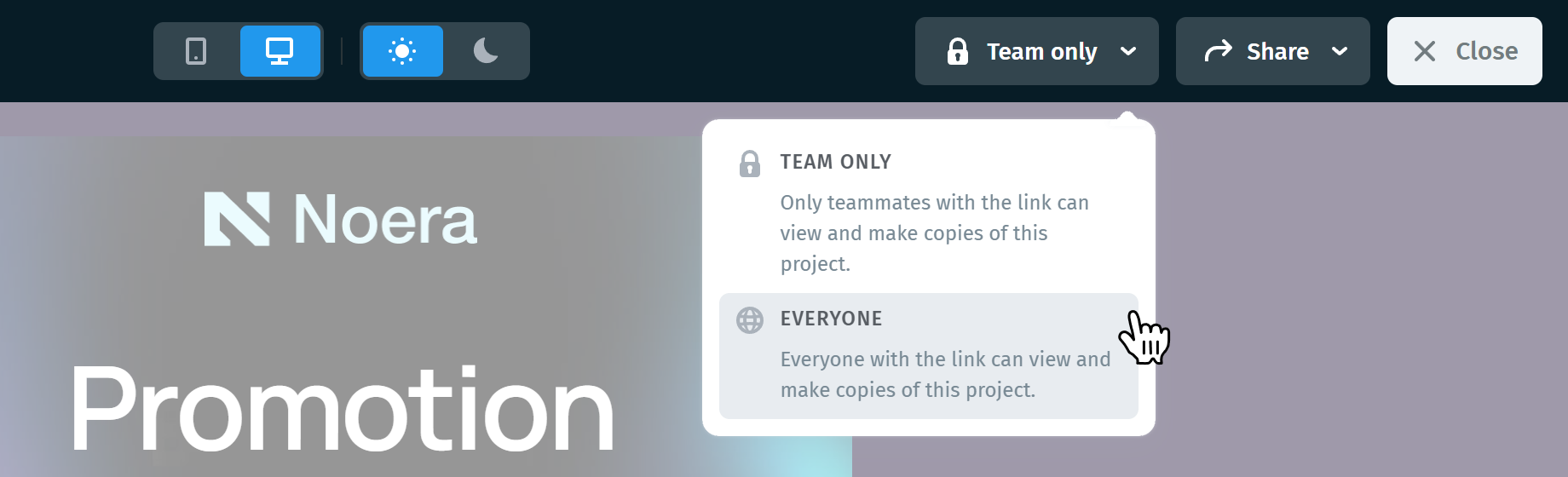
Visibility: choose who can open your preview link, Team only or Everyone. The button shows the current setting. See Who Can Open Your Preview Link below for what each option means.
-
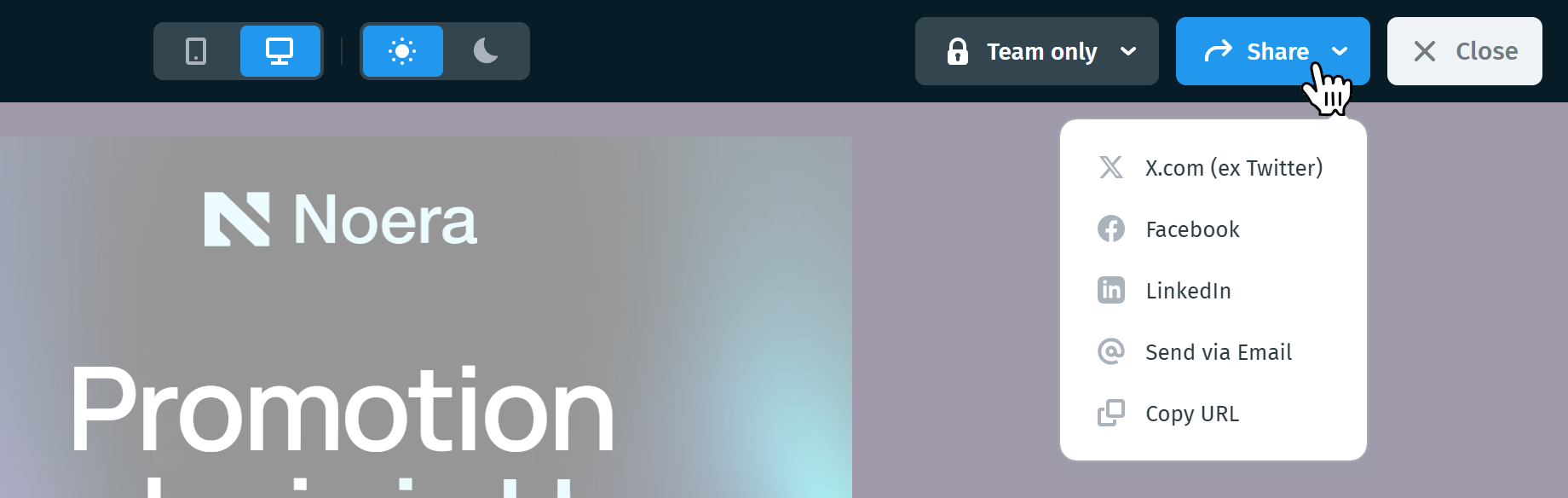
Share: post your design to X.com (ex Twitter), Facebook, or LinkedIn, send it with Send via Email, or use Copy URL to get a link for clients or collaborators.
- Close: return to the editor.
Important: Sharing preview links is available on the Plus and Pro plans. On the free Start plan you can still preview your email, but the sharing and visibility options ask you to upgrade. See Postcards pricing for what each plan includes.
Note: Quick Preview & Share renders your email in the browser. To see real screenshots from dozens of email clients, use Email Clients Preview.
Email Clients Preview
Email Clients Preview generates real screenshots of your email across desktop, web, and mobile email clients, so you can catch rendering problems before your campaign goes out. It's available on paid plans, and each plan includes a monthly number of generation runs.
For the full walkthrough, see How to Preview Your Template Across Email Clients in Postcards.
Direct Email Preview (Send a Test Email)
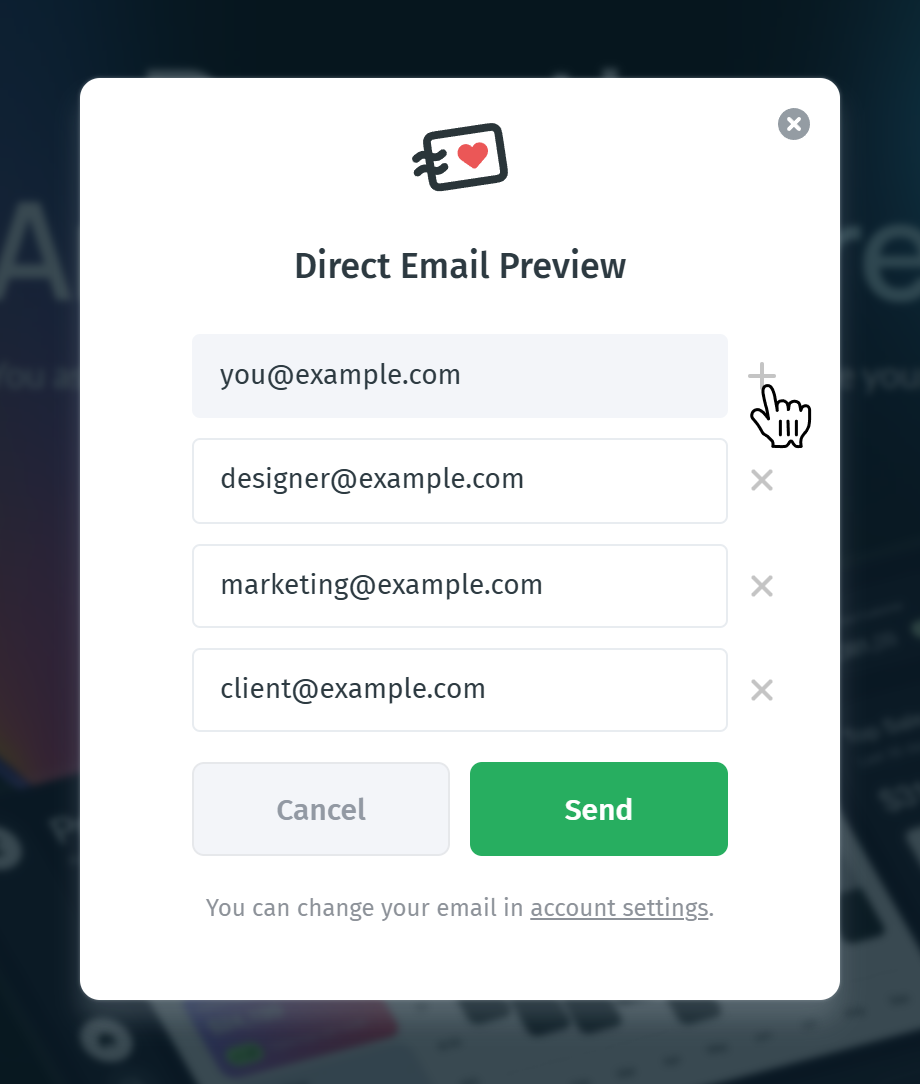
Direct Email Preview sends your email to real inboxes, so you can check rendering, images, links, and spacing in the same apps your recipients use.
- Click the eye-icon menu and select Direct Email Preview.
- The first field already contains the email address of your Postcards account. To use a different address, change it in account settings (there's a link at the bottom of the pop-up).
- To send the test to more people, click + next to your address and enter another email address. You can add up to four more addresses (Pro plan), so one test can reach five inboxes. Click × to remove an address.
- Click Send.
Note: Every plan includes test emails. The number you can send per day depends on your plan, so check Postcards pricing for the current limits.
Tip: Add addresses from different providers, for example a Gmail and an Outlook inbox, to see how each one displays your email.
Copy Preview URL
Copy Preview URL copies a link to your email's preview to the clipboard, so you can paste it into a chat or a message without opening the preview first.
Important: Copying the link this way switches the project's visibility to Everyone, so anyone who has the link can open it and make a copy. To keep the project private, open Quick Preview & Share and set the visibility back to Team only.
Who Can Open Your Preview Link
What people see when they open your preview link depends on the visibility setting.
Everyone: Anyone with the link can view the email, without signing in. They also see Make a Copy, which creates a copy of the project in their own Drafts so they can edit it independently, and Share.
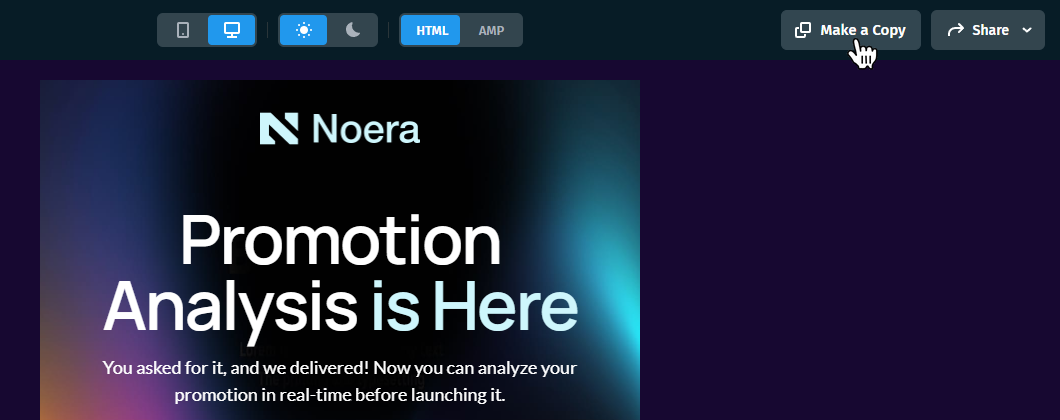
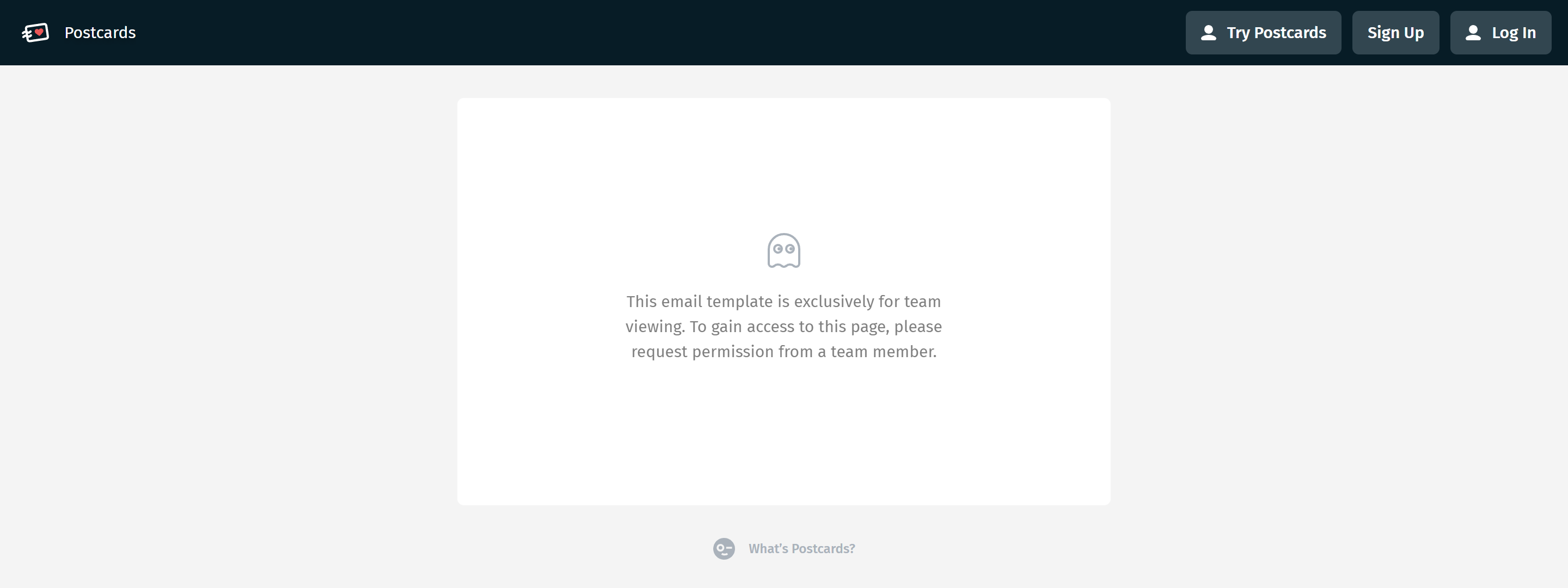
Team only: Only members of your workspace can open the link, and they need to be signed in. They can view the email and make a copy. Anyone else, including teammates who are signed out, sees a message that the template is for team viewing only. This keeps work in progress and internal emails private.
Tip: Review both the desktop and mobile versions, then send yourself a test email before exporting. It's the easiest way to spot alignment or font issues early.