
How to Use Force Light Mode in Postcards
What Force Light Mode does
Force Light Mode tells email clients that your email is designed for a light color scheme only, so clients that respect this declaration will not recolor it when the reader has dark mode turned on.
Many readers now use dark mode on their phones and desktops. When they do, some email clients automatically invert or darken your email: white backgrounds turn black, dark text turns light, and brand colors can shift. For carefully designed emails, this can lead to low-contrast text, logos that disappear against a dark background, or colors that no longer match your brand.
Force Light Mode is a project-wide setting in Postcards. When it is on, every email you export or send from that project asks supported clients to keep your original light design.
How it works
When Force Light Mode is enabled, Postcards adds two meta tags to the <head> of your exported HTML:
<meta name="color-scheme" content="light only" />
<meta name="supported-color-schemes" content="light only" />
The color-scheme tag is a standard way to declare which color schemes a document supports. The value light only tells the client that the email should not be shown in a dark scheme. The supported-color-schemes tag is an older variant kept for compatibility with clients that still read it.
These tags are a request, not a guarantee. Each email client decides whether to honour them, and some clients apply their own dark mode regardless of what the email declares.
How to enable or disable Force Light Mode
Force Light Mode applies to the whole project, not to individual blocks or sections.
- Open your project in the Postcards editor.
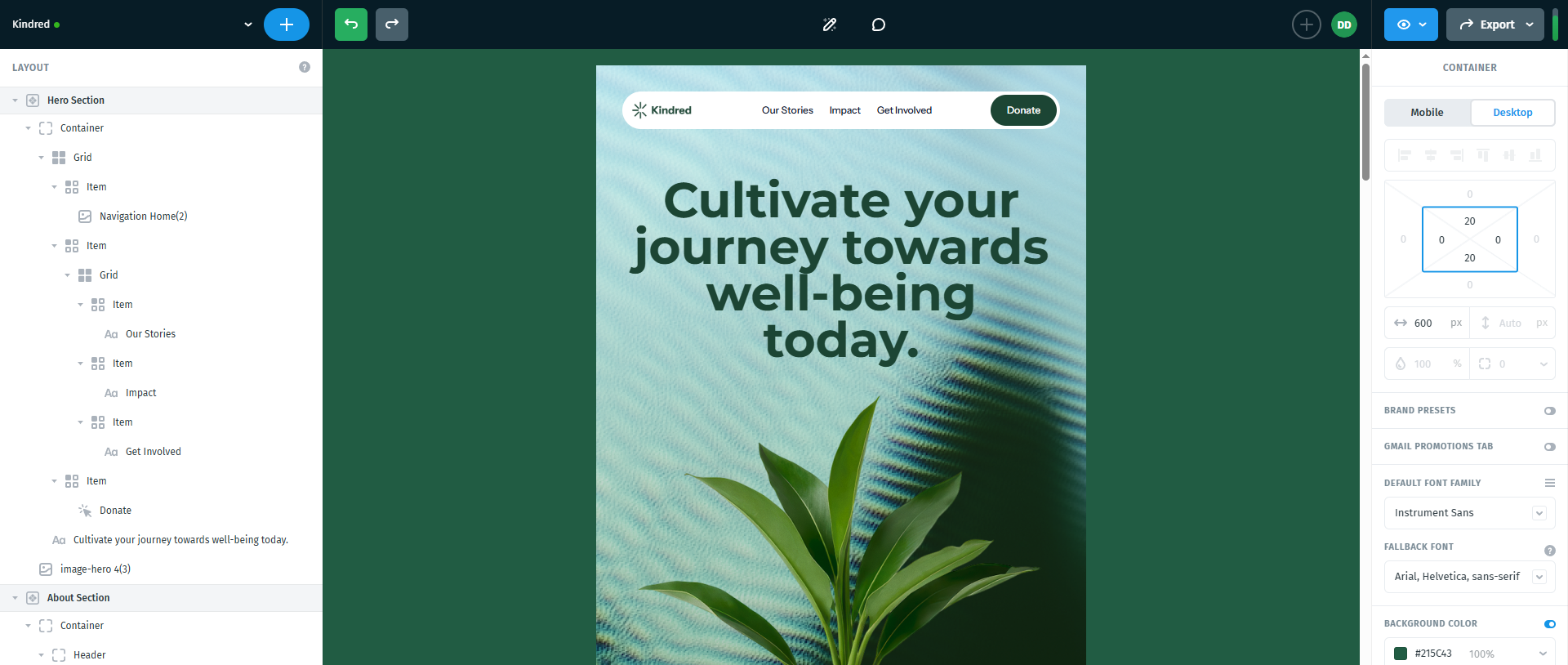
-
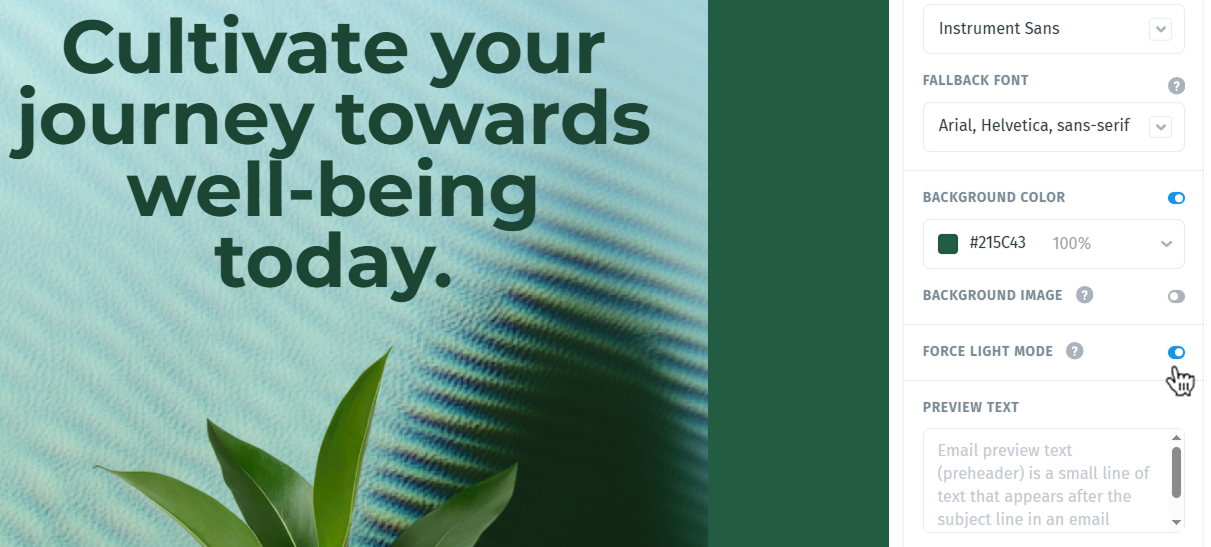
In the right-hand settings panel, find the Force Light Mode checkbox and select it to turn the feature on.
-
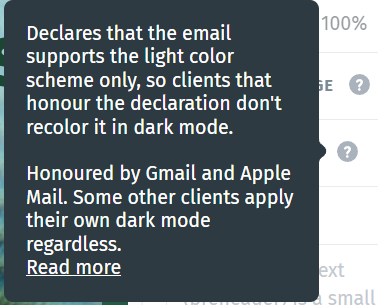
Click the ? icon next to the option to see a short description of what it does and which clients support it.
- Wait a few seconds for an autosave, then export it or send it as usual.
To turn Force Light Mode off, return to the project settings and clear the Force Light Mode checkbox. Your next export will no longer include the light-only declaration, and email clients will apply their normal dark mode behaviour.
Note: The editor's Dark Mode preview does not change when Force Light Mode is on. The preview still shows how your email may look when a client applies dark mode, so you can keep checking your design for clients that ignore the setting.
Email client support
Force Light Mode takes effect on mobile devices, in the Gmail app for iOS and Android and in Apple Mail on iPhone and iPad. On desktop, Gmail webmail and Apple Mail for macOS usually keep light emails light anyway, so you won't see a difference there. Outlook, Yahoo! Mail and several other clients apply their own dark mode regardless of the setting.
Support data is based on Can I email: color-scheme meta tag and Postcards' own testing. Email clients change their rendering over time, so support may shift.
When to use it and best practices
Turn on Force Light Mode when your design depends on specific light colors and would break if a client inverted it. Typical cases include:
- Emails with dark logos or icons on transparent backgrounds, which can vanish on a dark background.
- Brand-critical campaigns where exact colors must stay as designed.
- Designs with images that have white or light backgrounds baked in, which look out of place when the surrounding email turns dark.
You may prefer to leave it off if your email already looks good in dark mode, or if you want to respect readers who choose dark mode for comfort.
Because not every client honours the setting, design with dark mode in mind even when Force Light Mode is on:
- Check your email in the editor's Dark Mode preview before sending.
- Add a subtle light outline or padding around dark logos so they stay visible on dark backgrounds.
- Avoid pure black text on pure white only; strong contrast in both schemes is safer.
- Send a test email to Gmail, Apple Mail, and Outlook on the devices your audience uses most.
Going further: Want to go beyond Force Light Mode? Learn how to design emails that look great in both light and dark mode in Dark Mode Email Design.
Frequently asked questions
Does Force Light Mode guarantee a light email everywhere? No. It is a declaration that supported clients respect. Clients like Outlook and Yahoo! Mail ignore it and apply their own dark mode.
Can I turn it on for only one section of my email? No. Force Light Mode is a project-level setting and applies to the whole email.
Why does the Dark Mode preview still look dark? The preview shows how your email may look in clients that apply dark mode anyway. It helps you prepare your design for clients that don't honour the setting.
Is there a Force Dark Mode option? Not at the moment. The setting only locks emails to the light color scheme, which is also the only value Gmail supports.
Summary
Force Light Mode is a simple, project-wide way to keep your email's light design intact in dark mode. It works in the Gmail and Apple Mail apps on mobile devices, so enable it for designs that rely on light colors, and keep testing in the Dark Mode preview for clients that apply their own dark mode.