
How Marquee Works in Postcards
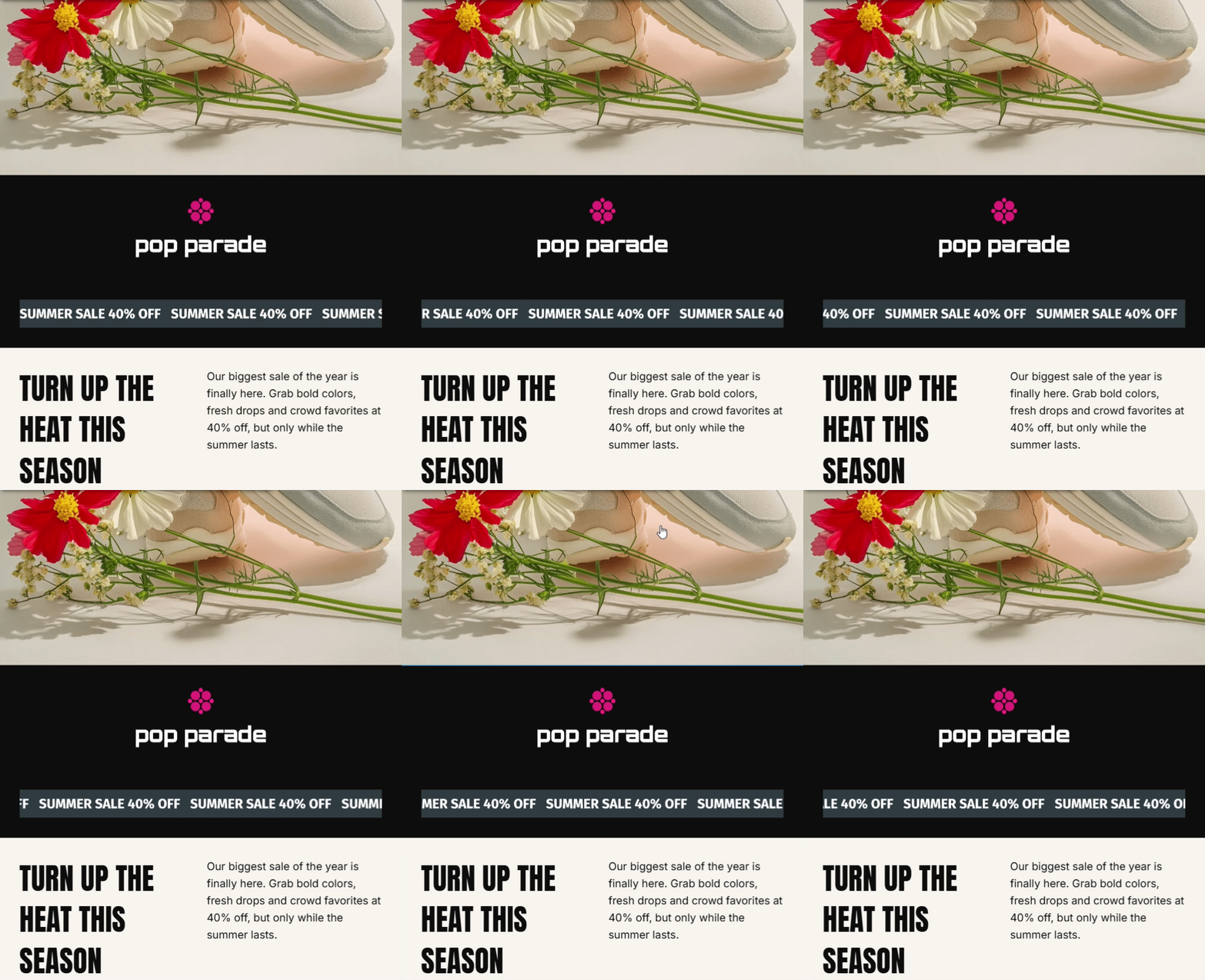
A marquee is a strip of content that scrolls continuously across your email, like a news ticker. It's an eye-catching way to highlight a short message, such as free shipping, a sale, a new collection, or your social channels, without taking up much space.
Postcards includes a built-in Marquee element. You fill the strip with short phrases, images, and icons, style it to match your design, and Postcards turns it into an animated image that plays in your email.
Availability
The Marquee is available on the Plus and Pro plans, just like the Countdown Timer. See the Postcards pricing page for more details on what each plan includes.
You can check the plan your workspace is on under Workspace Settings → Workspace, on the Plan card.
Adding a Marquee
There are two ways to add a marquee, depending on whether you want a ready-made design or a single element inside a layout you've already built.
From the modules panel (pre-built module)
This is the fastest way to get started. Each module comes with a styled strip you can edit.
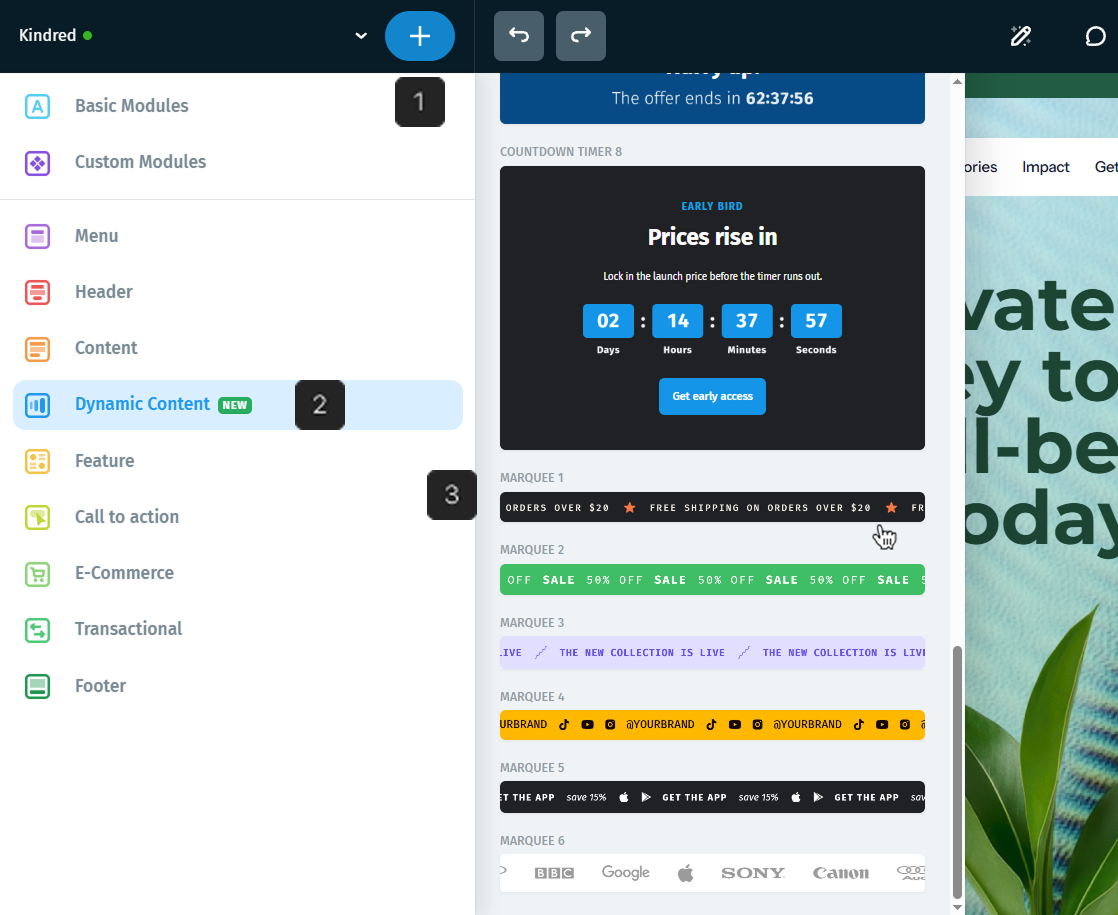
- Click the blue + button in the top bar to open the module picker.
- Go to Dynamic Content.
- Scroll to the marquee modules (Marquee 1 to Marquee 6) and click one to add it to your email.
From the bubble menu (single element)
If you already have a module in place and just want a marquee inside it, add the element directly:
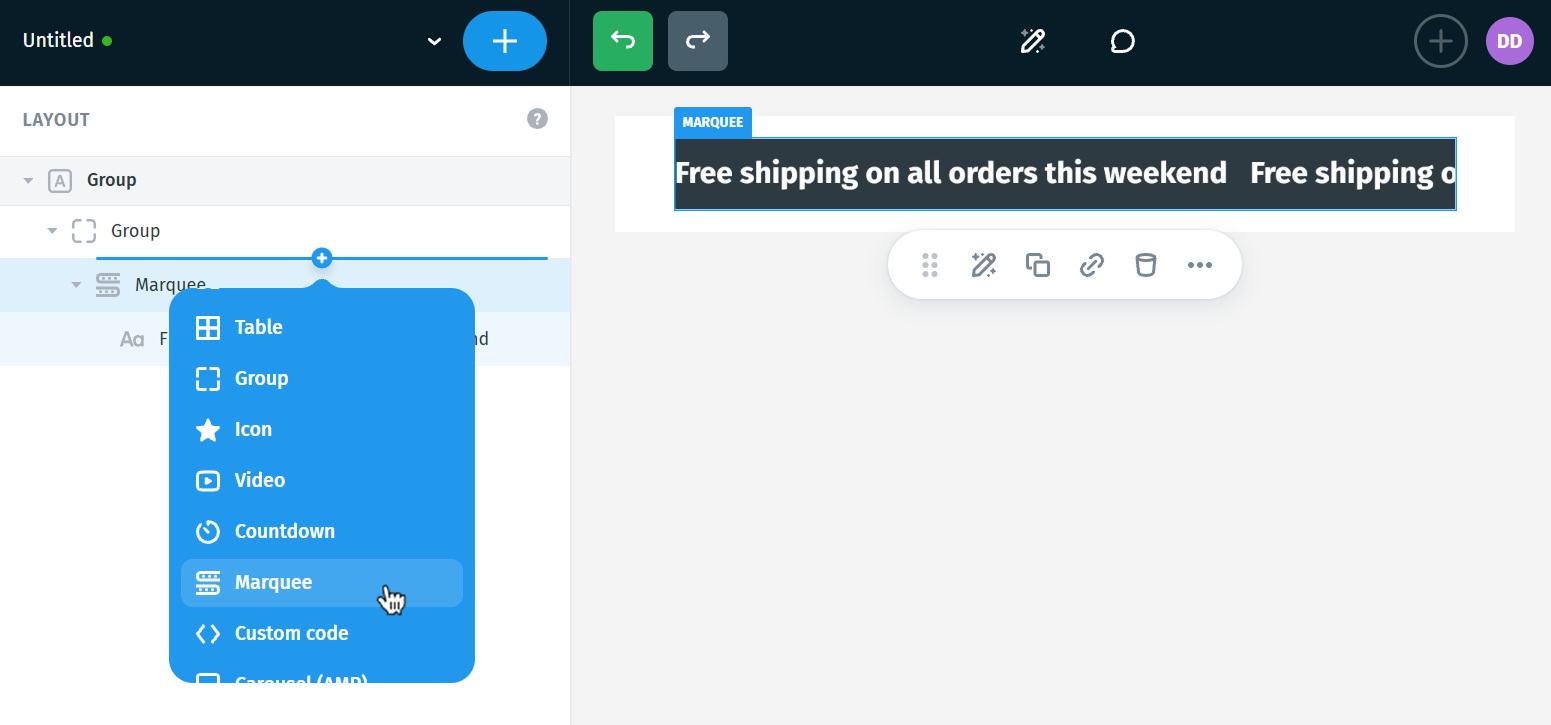
- In the Layout panel on the left, hover above or below an existing element. A small + button appears.
- Click it to open the list of available elements.
- Select Marquee to insert the strip in that exact position.
What's inside a marquee
A marquee is made up of parts that scroll one after another, in a loop. In the Layout panel, they appear nested under the Marquee element.
A marquee can contain:
- Phrases: short lines of text, such as "FREE SHIPPING ON ORDERS OVER $20". Each phrase can have its own font, size, color, and decoration. A phrase can be up to 100 characters long.
- Images: small images, such as a star or a logo, placed between phrases.
- Icons: icons from the built-in library, for example, social media icons. A new icon takes the color of the marquee's text.
- Groups: a set of parts shown together inside a shared shape, like a pill.
To add a new part, hover inside the Marquee in the Layout panel, click the + button, and choose the part you want to add.
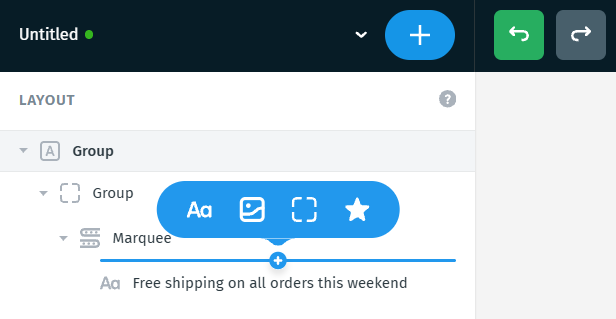
A marquee can hold up to 10 parts, and each group can hold up to 10 parts of its own.
To edit a phrase, select it and change the text in the right panel, or double-click it on the canvas to edit it directly.
Note: While you're editing the marquee, the strip stays still on the canvas, so it's easier to work with. It also stays still until your changes are saved. You can tell by the dot next to the project name in the top-left corner: while it's yellow, your changes are still being saved. Once it turns green, the strip starts scrolling again.
Note: If you drag a Text element into a marquee, it becomes a phrase. Phrases are short, single-style lines, so formatting such as links or mixed styles isn't kept, and the text is limited to 100 characters.
Customizing the marquee
Select the Marquee element to open its settings in the right panel.
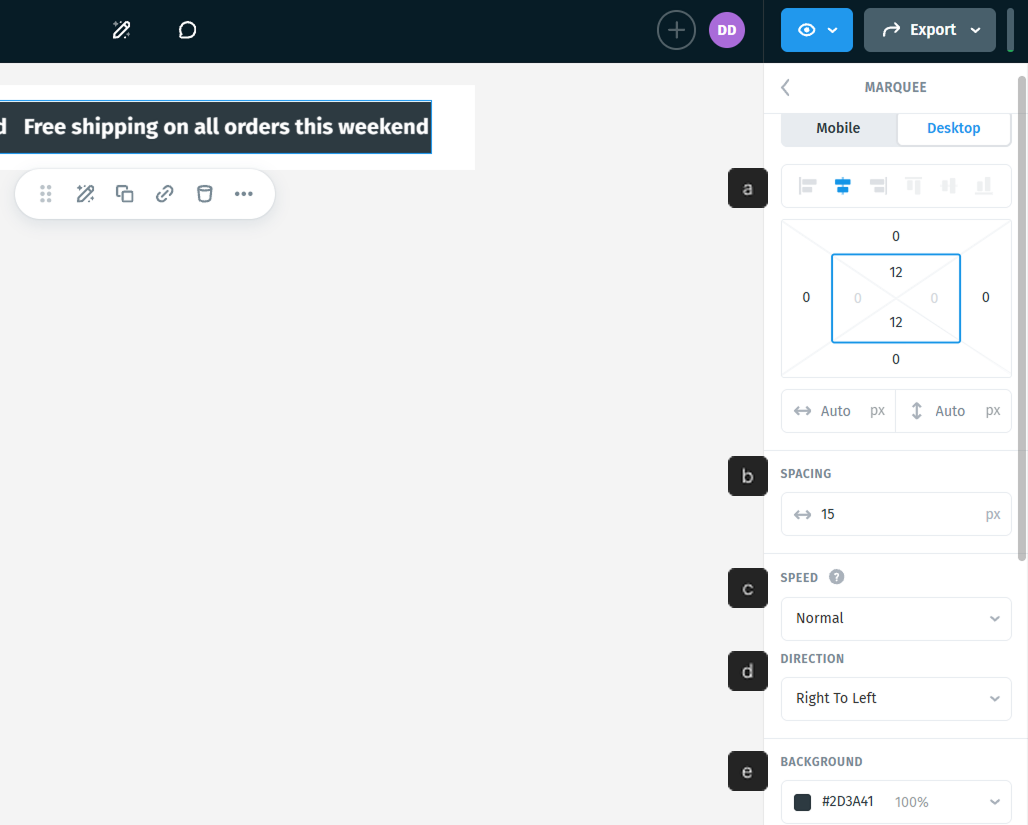
a. Position and size
Use the alignment, margin, and padding controls just like for any other element. By default, the width (↔) and height (↕) are set to Auto, so the strip fills the available width. You can also set a fixed width in px or %.
b. Spacing
Sets the space between the parts of the strip, in pixels.
c. Speed
Controls how fast the strip scrolls: Slow, Normal, or Fast. The default is Normal.
d. Direction
Sets which way the strip moves: Right To Left or Left To Right.
e. Background
Sets the background color of the strip and its opacity.
Output settings
Email clients don't support live animation code, so Postcards renders your marquee as an animated image. These settings control how that image is produced and help you balance quality and file size.
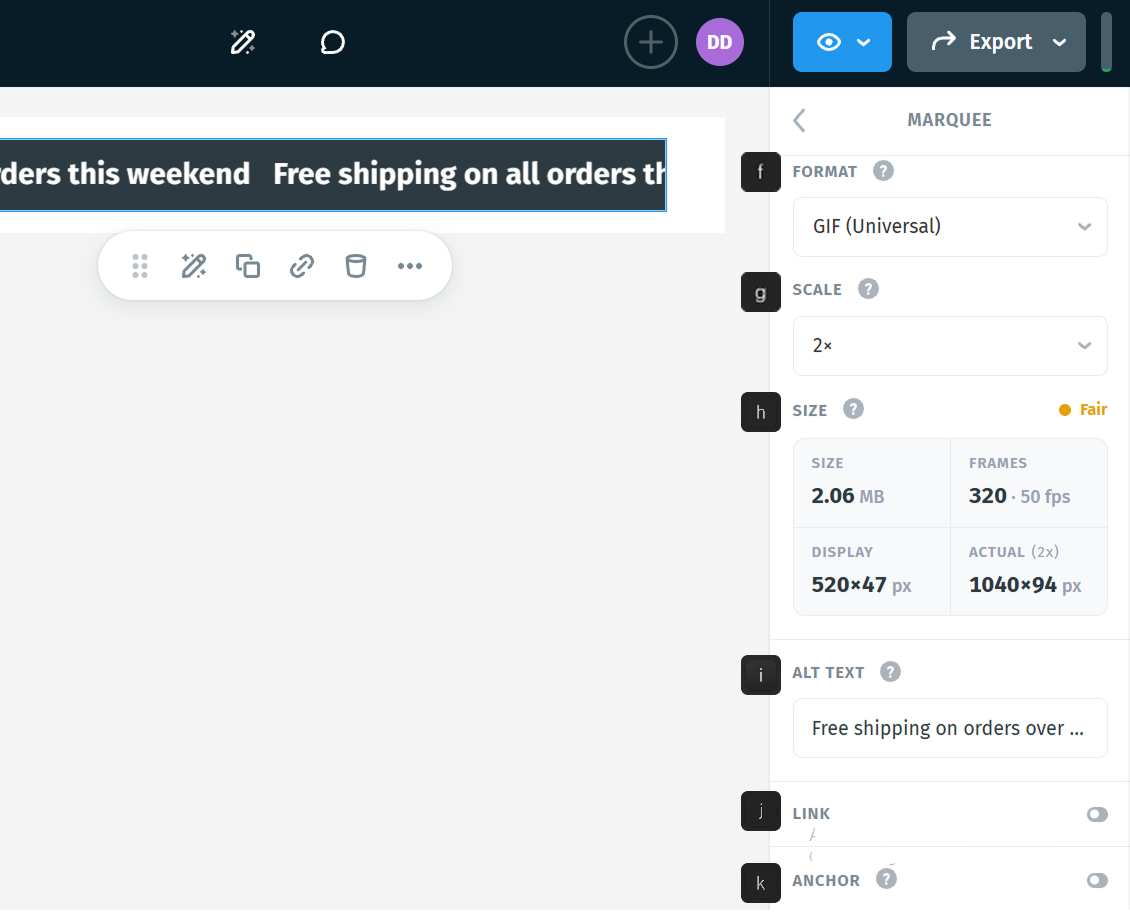
f. Format
- GIF (Universal): the safest choice, supported in almost every email client.
- APNG: sharper image quality, but it animates in fewer email clients, mainly Apple Mail.
Start with GIF unless you know most of your audience reads email in Apple Mail.
g. Scale
Renders the image at a higher pixel density than its display size, so the strip stays sharp on high-resolution screens. The options are 1×, 1.5×, and 2×. Higher values look crisper but make the file heavier.
h. Size
The Size readout shows the cost of your settings before you send, with a status indicator (for example, Good) that warns you when the file is getting heavy. It shows:
- Size: the weight of the generated image
- Frames: the number of frames and frames per second
- Display: the size of the strip in the email
- Actual: the real pixel size after the scale is applied
Tip: A marquee image can easily be a few megabytes, which slows down loading. To keep it light, use fewer parts, keep phrases short, and lower the scale if the status indicator warns you.
i. Alt text
Describes the marquee for readers who use screen readers or have images turned off. Write the main message of the strip, for example, "Free shipping on orders over $20".
j. Link: turn it on to make the whole strip clickable.
k. Anchor: names this spot so other links in the email can jump to it.
Things to keep in mind
- Images off: the marquee is an image, so readers who block images won't see it. Add alt text and put important information, such as a promo code, in regular text as well.
- Countdown timers can't be placed inside a marquee. Add them as a separate element instead.
- Exporting: when you export with images hosted online, the marquee is hosted on our CDN. When you export a ZIP without hosting images online, the marquee images are included in the archive.
Using Marquee with AI
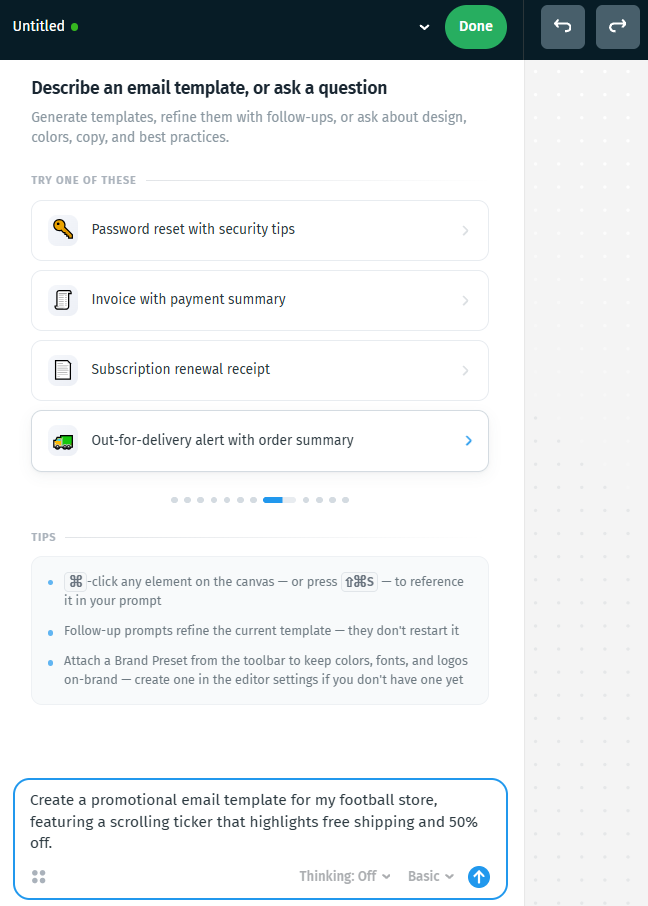
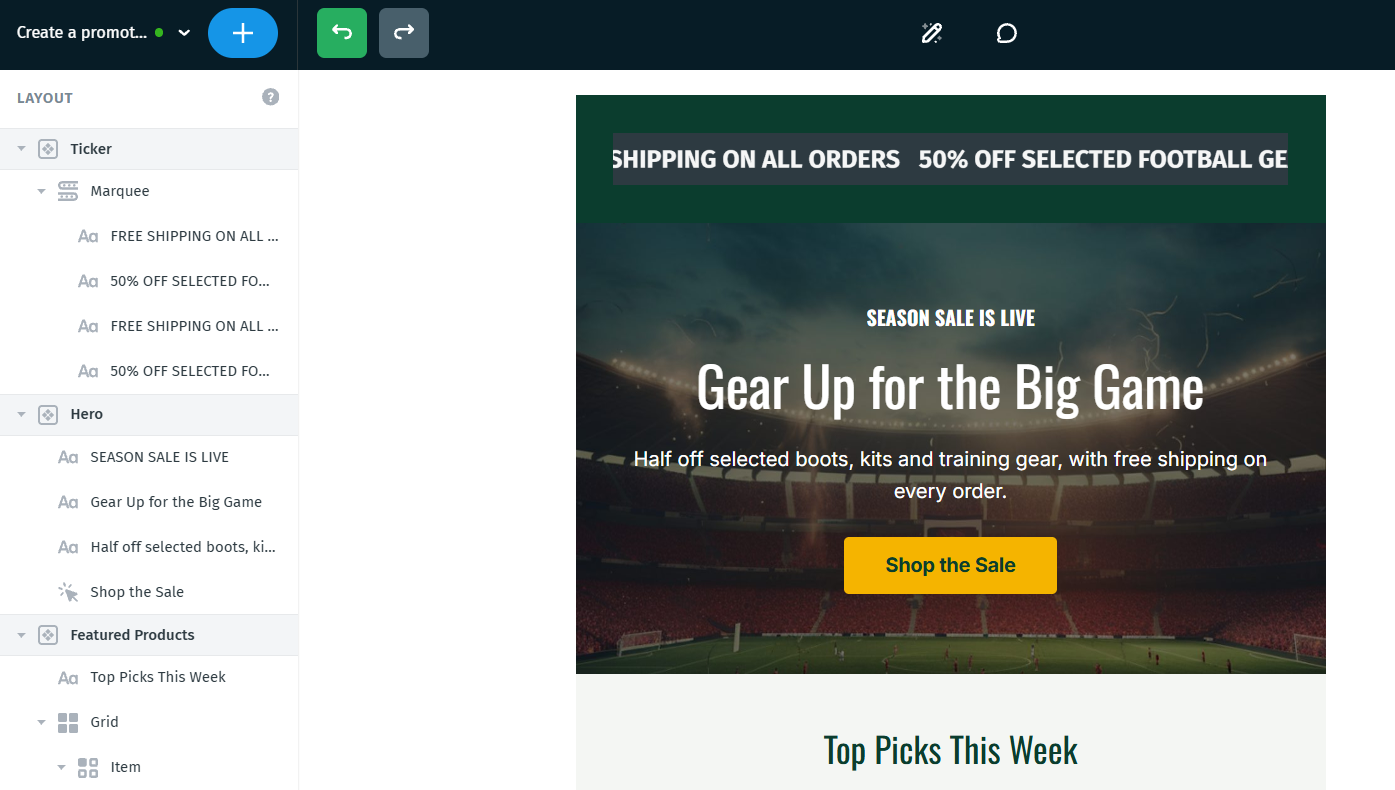
Templates generated with Create With AI can include a marquee. Just mention it in your prompt, for example, "add a scrolling ticker with free shipping and 50% off".
And just like that, your new project includes a marquee!
Frequently asked questions
- Why is my marquee file so large? The strip is an animated image with many frames. Long strips, many parts, and a larger scale all add weight. Check the Size readout and simplify the strip if needed.
- Why doesn't my marquee animate? If you chose APNG, it only animates in some email clients. Switch to GIF (Universal) for the widest support.
- Can I make only part of the strip clickable? The link applies to the whole marquee.