
How to Change the Preheader Text in an Email Template
In this tutorial, we’ll be changing the preview/preheader text in a Postcards email template in the app.
What Is a Preheader?
A preheader (also called preview text) is the line of text that appears next to or just below the subject line in the email inbox. Its job is to give readers a quick summary or teaser of what’s inside the email before they open it.
Email clients like Gmail, Outlook, and Apple Mail pull this text directly from your email’s HTML, so setting a clear preheader helps improve open rates and gives your message a more polished look.
Steps
1. Create a Postcards template
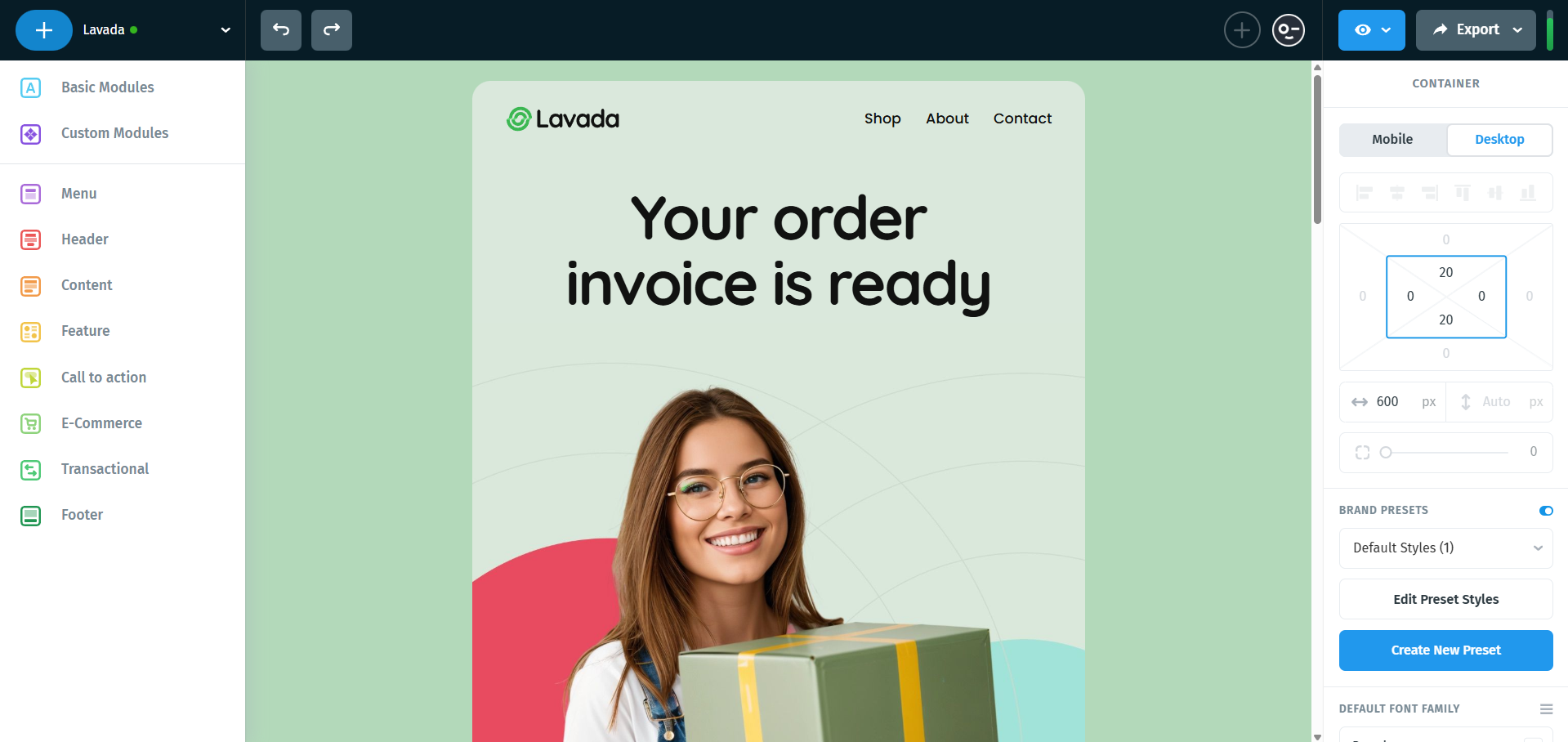
In the Postcards app, create a template. Mine looks like this:
2. Edit the preheader text in the Postcards app
On the right-side panel, make sure you’re on the Container Settings (nothing on the canvas should be selected).
Once you’re in the container settings, scroll down and you’ll see the “Preview Text” field. This is where you can set or update the preheader directly in Postcards.
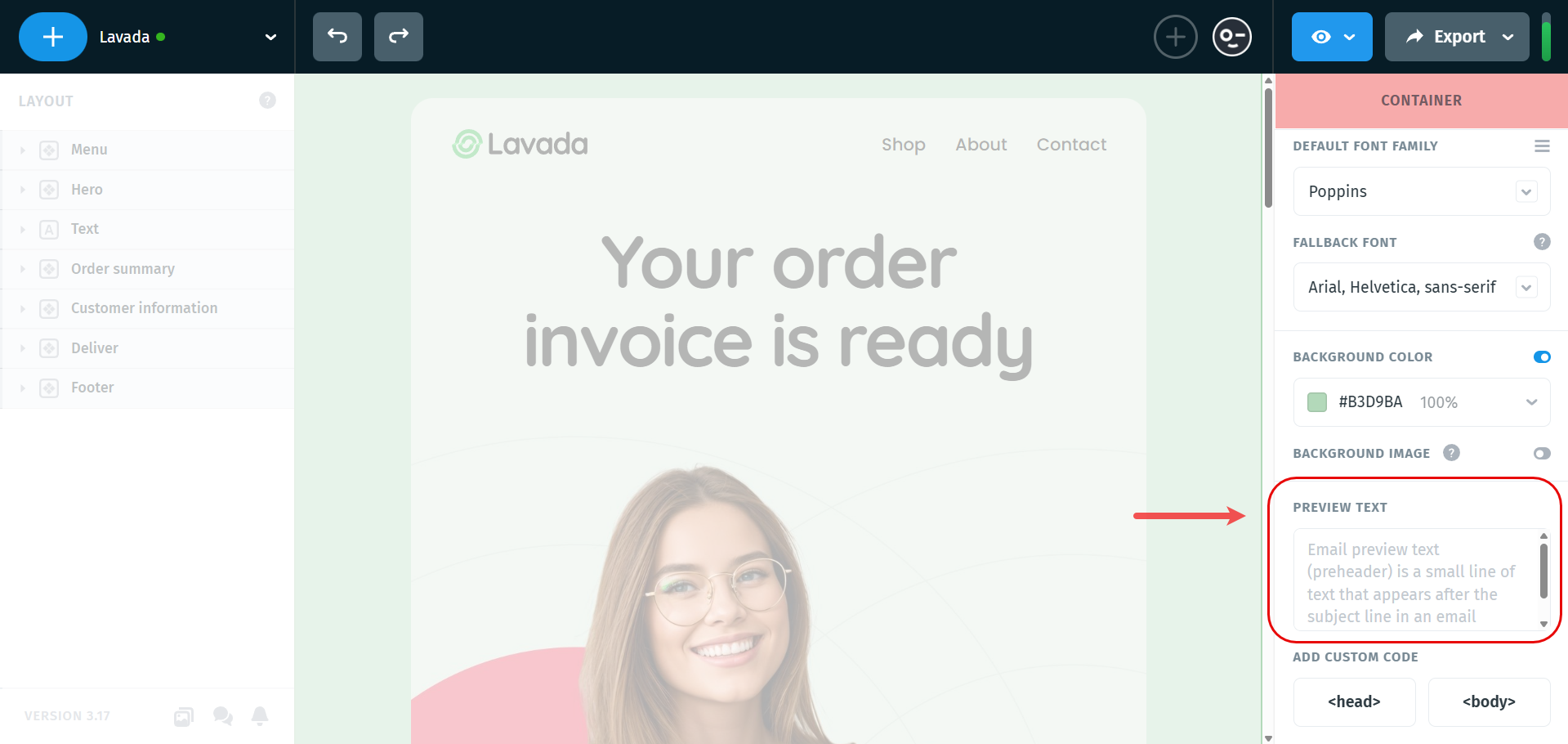
Whatever you put in this field will be in the preview section of the email. I sent myself a preview of this email, and in Gmail, the “Preheader Text” looks like this:

So whatever you put in the textbox will look like that.
To send yourself an email preview in Postcards, click the eye icon in the top-right corner, then select Email Preview and click Send:

If I change the “Preview Text” to:
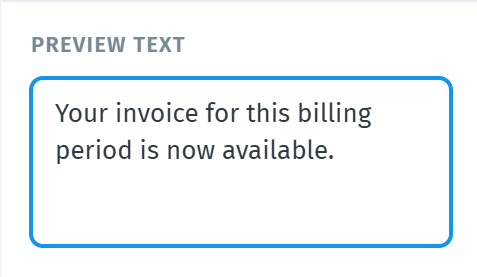
Then when I send myself an email preview, it’ll look like this:

And that’s all there is to changing the “Preheader Text” in the Postcards app!
What we covered
- How to create and export a Postcards template.
- How to change the “Preheader Text” in the Postcards app.