
How to use Version History in Postcards
Every project in Postcards keeps a history of its versions, so you can always go back to an earlier state of your design. Postcards saves versions automatically while you work, and you can also save your own named versions at important moments, for example before a big redesign or after a client approves a draft.
You can preview any version to see exactly what the project looked like at that point, and restore it with a click.
Opening Version History
You can open the history of a project from the editor or from the Projects screen.
From the editor
Click the project name in the top-left corner to open the project menu, then select Version History.

The Version History panel opens on the right side of the editor.

From the Projects screen
Click the ••• (three-dot) menu on a project card, or right-click the project, and select Version History.

Understanding the version list
The Version History panel lists every version of the project, newest first. At the top, you'll find the Current version, the state you're working on right now.

The list contains two kinds of versions:
- Autosave versions are created automatically while you work. They're grouped by day, for example Today · 5 autosave versions. Click the arrow next to a group to expand or collapse it. Each autosave shows the time it was saved and who was working on the project.
- Named versions are versions you or your teammates saved manually. They show the title, the description (if one was added), the date and time, and who saved them, so they're easy to spot in the list.
To show only the versions you need, click the filter icon at the top of the panel and choose:
- All versions: shows both autosave and named versions. This is the default.
- Named versions only: hides autosave versions, so you can quickly find the versions you or your teammates saved manually.

Saving a version manually
Autosave versions are a safety net, but they can be hard to tell apart. Save a named version whenever you reach a point you may want to return to.
-
In the Version History panel, click the + icon at the top.
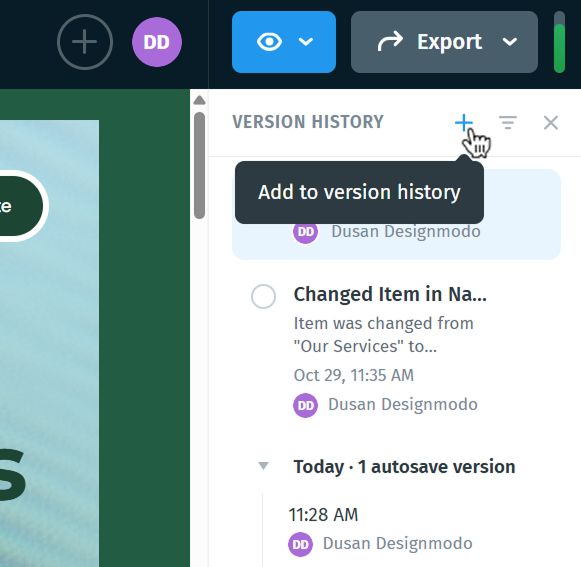
- Enter a Title for the version (up to 100 characters).
- Optionally, add a Description, for example what changed or who approved it.
- Click Save.
The new version appears in the list with its title and description.

Tip: Use clear titles that describe the state of the project, such as "Approved by client" or "Before holiday redesign". They make the right version easy to find later.
Previewing and restoring a version
Click any version in the list to preview it. The editor switches to a preview mode that shows exactly what the project looked like when that version was saved. You can scroll through the design and inspect it, without changing your current work.

Once you've found the version you want, click the Restore this Version button in the upper-right corner to restore it as the current version of the project.
Before restoring, Postcards saves your current work as a Before restore version, so nothing is lost. The restored version then appears in the list marked as (Restored).

More version options
Each version in the list has a ••• (three-dot) menu with more options:
- Restore this version: restores the version right away, without opening the preview first.
- Create project from version: creates a new, separate project from this version. Your current project stays unchanged, which is useful when you want to keep both versions or start a new email from an earlier design.
- Copy link: copies a direct link to this version, so you can share it with a teammate.
- Edit version info: changes the version’s title and description.
- Delete version info: removes the version’s title and description, but the version itself remains in the history.

Frequently asked questions
Do I need to save versions manually? No. Postcards saves autosave versions while you work. Saving named versions is optional, but it makes important moments much easier to find.
Can I undo a restore? Yes. Before every restore, Postcards saves a Before restore version of your current work. Restore that version to go back.
Does previewing a version change my project? No. Previewing only shows you what the version looked like. Your project changes only when you restore a version.
Can my teammates see the version history? Yes. Each version shows who saved it, so everyone working on the project can see how it changed over time.