
Reporting a Bug from the Postcards Editor
Ran into a problem while working on an email, or have an idea that would make Postcards better? You can send feedback to our team directly from the editor, without leaving your project. Describe what happened, record your screen to show the problem, and attach any files that help explain it.
The more context you share, the faster we can reproduce the issue and fix it.
Opening the feedback window
In the editor, look at the bottom of the left panel. Click the thumbs-down icon to open the feedback window.

Step 1: Rate your experience
First, you'll be asked how you would rate your experience with Postcards. Click one of the five stars to choose your rating.
If you opened the window by mistake, click Nevermind or the × icon, and you'll go straight back to the editor.

Step 2: Describe the problem
After you choose a rating, the Share your feedback window opens. In the text field, tell us what happened: what you were doing, what you expected, and what happened instead. You can also use this field to share an idea or a suggestion.

Tip: A good report answers three questions: what did you do, what did you expect to happen, and what happened instead? For example: "I changed the button color in Mobile view, expected only the mobile button to change, but the desktop button changed too."
Step 3: Record your screen (optional)
Sometimes it's easier to show a problem than to describe it. Click Record screen to record what's happening in the editor.
- Click Record screen. Your browser will ask what you want to share.
-
Choose the tab with the Postcards editor and confirm.
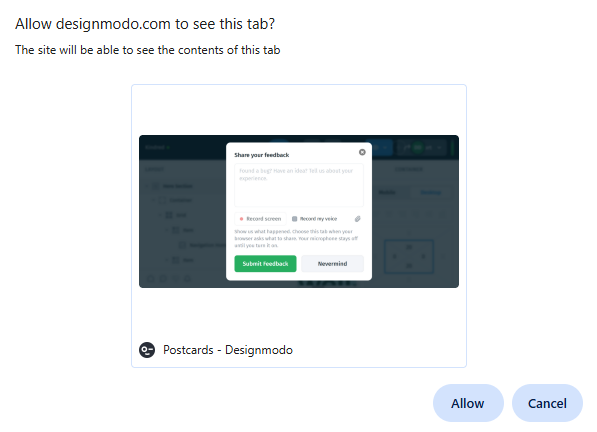
- Repeat the steps that cause the problem. A recording bar at the bottom of the screen shows how long you've been recording. A recording can be up to 5 minutes long.
- When you're done, click Stop in the recording bar. The recording is added to your feedback. To throw the recording away and start over, click Discard instead.

After you stop recording, the recording appears in the feedback window with its length and file size. Before sending, you can:
- Click the eye icon to watch the recording. It opens in a new tab.
- Click the trash icon to delete the recording, for example, if you want to record it again.

If you'd like to explain the problem out loud while recording, select Record my voice before you start. Your microphone stays off unless you turn this option on.
Note: Screen recording uses your browser's built-in screen sharing, so the exact prompt you see depends on your browser. If recording doesn't work in your browser, you can record your screen with another tool and attach the video instead (see Step 4).
Step 4: Attach files (optional)
To add your own files, click the paperclip icon or Attach files if you've already recorded your screen, and choose an image or a video from your device. This is useful if you've already taken a screenshot or recorded the problem yourself.
Step 5: Send your feedback
When everything is ready, click Submit Feedback. If you change your mind, click Nevermind to close the window without sending anything.
Once your feedback is sent, you'll see a confirmation message. Click Back to Postcards or the × icon to return to the editor and continue working.

Frequently asked questions
Do I have to record my screen? No. Recording and attachments are optional. A clear written description is often enough, but a recording helps us see exactly what happened.
Is my voice recorded automatically? No. Your microphone stays off unless you select Record my voice before recording.
How long can a recording be? Up to 5 minutes. The recording bar shows the elapsed time, so you can keep an eye on it.
What should I record? Only the Postcards tab. When your browser asks what to share, choose the tab with the editor, so the recording shows the problem and nothing else on your screen.
Can I send an idea instead of a bug? Yes. The same window works for bugs, ideas, and general feedback about your experience.
What happens after I send feedback? Your feedback goes directly to the Postcards team, and we'll look into it.