
Export the Postcards Email Template to Mailercloud
Explore the seamless integration between the Postcards email builder and Mailercloud by exporting your custom email templates directly to your Mailercloud account.
In this guide, we'll walk you through the simple process of exporting your email templates to Mailercloud, ensuring your email campaigns maintain a consistent and professional look with minimal effort.
Download free email templates from our email template gallery.
Steps to Follow
Step 1: Open Your Desired Template
Begin by opening the Postcards app and selecting the template you would like to work with.
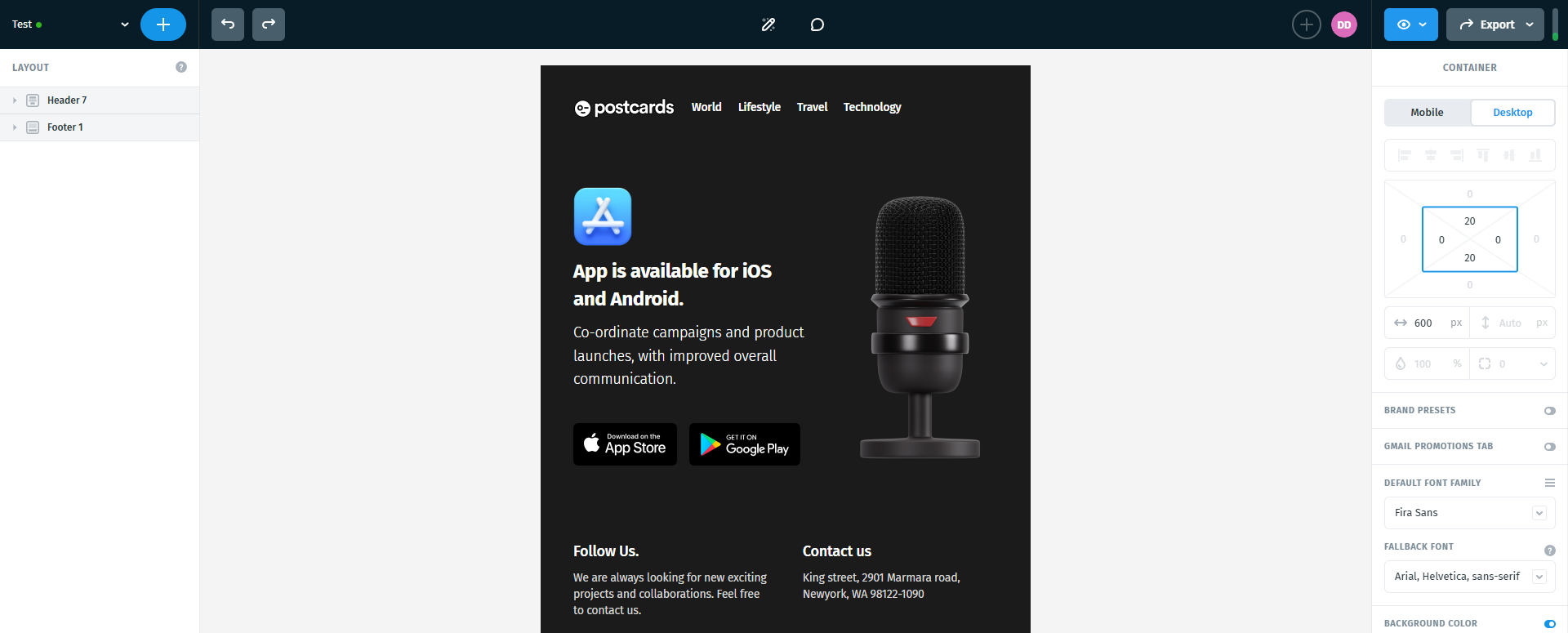
Step 2: Customize Your Template
Once your template is open, take some time to customize it according to your preferences. Adjust the content, images, and layout until everything matches your needs.
Step 3: Find the Export Option and Integrations
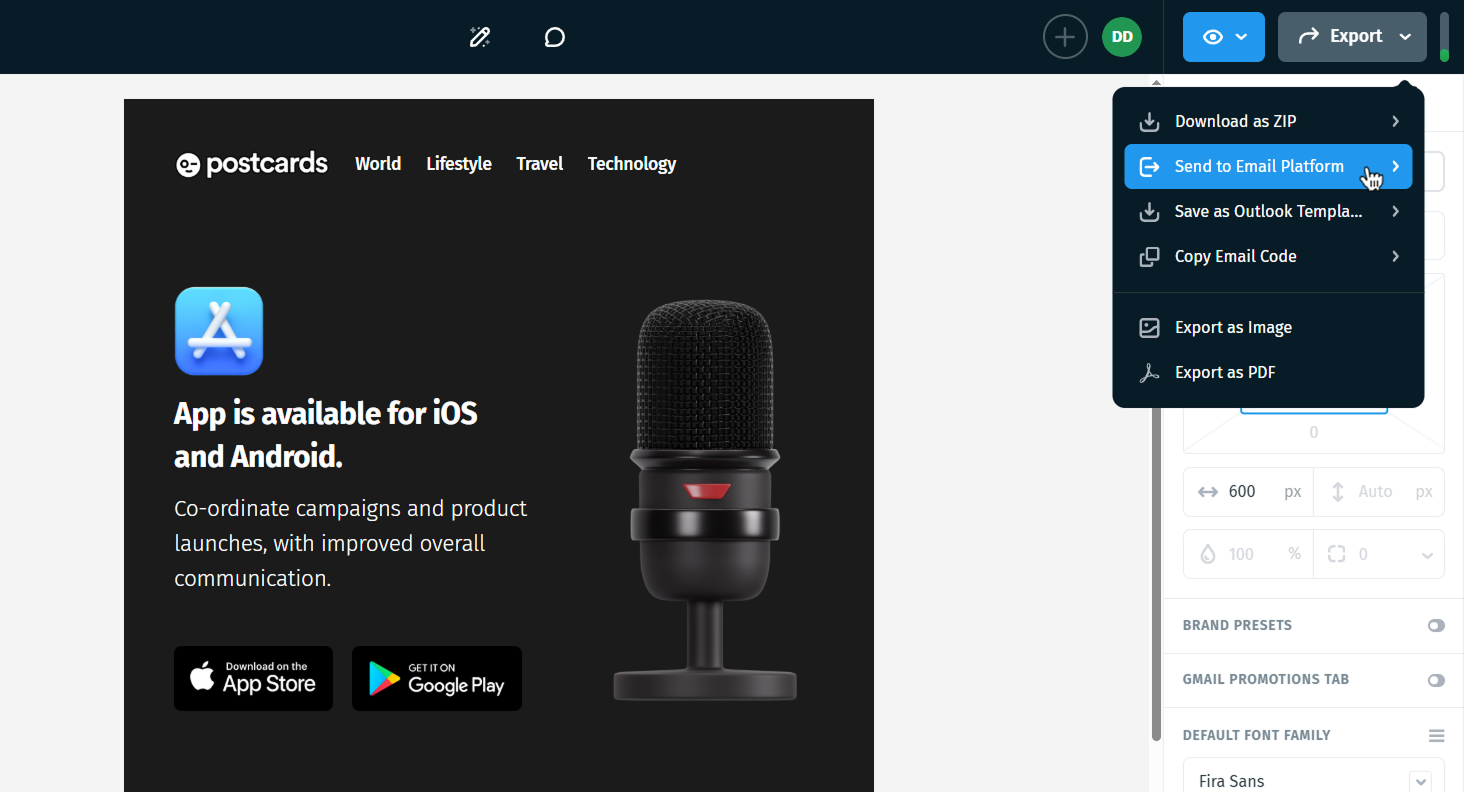
Once you're satisfied with your template's appearance, move your cursor to the top-right corner of the screen and click the "Export" option.
After clicking "Export," a drop-down menu will appear. From there, locate and select the "Send to Email Platform" option.
Step 4: Connect with Mailercloud
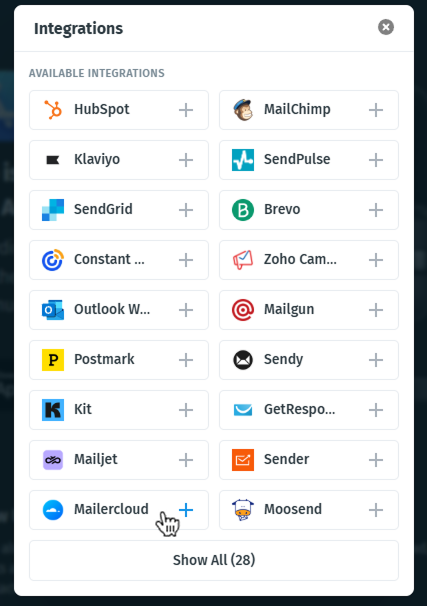
In the integrations section, you'll see several one-click integration options. Locate "Mailercloud" and select it.
Step 5: Enter Your Mailercloud Details
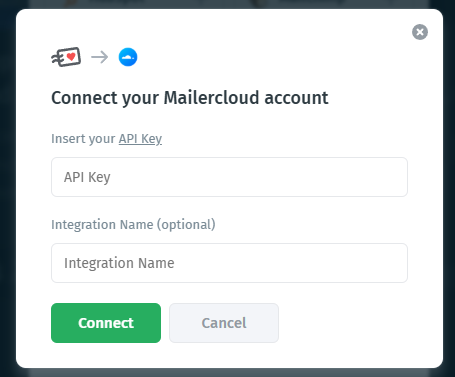
A pop-up window will appear asking you to enter your Mailercloud API Key.
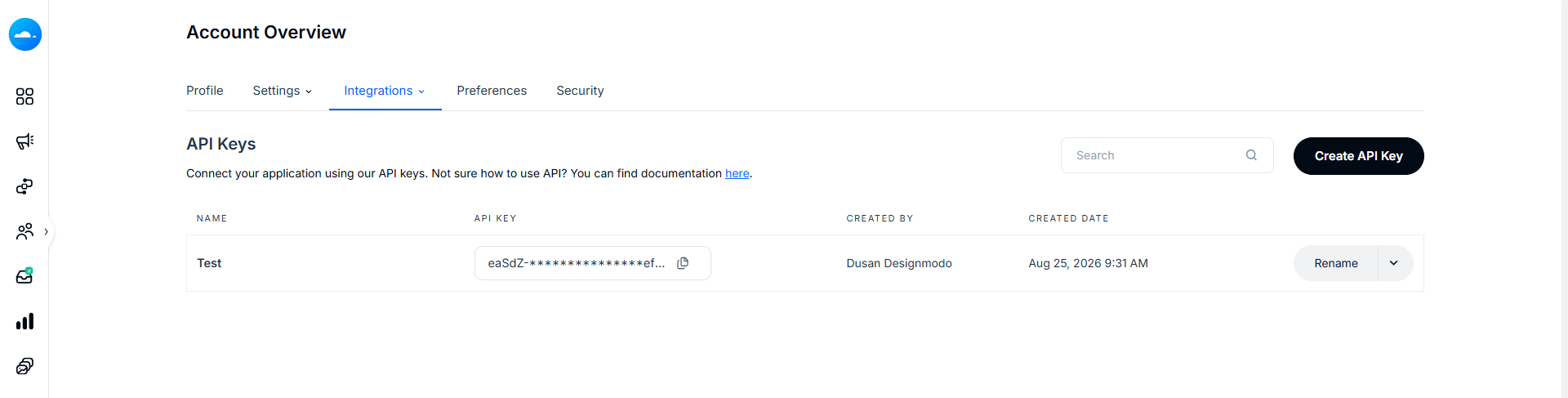
To find your API Key, click the API Key hyperlink in the pop-up window. You’ll be redirected to your API Key settings in your Mailercloud account. It should look like:
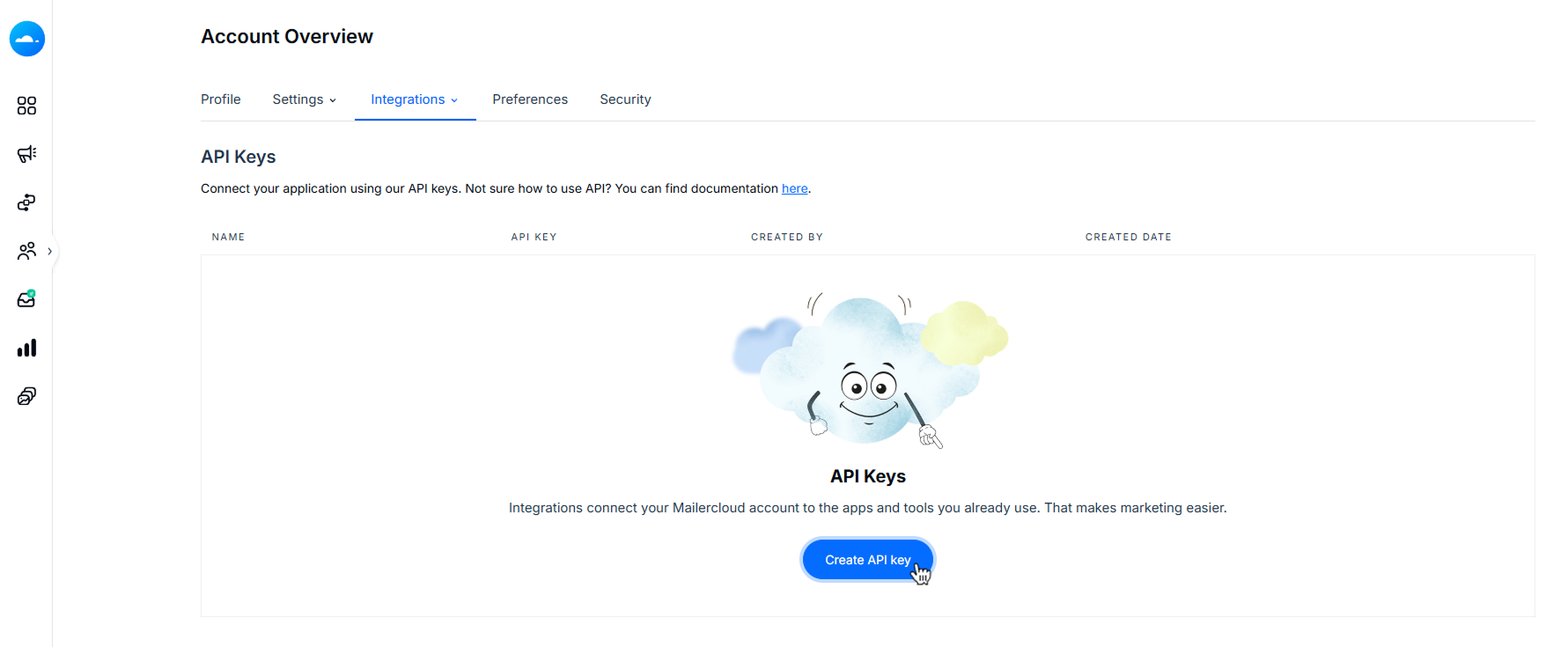
If you don't have an API Key, select Create API Key on the new page.
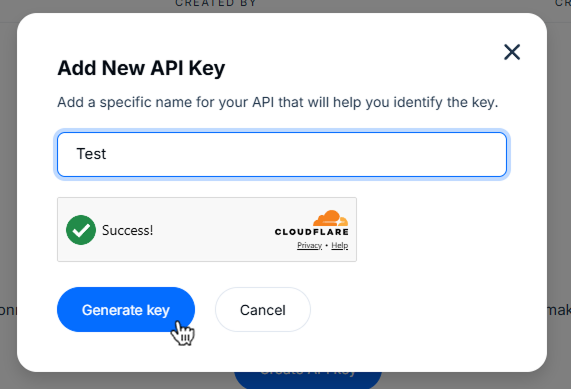
Enter a Name for your API Key and select Generate Key.
Step 6: Authorize the Connection
Enter your Mailercloud account API Key in Postcards. After entering your details, the form should look like this:
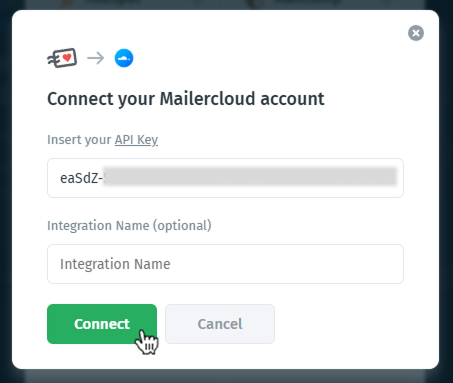
Click Connect to authorize the integration.
Step 7: Verify Your Template in Mailercloud
Once the connection is complete, a hyperlink to your Mailercloud templates will appear. Click the link to open your Mailercloud templates.
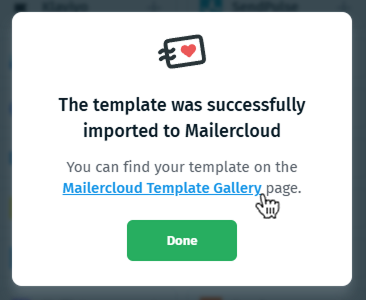
You should see the newly imported template there.
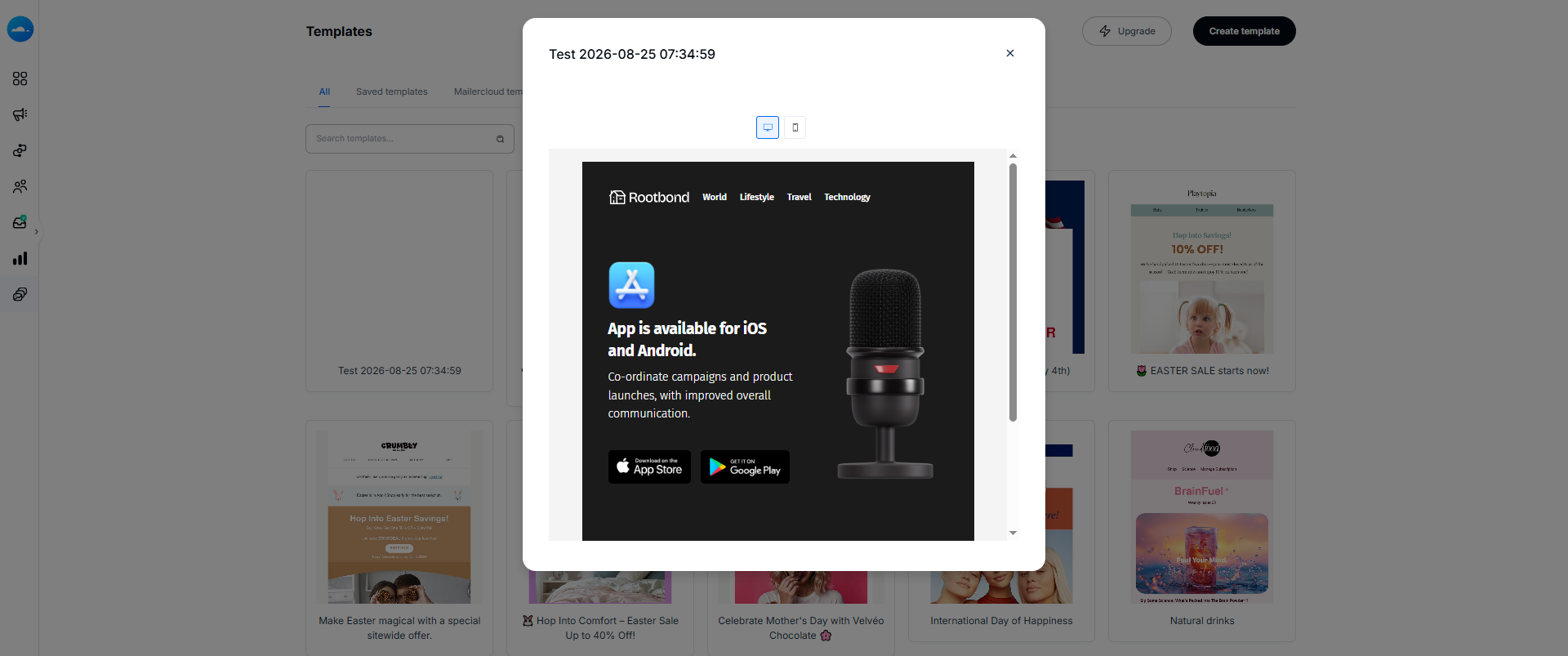
And there you have it — a quick and effortless way to transfer your email template from Postcards to Mailercloud. Keep exploring, and see you next time!
What we covered
- How to export a Postcards email template to Mailercloud