
MCP Getting Started
Postcards exposes a public Model Context Protocol (MCP) server so you can plug any MCP-compatible AI agent — Claude Desktop, Cursor, Continue, Zed, custom clients — straight into your email projects. Once connected, your agent can list projects, inspect folders, check your plan and quota, export ready-to-use HTML, and now — with MCP v2 — create new templates, edit existing ones, and remix projects into variants.
In this article, we'll show you what MCP is, why you might want it, and how to get an agent talking to Postcards in under five minutes.
Important: The MCP server is a thin, read-only-plus-export proxy on top of the Postcards API. Anything an agent can do through MCP, you could also do directly with HTTP requests — MCP just makes it dramatically more natural for AI tools.
Existing MCP users: update your config after this release
MCP v2 ships with three new methods. If you were using MCP before this release, your connection will continue to work for read-only operations — but to access the new creation, editing, and remix tools, you'll need to make sure your config is up to date.
The config file typically updates automatically. If you're not seeing the new tools in your AI client, remove the existing Postcards MCP entry from your config file and add it again following the steps in Section 2 below. This forces your client to pick up the latest server capabilities.
What is MCP?
The Model Context Protocol is an open standard (released by Anthropic in late 2024) for connecting AI assistants to external tools and data. Instead of you copy-pasting API responses into a chat, the AI agent calls real tools on your behalf and gets structured results back.
In practice, that means you can say:
"Show me my latest 10 Postcards projects."
"Create a new welcome email template."
"Export project 305876 as HTML, replace
{{username}}with Alex, and give me the result.""How many exports do I have left this month?"
"Edit project 305876 — make the hero section darker and update the CTA text."
"Remix project 305876 into 3 variants with different color schemes."
…and the agent does it. No screen-sharing, no copying URLs, no manually building curl commands.
What's in the box
With MCP v2, the Postcards MCP server now exposes nine tools — the original six read-only/export tools, plus three new generation tools:
Read-only and export tools
| Tool | What it does |
|---|---|
postcards_list_projects |
List email projects (paginated, optionally filtered by folder). |
postcards_get_project |
Get metadata for a single project. |
postcards_list_folders |
List all folders in the team. |
postcards_get_folder |
Get a folder together with its projects (paginated). |
postcards_get_usage |
Active plan, period, and current export quota. |
postcards_export_project |
Render a project to HTML (CDN assets) or ZIP (base64). Supports{{variables}}. |
New in v2 — Generation tools
| Tool | What it does |
|---|---|
postcards_ai_generate_template |
Generate a brand-new email template from a description. |
postcards_ai_edit_project |
Modify an existing project based on a natural-language instruction. |
postcards_ai_remix_project |
Take an existing project and generate one or more variants from it. |
1. Get a Postcards API key
The MCP server uses your existing Postcards API key — there's no separate sign-up.
-
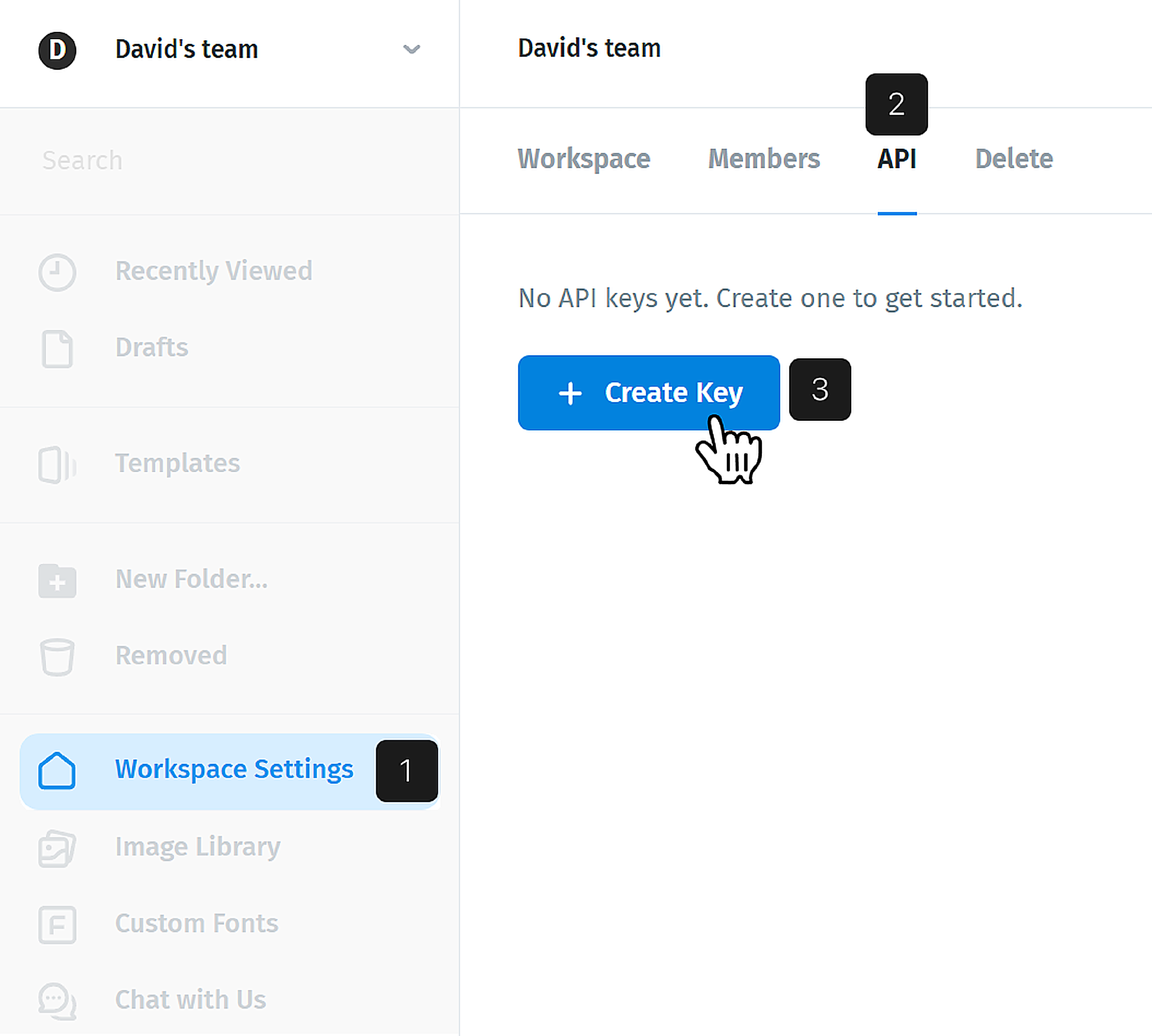
In Postcards, open Workspace Settings → API Keys.
-
Click Create new key, name it (e.g., "Claude Desktop"), and copy the raw key. It looks like
sk-pcds-api03-...and is shown only once.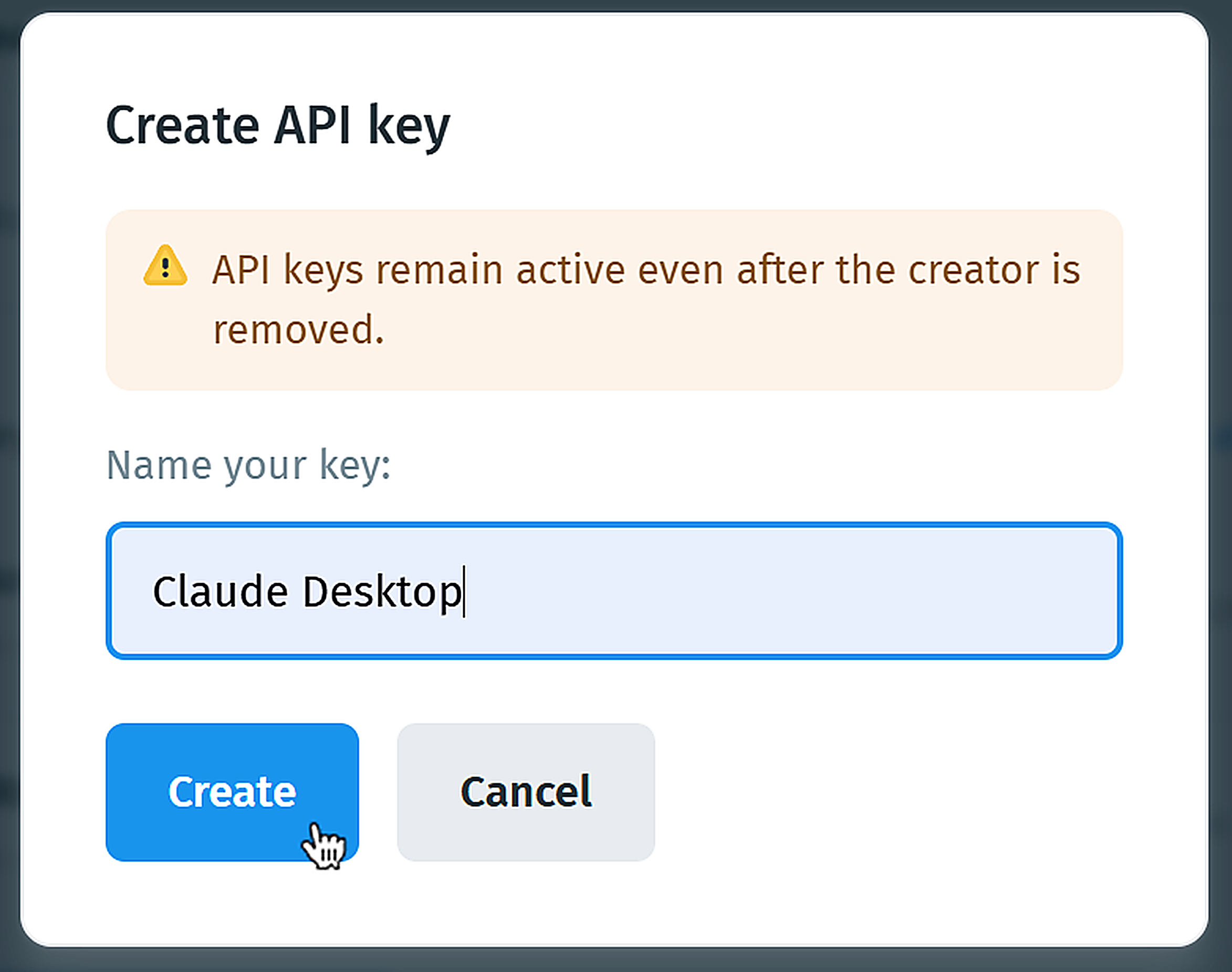
If you already have a key for the REST API, you can reuse it — same key, both endpoints. Full instructions: Get Started with the Postcards API.
2. Add Postcards to your AI client
The MCP endpoint is:
https://mcp-postcards.designmodo.com/mcp
Different clients have slightly different config formats. Below are the two common shapes — pick whichever your client accepts.
Option A — Stdio bridge (works with every client)
This is the safe default. It uses mcp-remote , a tiny Node helper that proxies your client's stdio to our HTTP endpoint. You don't install anything — npx downloads it on first use.
Claude Desktop
Open Settings → Developer → Edit Config, or navigate to the config file directly: ~/Library/Application Support/Claude/claude_desktop_config.json (macOS), %APPDATA%\Claude\claude_desktop_config.json (Windows), or the equivalent on Linux.

Open the file in any text editor (in this case, we’ll use Visual Studio Code) and add the following:
{
  "mcpServers": {
    "postcards": {
      "command": "npx",
      "args": [
        "-y",
        "mcp-remote",
        "https://mcp-postcards.designmodo.com/mcp",
        "--transport", "http-only",
        "--header", "Authorization:${AUTH}"
      ],
      "env": { "AUTH": "Bearer sk-pcds-api03-XXXXXXXXXXXXXXXXXXXXXXXX" }
    }
  }
}

Restart Claude Desktop. Thepostcards server should appear in the Developer panel.

Important: The
${AUTH}indirection isn't cosmetic —mcp-remotesplits the--headervalue on the first colon, so a value containing a space (likeBearer sk-...) needs to come from an env var. Don't paste your key directly intoargs.
Option B — Native HTTP (newer clients)
Some clients (Cursor ≥ 0.42, recent Claude Desktop, Zed, ChatGPT custom connectors) speak Streamable HTTP directly. In those, the config is simpler:
{
  "mcpServers": {
    "postcards": {
      "type": "http",
      "url": "https://mcp-postcards.designmodo.com/mcp",
      "headers": {
        "Authorization": "Bearer sk-pcds-api03-XXXXXXXXXXXXXXXXXXXXXXXX"
      }
    }
  }
}
If your client rejects this with "Server is missing the required 'command' field", it doesn't support native HTTP yet — fall back to Option A.
Codex Desktop
Open ChatGPT Desktop and switch to Codex using the toggle in the top-left corner.

Then go to Settings → Plugins and select the MCP option. In the top-right corner, click Add, then select Add MCP Server from the dropdown menu.
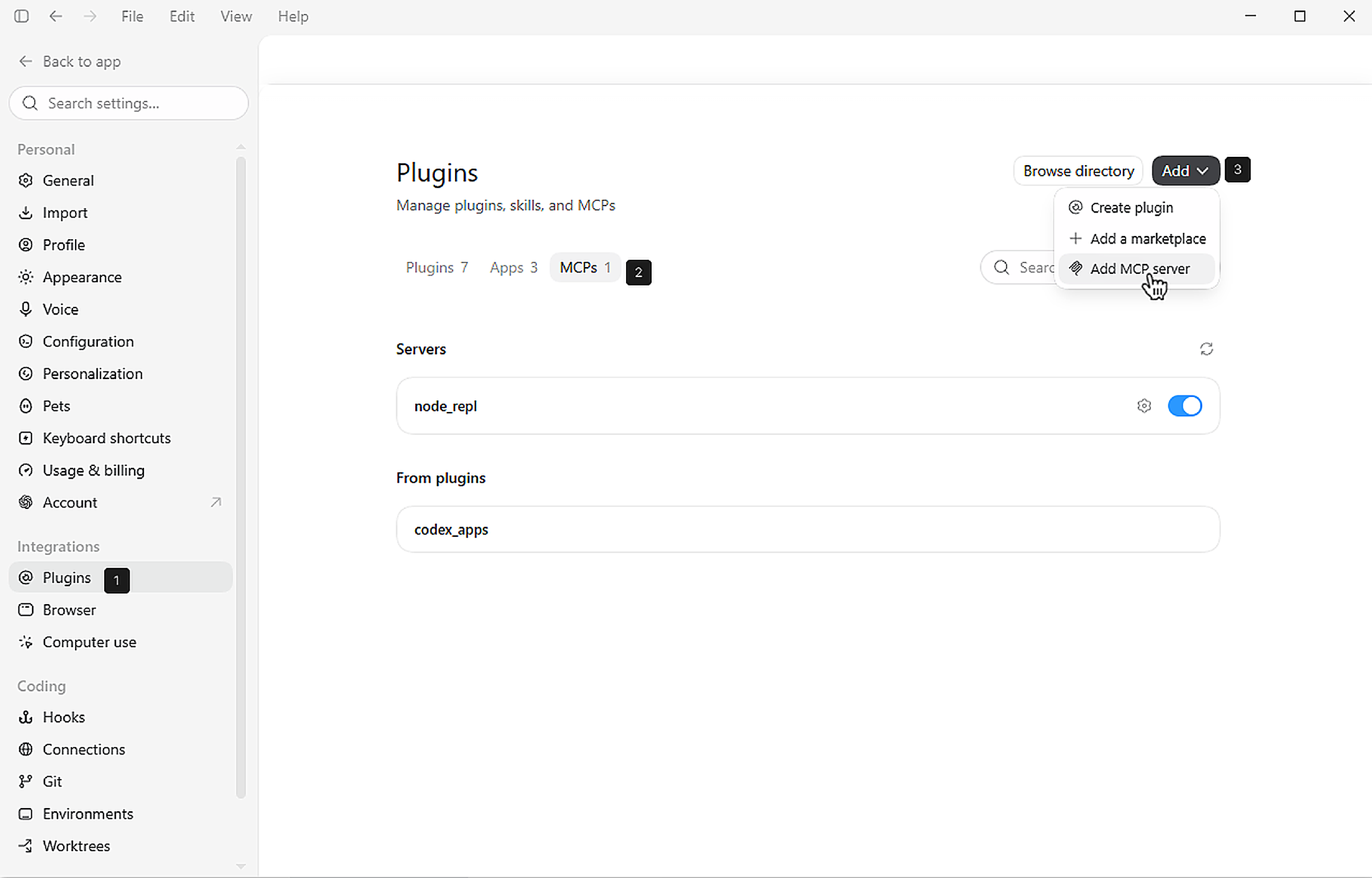
A new window will appear where you can fill in the following details:
- Name — give your MCP server a name (e.g., "Postcards")
- URL —
https://mcp-postcards.designmodo.com/mcp - Headers — Key:
Authorization, Value:Bearer sk-pcds-api03-XXXXXXXXXXXXXXXXXXXXXXXX

Restart your Codex app, and you will see your MCP in the Plugins section with a checkmark next to it.

3. Talk to your agent
Once connected, just ask. Your agent will pick the right tool, run it, and show you the results.
Read and export
List your projects:
"List all my Postcards projects."

Get project:
"Get details for project 305876."
Filter by folder:
"What projects are in the Newsletters folder?"
Export a project as HTML:
"Export project 305876 as HTML with image hosting enabled."
Personalize with variables:
"Export project 305876 and replace
{{username}}with Alex and{{company}}with Acme."
Check your usage:
"How many Postcards exports do I have left this month?"
Create, edit, and remix (new in v2)
Create a new template:
"Create a new Postcards email template for a IT company"

And just like that, you have a new template! Go to your Postcards app, and you’ll find your newly created template in the Drafts section.

Edit an existing project:
"Edit project 305876 — change the hero background to navy blue and update the CTA text to 'Shop Now'."
Remix into variants:
"Remix project 305876 into 3 variants with different color schemes."
The agent decides which tool to call based on the natural-language request — you don't need to know the tool names.
4. AI credits and generation mode
Using the create, edit, or remix tools runs AI generation and spends AI credits from your plan quota, the same way generation inside the Postcards editor does. For a full breakdown of how AI credits work, see Understanding AI Credits.
Note: The create, edit, and remix tools are available on paid plans only. If the tools appear in your AI client on a free account, they will not work — generating new templates and editing existing ones requires AI credits, which are included in paid plans.
The AI automatically determines the appropriate level of effort required to process your request. If you want to use a specific generation mode, you must explicitly state this in your prompt:
"Create a new welcome email template using Ultra mode."
If you don't specify a mode, the AI decides on its own based on the complexity of the request. Keep this in mind when running multiple generation requests in a session, as each one draws from your credit balance.
Note: You can check your remaining AI credits at any time by asking: "How many AI credits do I have left?" or by going to Workspace Settings → Usage in Postcards.
5. Known nuance: parallel generation requests
If you send several create, edit, or remix requests at the same time (in parallel), you may see an error like:
Error: MCP error 32001. Request timed out
This does not mean the projects weren't created. Generation requests that return a timeout error may still complete successfully in the background. Before retrying, check your Postcards projects list to confirm whether the template was created — duplicate generation requests will spend additional AI credits.
6. How exports work over MCP
postcards_export_project accepts the same options as the REST API and returns one of three shapes depending onimageHosting andformat :
imageHosting |
format |
Tool result |
|---|---|---|
true |
"json" (default) |
{ "type": "html", "html": "..." } — CDN-hosted assets. |
true |
"html" |
{ "type": "html", "html": "..." } — same payload; the REST returns raw HTML which the MCP wrapper folds back into the html field. |
false (default) |
— | { "type": "zip", "filename", "size_bytes", "zip_base64": "..." } — ZIP archive as base64, capped at 5 MB. |
Full parameter list
| Parameter | Type | Description |
|---|---|---|
id |
string | number | Required. Project numeric id orobfuscated_id . |
imageHosting |
boolean | Whentrue , returns HTML with CDN-hosted assets. Whenfalse (default), returns a base64 ZIP. |
cdn |
boolean | Force CDN asset hosting. Pro plan and above. |
minify |
boolean | Strip whitespace from the HTML output. |
format |
"json" | "html" |
Only meaningful withimageHosting=true . Default "json" . |
variables |
object | { "{{key}}": "value" } placeholders to substitute before rendering. |
Why the 5 MB cap on ZIP?
MCP transports the result inline as text. Large binaries in a chat panel get unwieldy quickly. For bulk ZIP exports, callPOST /api/v1/projects/{id}/export over plain HTTPS instead — see the API docs.
7. Pagination
Two of the MCP tools return paginated results — exactly mirroring the REST API.
| Tool | What's paginated |
|---|---|
postcards_list_projects |
Thedata array of projects. |
postcards_get_folder |
The nestedprojects array inside the folder. |
Both accept the same two optional parameters:
| Parameter | Type | Default | Description |
|---|---|---|---|
page |
integer | 1 |
Page number, 1-based. |
per_page |
integer | 50 |
Items per page. Maximum 100 . |
The tool result always includes ameta block describing the current position:
{
  "data": [ ... ],
  "meta": {
    "page": 1,
    "per_page": 50,
    "total": 537,
    "total_pages": 11
  }
}
Telling the agent to walk all pages
Most agents handle this automatically when you ask for "all projects" or "everything in the Newsletters folder" — they keep calling the tool with incrementingpage untilpage > meta.total_pages . If your client doesn't do that on its own, ask explicitly:
"List all my Postcards projects across every page."
Important: Don't ask the agent to fetch hundreds of pages in one go without need. Each page is a separate API call and burns through your read rate limit (60 requests/min). For 500+ projects, prefer
per_page=100to halve the number of round-trips.
8. Security and privacy
A few things worth knowing:
- The MCP server stores nothing. Your API key arrives in the
Authorizationheader of every request and is forwarded to the REST API. It's never logged, never persisted, never cached. - All checks happen on the REST side. Team scoping, plan gating, export quota, rate limits — the MCP layer is transparent.
- Rate limits still apply. 60 read requests/min, 10 exports/min per API key. If your agent goes wild, you'll get a
rate_limit_exceedederror and aRetry-Afterhint. - Revoke instantly. If you suspect a key leaked, delete it from Team Settings → API Keys — the next MCP call with that key will return
401 unauthorized.
Important: Treat the API key like a password. Avoid pasting it into shared screens, version-controlled repos, or chat transcripts you'll share publicly.
9. Troubleshooting
"Server is missing the required 'command' field": Your client only accepts stdio configs. Switch to Option A above.
"Connection closed" right after start. Your client probably tried the deprecated SSE transport. Add --transport http-only to themcp-remote args.
"Invalid API key" or 401: Double-check the bearer token. Common mistakes: extra whitespace, missing theBearer prefix when not using env var indirection, or pasting the masked preview (sk-pcds-api03-abc...xyz ) instead of the full raw key.
Tool call returnsplan_required : The feature you asked for (e.g. CDN hosting) isn't on your team's plan. Upgrade, or call the tool without that option.
Tool call returnsexport_limit_exceeded : You've used all monthly exports on your plan. Run postcards_get_usage to confirm, and either wait for the period to roll over or upgrade.
Tool call returnsMCP error 32001. Request timed out : This can happen when several generation requests run in parallel. Check your Postcards projects list first — the template may have been created successfully despite the timeout. See Section 5 for details.
New tools not appearing after the v2 update: Remove the Postcards MCP entry from your config file and re-add it following the steps in Section 2. This forces your client to pick up the latest server capabilities.