
How to Export a Template as PDF or Image
Postcards makes it easy to export email templates as PDF, JPG, or PNG files for sharing, approvals, presentations, and documentation. Whether you need a static image preview, a print-ready PDF, or a visual version of your email for clients and stakeholders, Postcards provides flexible export options directly from the editor.
You can access all export options from the Export button located in the upper-right corner of the editor.
Export Template as Image (JPG or PNG)
The Export as Image option saves your entire email design as a static image file. This export is ideal for previews, presentations, social sharing, or design reviews where the email doesn’t need to be interactive.
How it works:
Click Export in the top-right corner of the editor and select Export as Image.
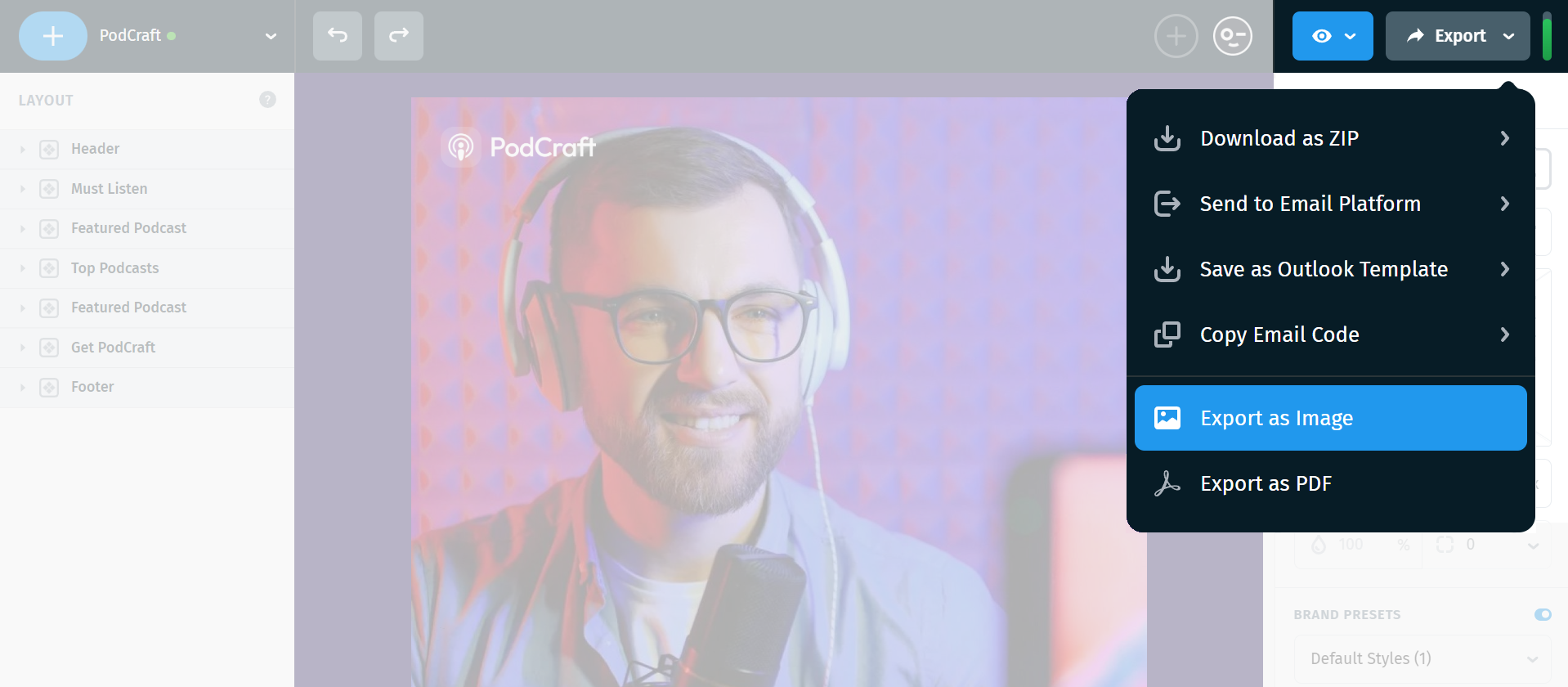
Now you’ll need to choose the image format and adjust the export settings to match your needs.
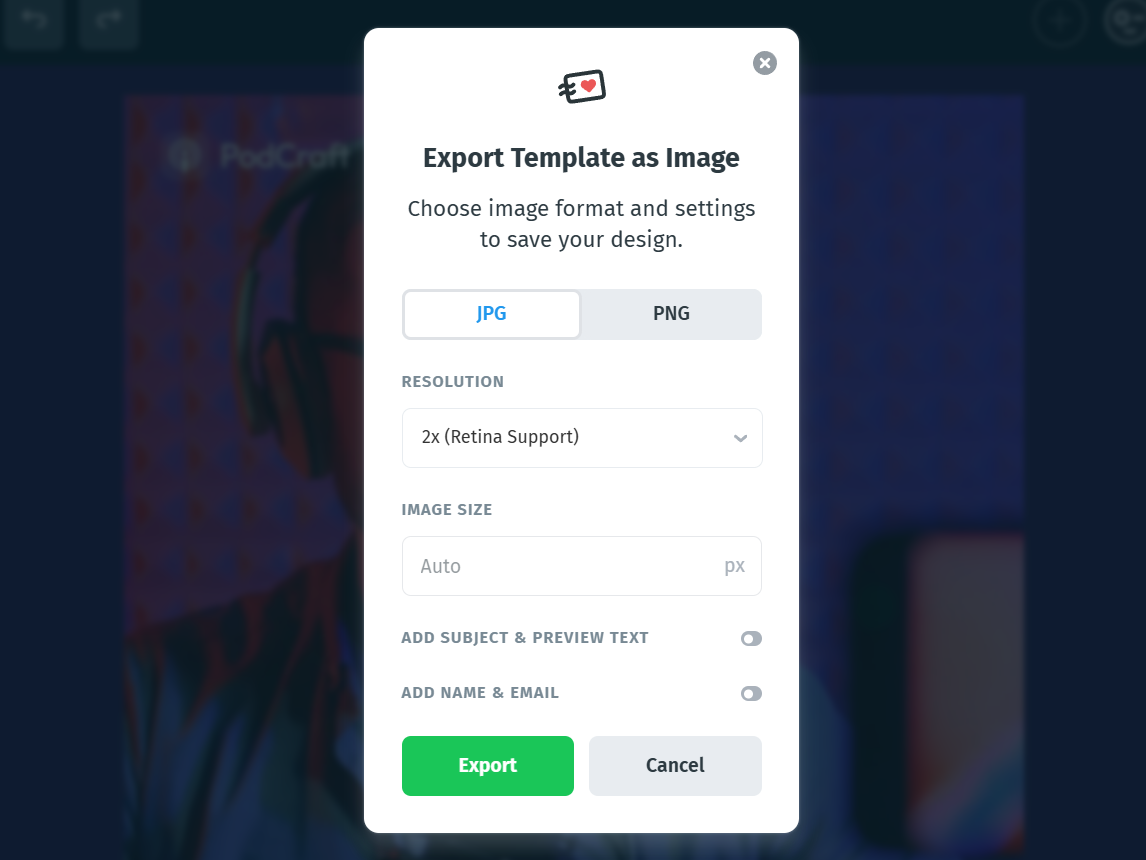
Choose your preferred image format:
- JPG – smaller file size
- PNG – higher quality and transparency support
Set the Resolution:
- 1× – standard
- 2× (Retina Support) – recommended for sharp displays
- 3× (Hi-HDPI Support) – highest quality
Adjust the image size manually, or leave it set to Auto. Image size must be between 640 px and 2000 px.
You can also optionally enable the following settings:
- Add Subject & Preview Text
- Add Name & Email
Note: These details will appear at the top of the PDF file.
Once finished, click Export. A ZIP file will be downloaded to your computer containing separate desktop and mobile images. To access the files, open the ZIP file, select both images, and drag them into a folder.
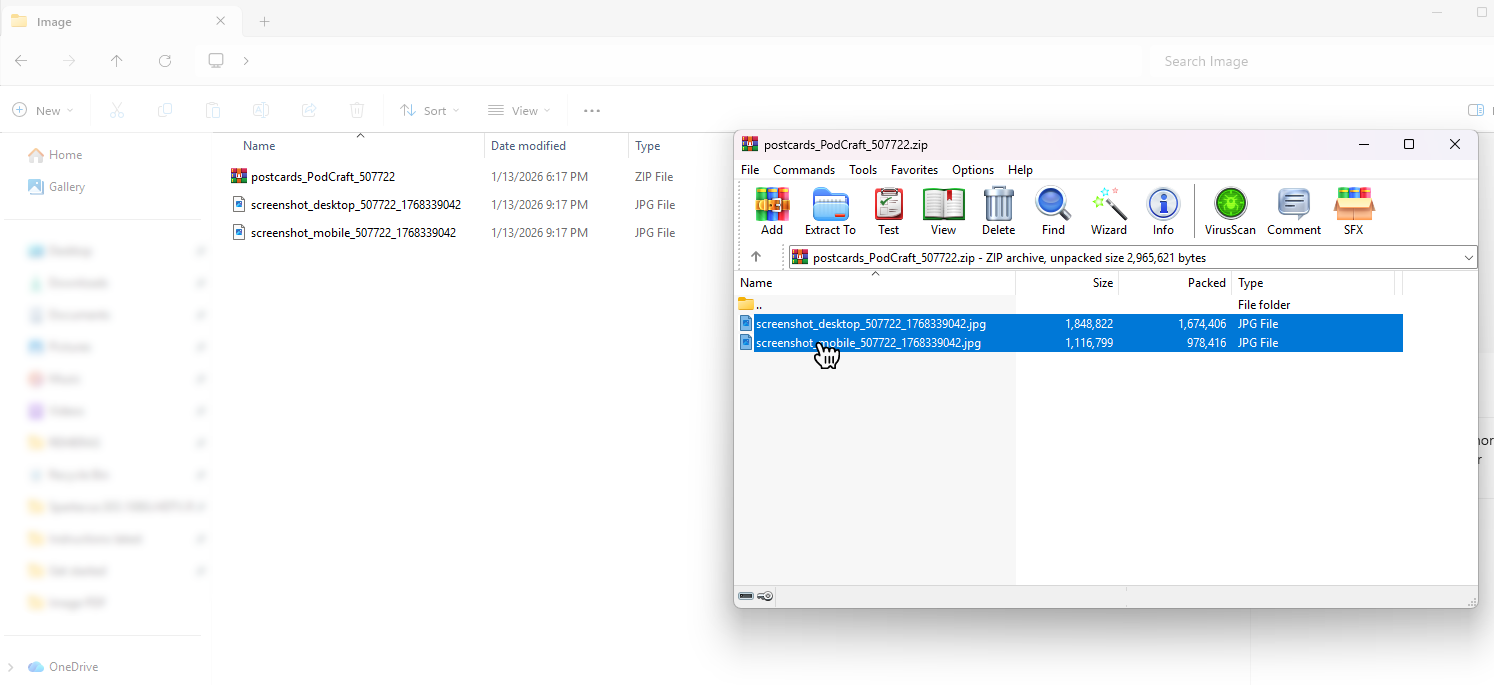
You can then use the files however you’d like:
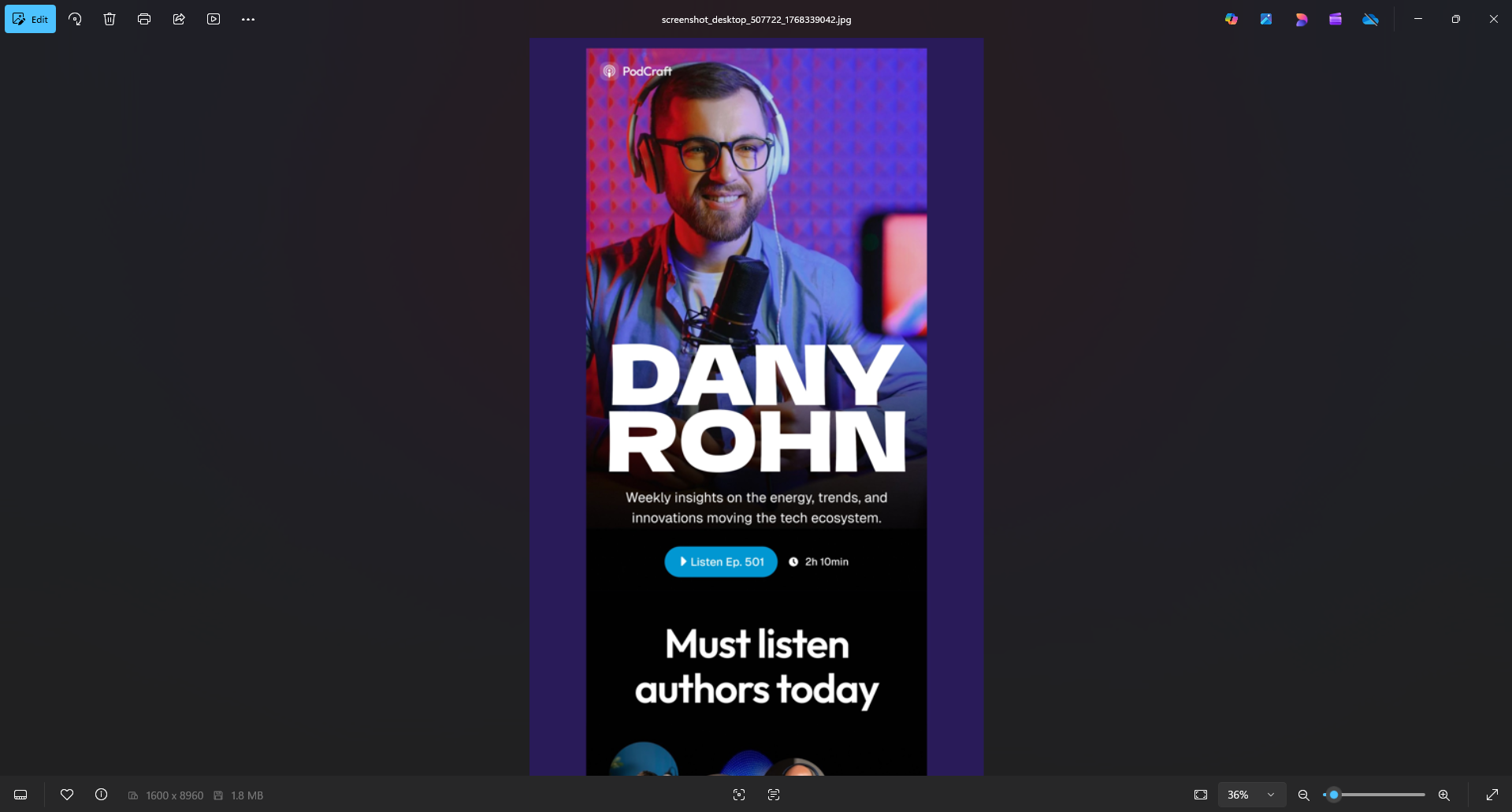
Export Template as PDF
The Export as PDF option saves your full email layout as a single, scrollable PDF document. This format is ideal for approvals, printing, archiving, or sharing a complete design in one file, and supports clickable links.
How it works:
Click Export in the top-right corner of the editor and select Export as PDF. The PDF export settings window will then appear.
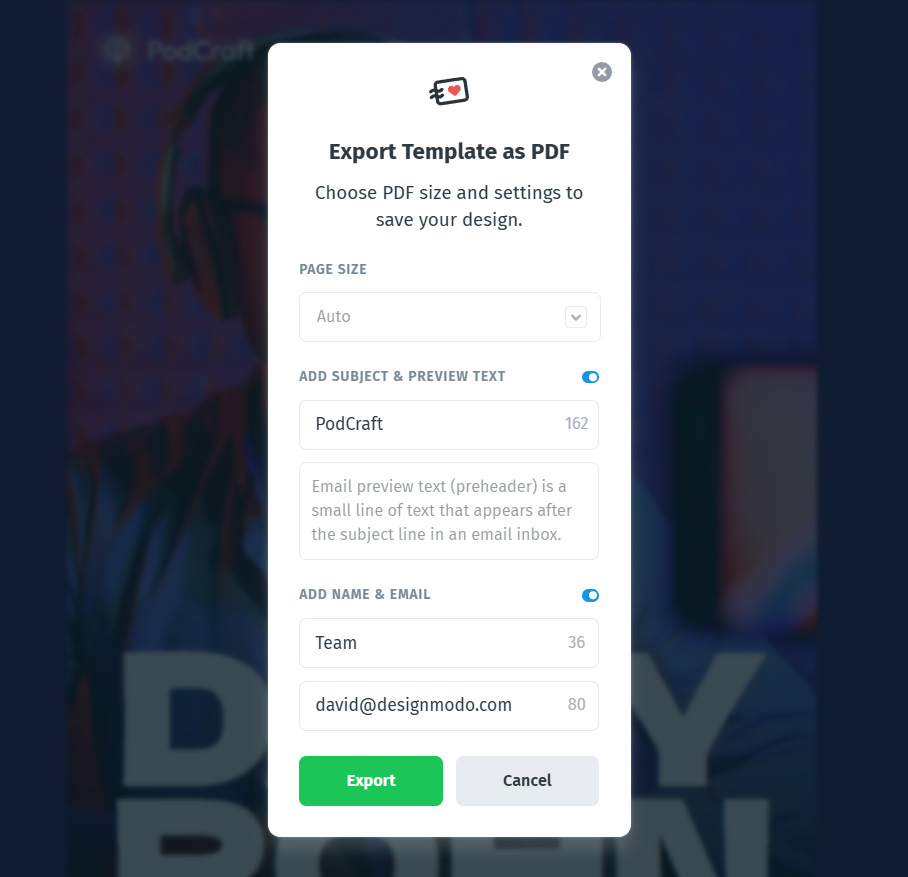
Choose a Page Size. You can select from the following options:
- Auto
- A0-A4
- Letter
- Legal
- Ledger
- Tabloid
You can also optionally enable the following settings:
- Add Subject & Preview Text
- Add Name & Email
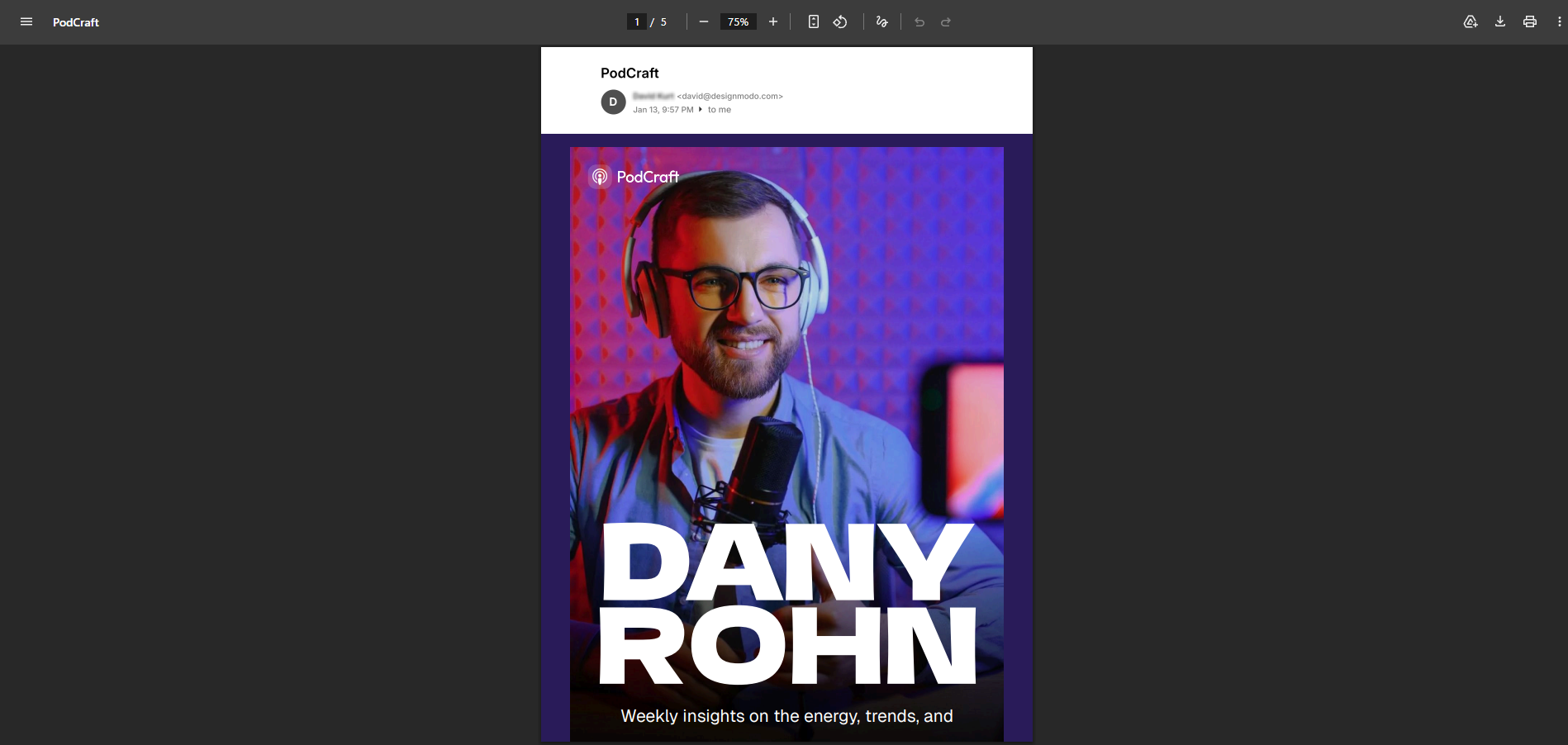
Note: These details will appear at the top of the PDF file.
Once finished, click Export. A ZIP file will be downloaded to your computer containing separate desktop and mobile PDF files. To access the files, open the ZIP file, select both PDF files, and drag them into a folder. You can then use the files however you’d like:
Additional Notes
- Image exports are static, while PDFs may include limited interactivity such as clickable links.
- Fonts, colors, spacing, and layout are preserved exactly as designed in the editor.
- Subject line, preview text, and sender details are optional and can be included in both Image and PDF exports.
- Desktop and mobile layouts are always exported separately to reflect device-specific layouts.
Why Export an Email Template as a PDF or Image?
Exporting your email design as a PDF or static image is helpful when:
- You need a print-friendly version of your email
- You need client or stakeholder approval
- You want to include the design in presentations or proposals
- You’re sharing a non-editable preview
- You want to archive or document designs outside the editor