
Postcards Projects
The Projects screen is the central hub for managing all your email design projects in Postcards. It’s where you can organize, search, and collaborate on projects, create folders, and restore previous versions, all from a clean, intuitive interface.
Accessing the Projects
You can access the Projects screen directly from the Postcards app home screen:
- Go to designmodo.com/postcards/app/.
- Sign in to your Designmodo account.
- You’ll land on the Projects screen, displaying your recently viewed projects, folders, and quick actions.

On the left sidebar, you'll find:
- Recently Viewed: Shows your most recently opened projects. (Each team member may see a different list here, depending on which projects they've personally accessed.)
- Drafts: Your complete list of projects.
- Templates: Pre-made designs available for use.
- New Folder: Create folders to organize projects.
- Removed: Recently deleted projects that can be restored.
- Workspace Settings: Manage your workspace, members, plan, and API keys. See Creating and Managing Workspaces in Postcards.
- Image Library: Browse and manage uploaded images.
- Custom Fonts: Upload and manage the fonts available in your workspace.
- Chat with Us: Contact Designmodo Support directly.
The Top Bar
Above the projects grid, the top bar gives you quick access to your workspace, the ability to start a new project, your profile, and everything happening across your projects.
Workspace switcher (top-left). Click your workspace name to open the switcher and jump between workspaces.

Each workspace has its own projects, team, and subscription — the projects shown on this screen always belong to the workspace you're currently in. For more, see Creating and Managing Workspaces in Postcards.
Top-right controls. On the far right of the top bar you'll find:

Create (+) — the green Create button opens a menu with four ways to start a project:
- Blank Project — open the editor with an empty canvas.
- Create With AI — generate a full project by describing what you need in the AI chat.
- From Template… — browse the template gallery (Industry, Usage, Season, Brand, Free & Premium filters) and start from a pre-built design.
- Import HTML — bring in an existing HTML email (upload, paste, or send it by email) and continue editing it in Postcards.
Comments — a global panel with every comment across every project in your active workspace. Two tabs: Unread (new items you haven't seen) and All Comments (the full history). Click any entry to jump straight to that project and comment.

Tip: Comments and projects are scoped to your active workspace. To see items from another workspace, switch to it first using the workspace switcher.
Project Management Actions
Each project card shows a thumbnail preview along with key details:
- Date Viewed
- Date Edited
- Date Created
- Author
Click the ••• (three-dot) menu on the right side of any card to open its options. You can also right-click the project to open the same menu directly.

The menu includes the following actions:
- Open In Editor
- Remix With AI
- Rename
- Duplicate
- Restore
- Transfer To Workspace
- Remove
Here's what each one does:
1. Open In Editor
Opens the project in the Postcards editor so you can continue working on it. Same as clicking the project thumbnail.
2. Remix With AI
Opens the project with the AI chat ready to follow your instructions — tweak the layout, rewrite the copy, restyle the design, or ask for anything else. A fast way to iterate on an existing project without starting from scratch.

3. Rename
Change the project title. Enter a new name and press Enter.
4. Duplicate
Make an exact copy of the project. The copy appears immediately in your list with "Copy" appended to the name — useful for creating variations or keeping a backup before major edits.
5. Restore (Version History)
Access previous save states of the project (e.g., "2025-10-15 19:39"), each representing an auto-saved version. Choose a timestamp to roll the project back to that exact state — helpful when you need to recover a previous version or undo recent changes.

6. Transfer To Workspace
Move the project to another one of your workspaces, with the option to keep a copy in the current one. Images and fonts carry over to the destination. See Creating and Managing Workspaces in Postcards for full behavior and permissions.

7. Remove
Moves the project to the Removed section, where it stays recoverable for 30 days before being permanently deleted. See The Removed Section below for details.
Unfinished Imports
If an HTML import hasn't been finished yet, for example, an email you sent to your import address, its card shows a live thumbnail of the email and a warning icon. Hover over the icon to see the "import not finished" tooltip.

To finish it, open the card's ••• menu and choose Continue Import.

See Importing HTML Emails into Postcards.
Creating and Organizing Projects
Create a New Project
Click the green + Create button at the top of the dashboard and pick how you want to start — Blank Project, Create With AI, From Template…, or Import HTML.
Or head to the Templates section in the left sidebar to browse every template we offer.

Filter by Industry, Usage, Season, Brand, or Free & Premium — or use the two tiles at the top of the gallery for a quick start:
- Create Blank Template — open the editor with an empty canvas.
- Generate with AI — open a blank project with the AI chat ready for your instructions.
Create a Folder
Click New Folder… in the sidebar to create a folder for grouping related projects. Once created, you can:
- Drag and drop projects directly into the folder to organize them.
- You can rename or delete folders by right-clicking the folder and choosing the desired action from the context menu.

Folders also support Subfolders, so you can nest your organization as deep as you need.
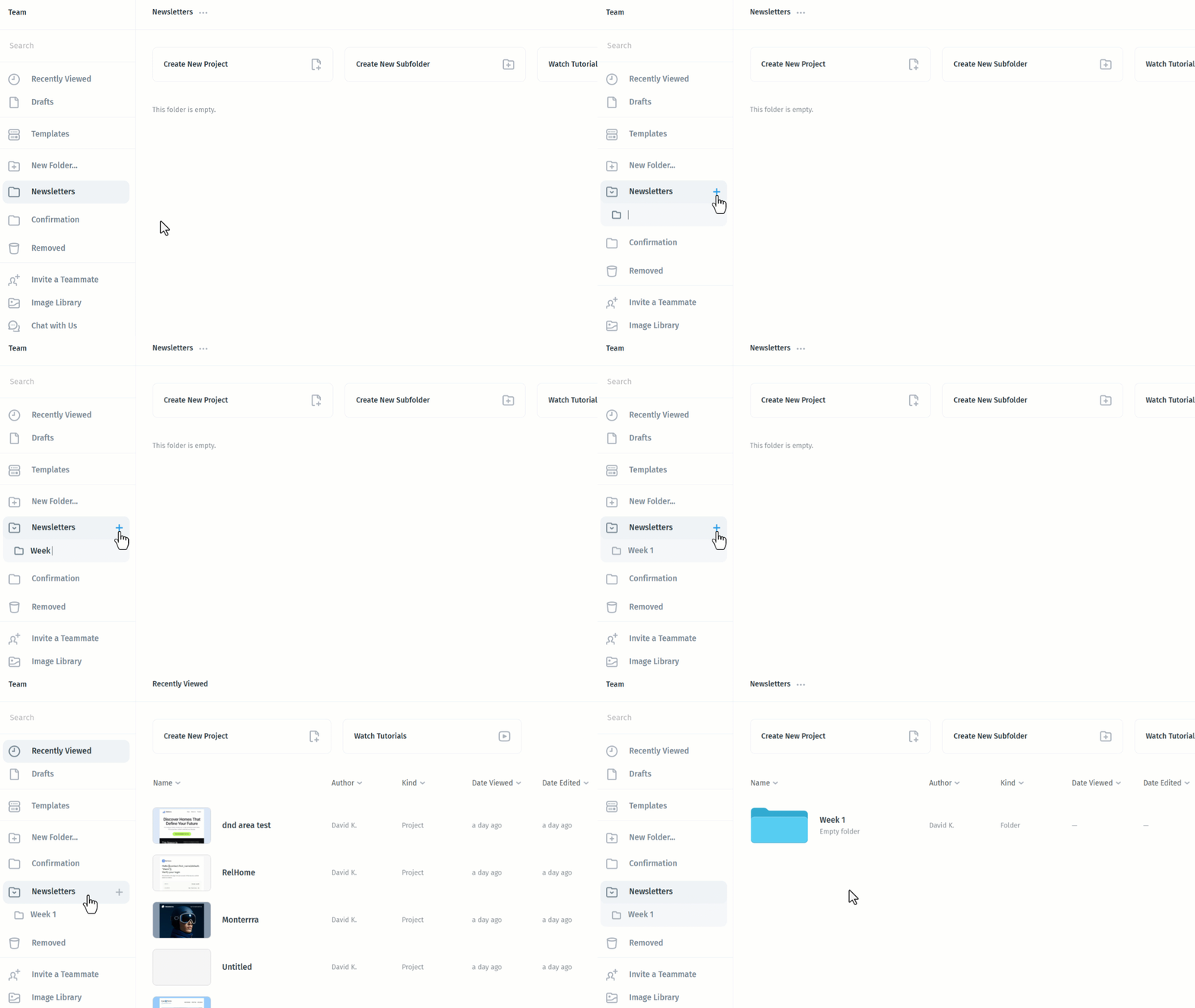
To create a subfolder, click the + button that appears next to a folder's name in the sidebar, give it a name, and it will be created inside that folder. Alternatively, you can right-click any folder and select Create New Subfolder from the context menu.
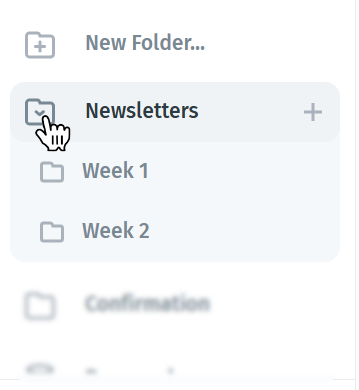
Clicking the folder icon to the left of a top-level folder's name will collapse or expand its subfolders, keeping the sidebar tidy when you're not actively working inside it.
You can also reorganize folders freely by clicking and dragging them to a new position in the sidebar.
If you want to turn an existing folder into a subfolder of another, simply drag it onto the target folder, and it will be nested inside it. You can also drag it back out at any time to make it a top-level folder again.
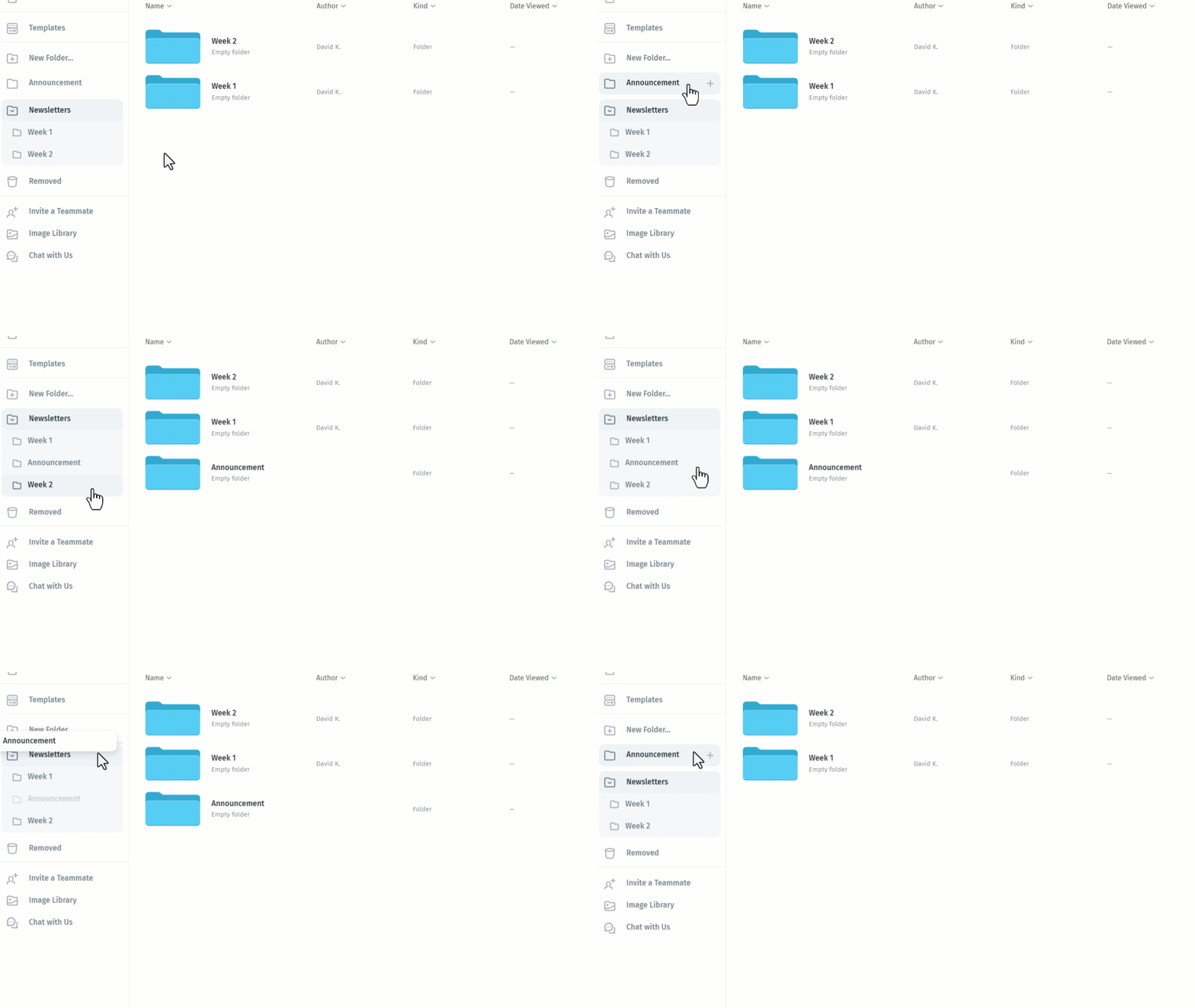
From there, you can drag projects directly into any subfolder to keep everything grouped exactly the way you want.
Sorting and Filtering Projects
At the top of your dashboard, you can sort projects by clicking on column headers:

- Project: sorts alphabetically.
- Date Viewed: most recently accessed projects first.
- Date Edited: projects sorted by last modification.
- Date Created: chronological order.
- Author: useful in team environments.
You can also toggle between Grid View and List View using the icons in the upper-right corner of the screen:
- Grid View displays large thumbnails for visual browsing.
- List View shows a more compact table format with detailed metadata.

The Removed Section
Deleted projects are stored temporarily in the Removed section, accessible from the sidebar. They remain there for 30 days, allowing users to restore them at any time during that period. After 30 days, projects are permanently deleted from the system along with any associated hosted assets.
To restore a project, simply click the ··· (three-dot) menu next to it and select Restore; the project will immediately return to your main dashboard. You can also choose Delete Forever from the same menu to permanently remove it.

Think of the Removed section as your project recycle bin, where you can safely recover or permanently clear deleted work.
Search Function
Use the Search bar at the top of the sidebar to quickly locate projects by name or keyword. Results update dynamically as you type, making it easy to find specific designs among large project lists.

Tips and Best Practices
- Use Folders Strategically: Create folders by client, campaign, or season for better organization.
- Rename Projects Clearly: Add dates or client tags to keep project names meaningful.
- Duplicate Before Major Edits: Use the duplicate function as a quick safeguard before testing design changes.
- Regularly Clean the Removed Section: Keep your dashboard uncluttered by permanently deleting old or unused projects.
- Use Workspaces to Separate Contexts: Keep clients, brands, or side projects in their own workspaces — each has its own team, projects, and subscription. See Creating and Managing Workspaces in Postcards.
- Invite Teammates for Collaboration: Bring collaborators into a workspace to share projects and use real-time editing and comments together. See Inviting and Managing Teammates.
Summary
The Projects screen brings together everything you need to organize and manage your Postcards workflow:
- Centralized access to all projects, folders, and workspaces
- Version history and restore functionality
- AI-powered project creation and remixing
- Sorting, searching, and collaboration tools
- Clean visual controls for list or grid viewing
It's designed to help you manage projects faster, stay organized, and collaborate seamlessly.