
How to Send a Postcards Email Template with Gmail
In this tutorial, we’ll show you how to send a Postcards email template through Gmail by inserting the exported HTML code directly into a draft using Chrome Developer Tools.
We’ve also included an updated video that demonstrates a faster method using our Chrome extension for Gmail, which lets you insert your Postcards template without manually editing the code.
Prerequisites
- Designmodo account
- Gmail account
- Text editor that can open HTML files
Important! Updated Version Video
Read these articles for more information:
- How to Embed a Custom HTML Email in Gmail
- Why You Should Not Use Outlook or Gmail for Email Marketing
Steps
1. Create and export a Postcards template
The main thing we need is a Postcards template for the HTML code.
In the Postcards app, create a template. Mine looks like this:
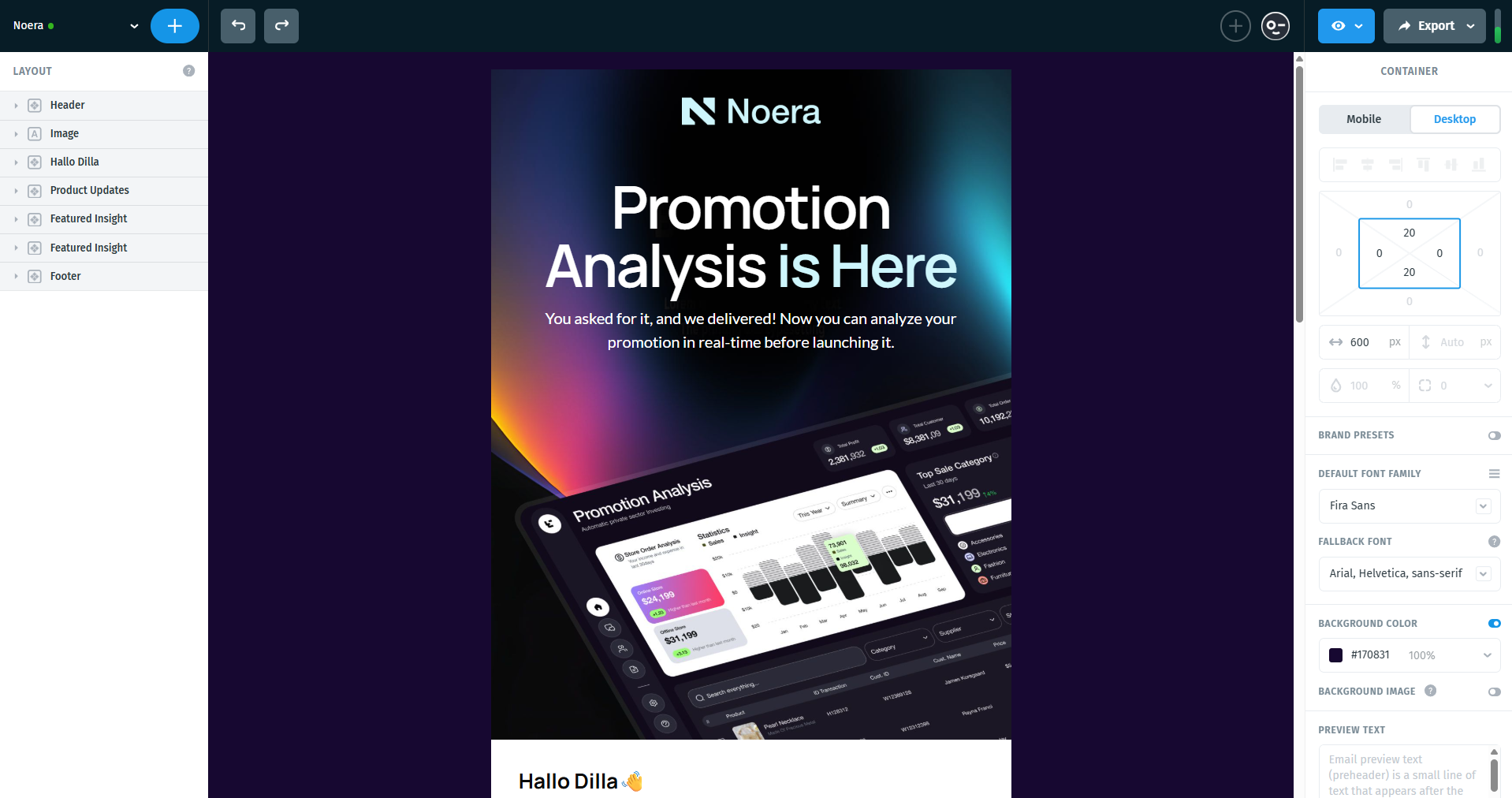
Next, export your template so you can access the generated HTML code.
You have two options:
Option 1 (Quickest): Copy Email Code
In the top right corner of the app, click Export, then select Copy Email Code. This will automatically copy the full HTML of your template to your clipboard, ready to paste into Gmail.
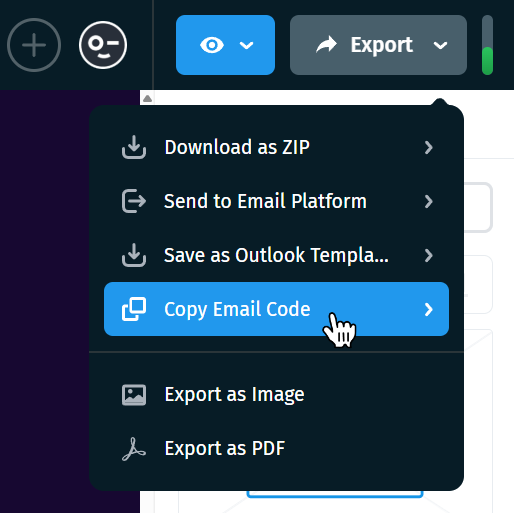
Option 2: Download as ZIP
If you prefer to work with the HTML file directly, click Export → Download as ZIP.
Before downloading or copying, make sure the Host images online option is enabled. This ensures your images are hosted properly and display correctly in Gmail. Your screen should look like this:
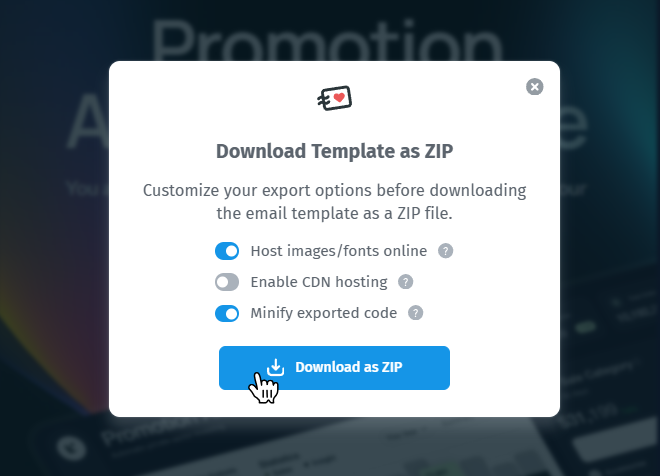
Press “Download Zip” and extract the file into a folder. My folder looks like this:
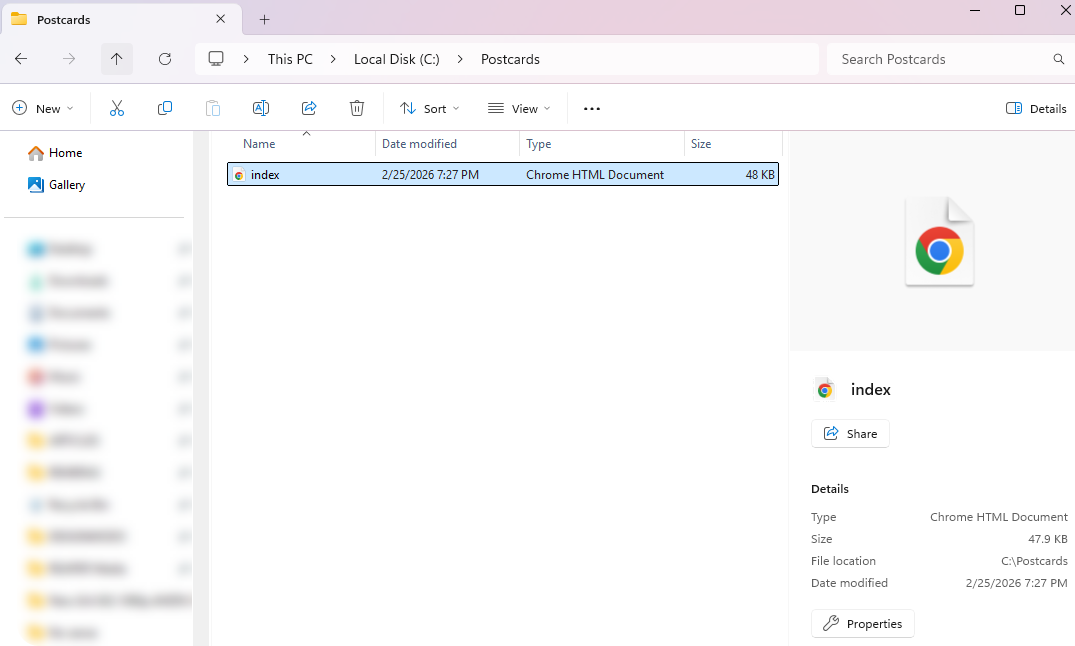
If you open this file in your browser, you should see the Postcards template you just created.
Now, we have everything we need to add this template to a Gmail email.
2. Create a new draft and open developer tools
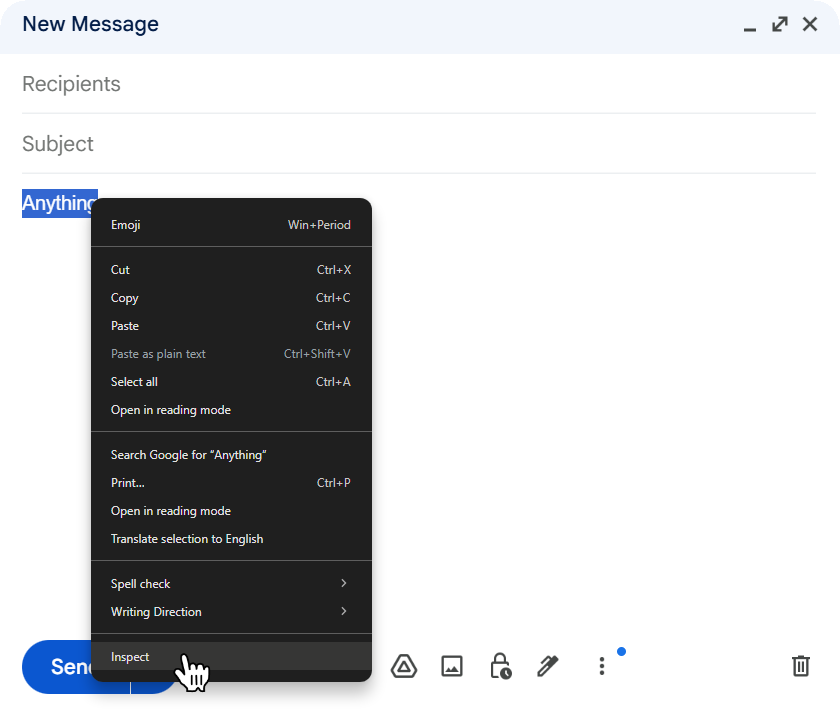
Next, open Gmail and create a new draft (Compose). In the email body, type a placeholder word (for example, “anything”). Highlight that text, right-click it, and choose Inspect from the menu, as shown in the image below.
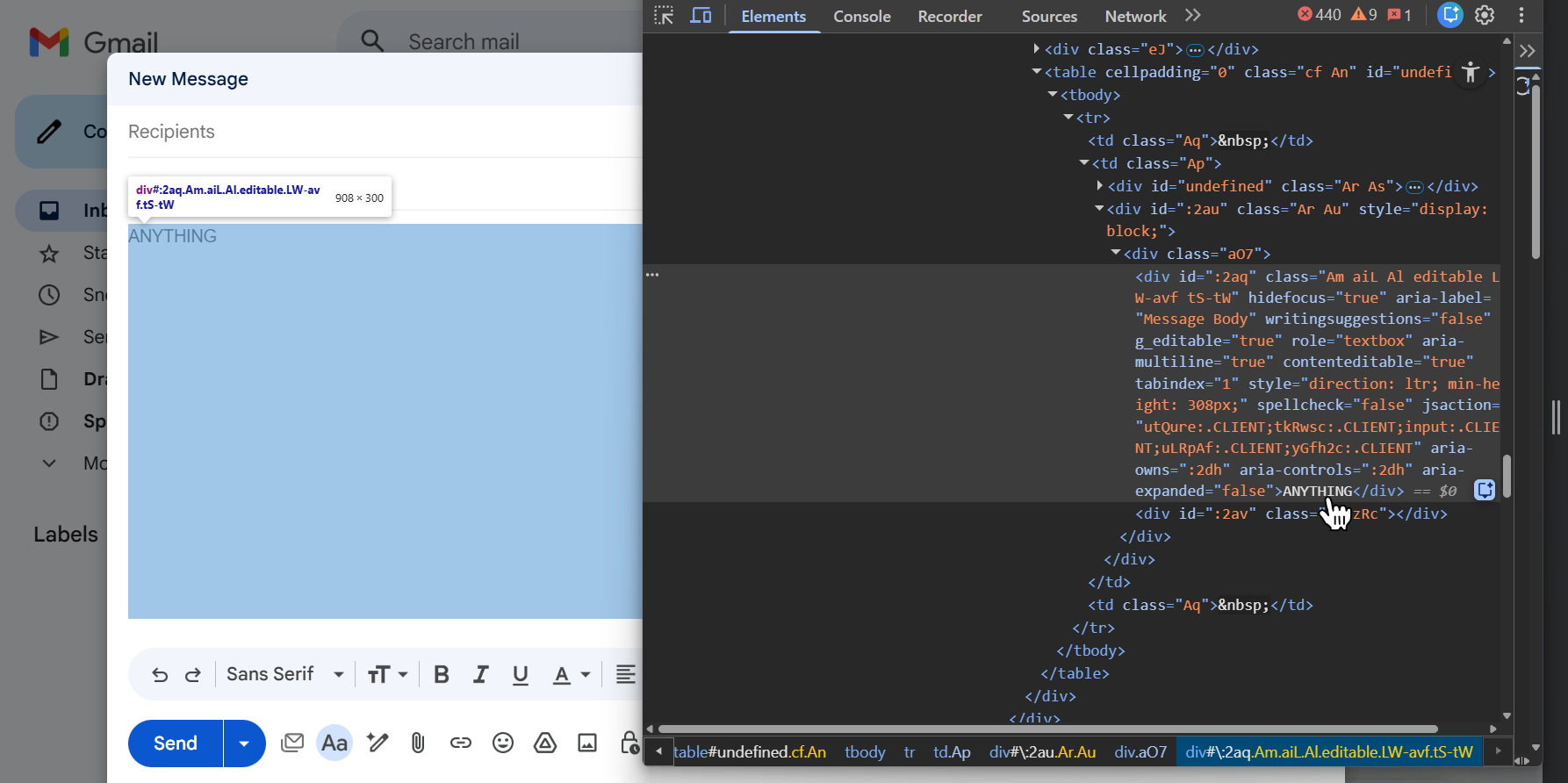
This will open Chrome Developer Tools and take you directly to the HTML element that contains your placeholder text. Your screen should look something like this:
Now you’ll need the HTML generated by your Postcards template to paste into DevTools. You can either click Export → Copy Email Code to instantly copy the full HTML to your clipboard, or open the index.html file from your Download as ZIP export in a text editor (such as Notepad++) and copy the code from there, it looks like this:

3. Edit the HTML contents in the developer tools using the generated HTML
Highlight all the contents in the HTML file and copy it.
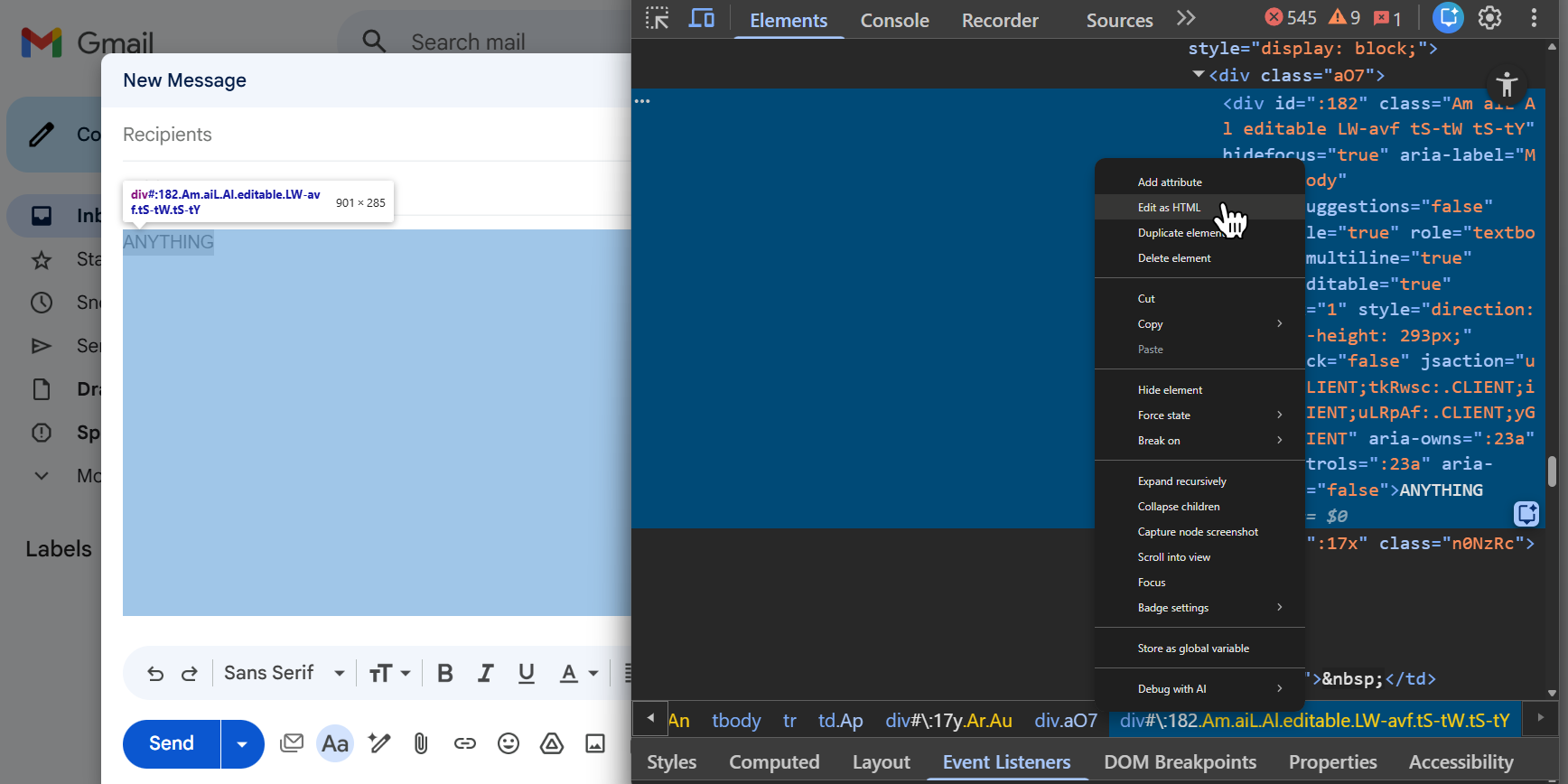
Go back to Gmail and in the developer tools, right-click the highlighted HTML element that was opened when you pressed “Inspect” on the highlighted text and select “Edit as HTML.” Your screen should look like this:
That will open up a text editor containing the contents of the HTML element containing the “anything” text.
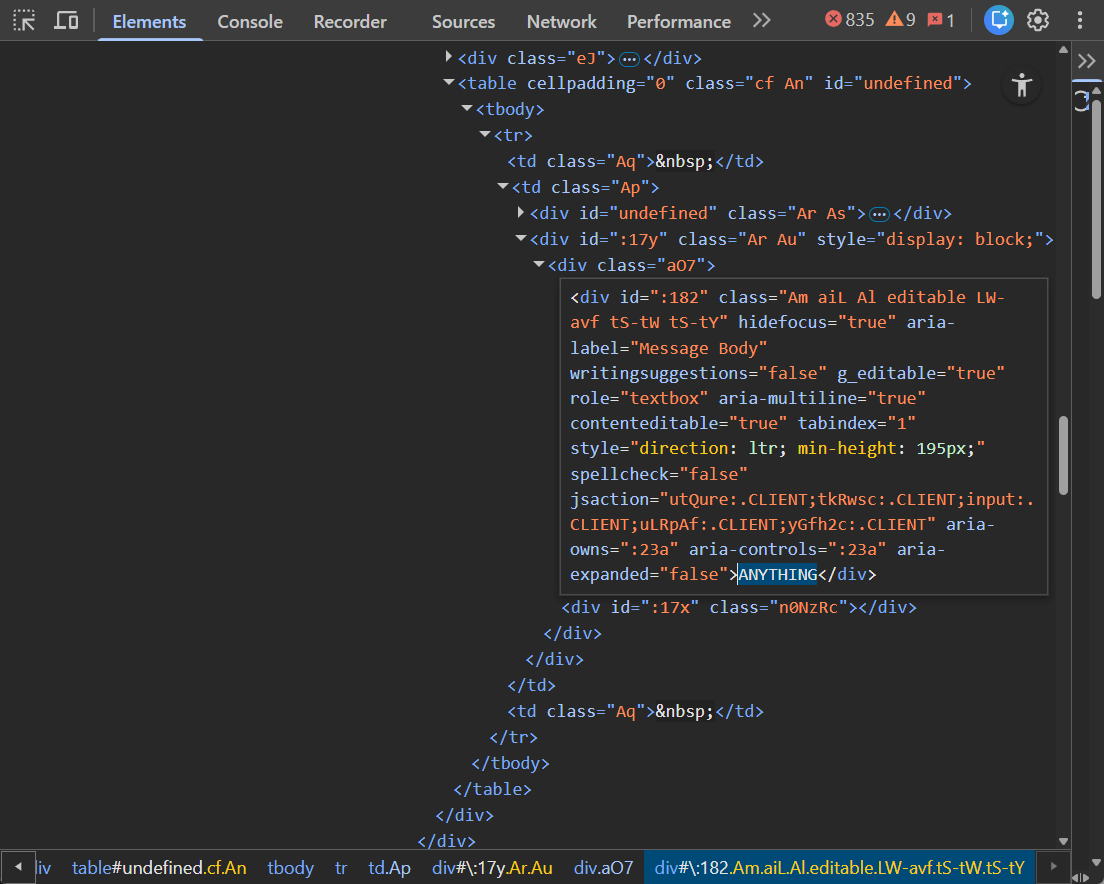
Highlight the “anything” text, not the outer HTML element, and replace that with the Postcards HTML template that you had copied. The dev tools should look like this now:
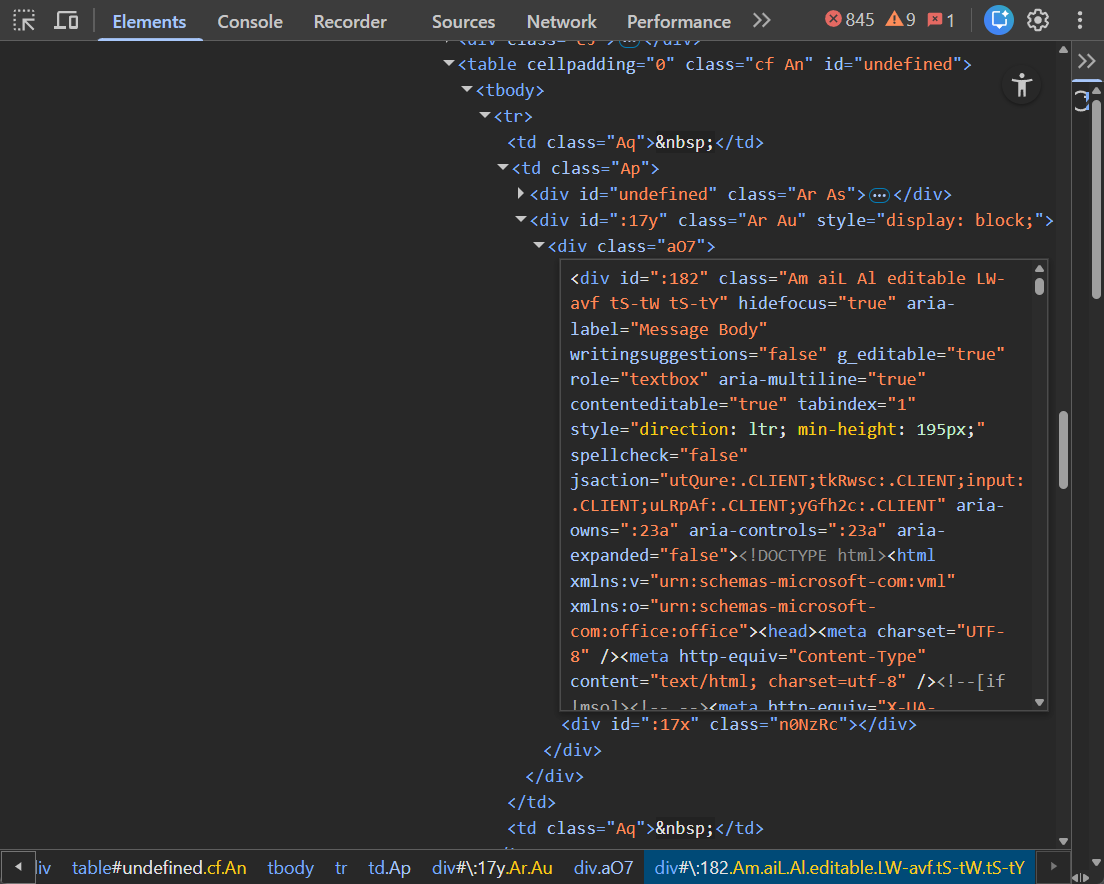
Click anywhere outside of the textbox area to confirm the changes. Your screen should look like this:
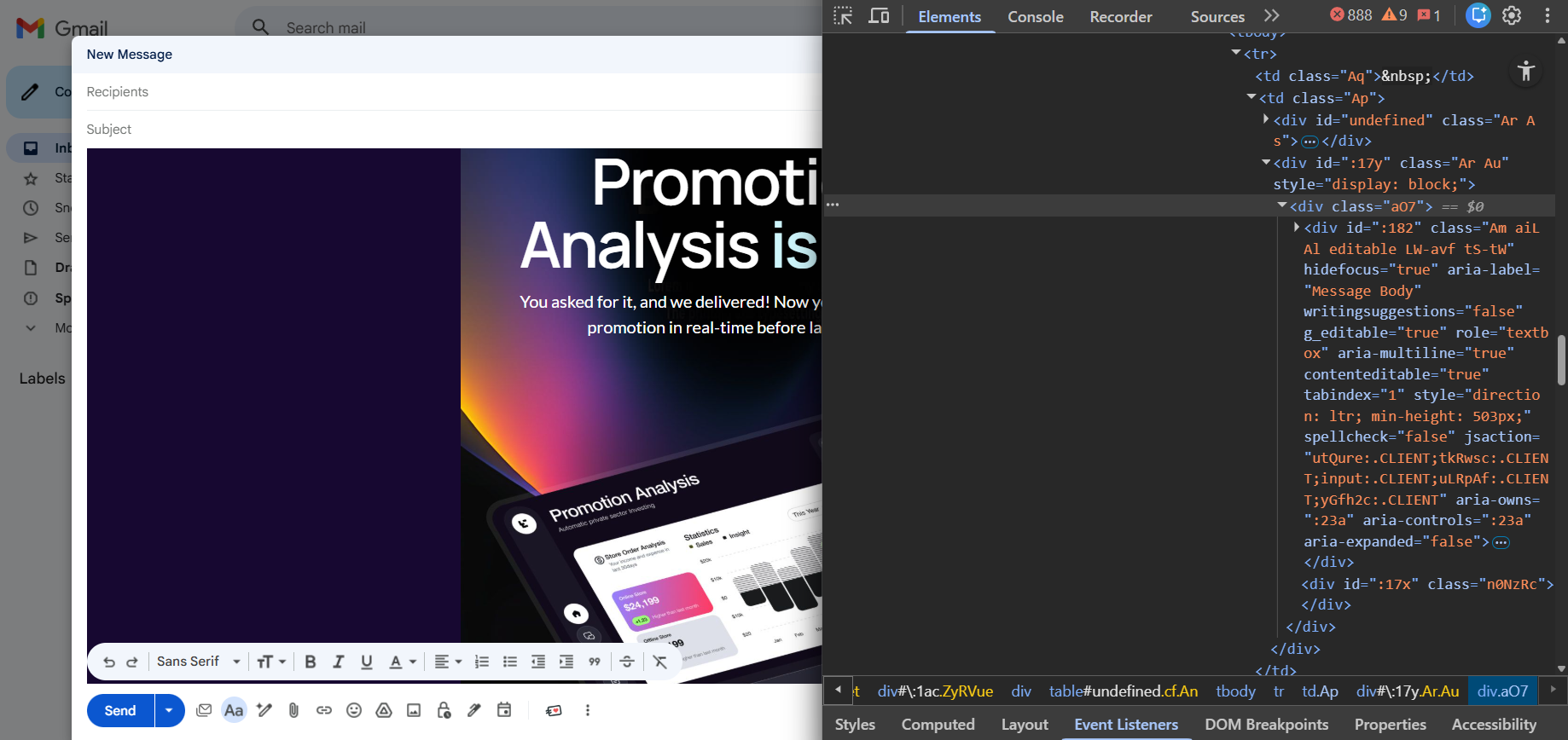
You can now close the dev tools.
The “anything” text was replaced with the HTML code of the generated Postcards template. That inserts the email template in the body of your email.
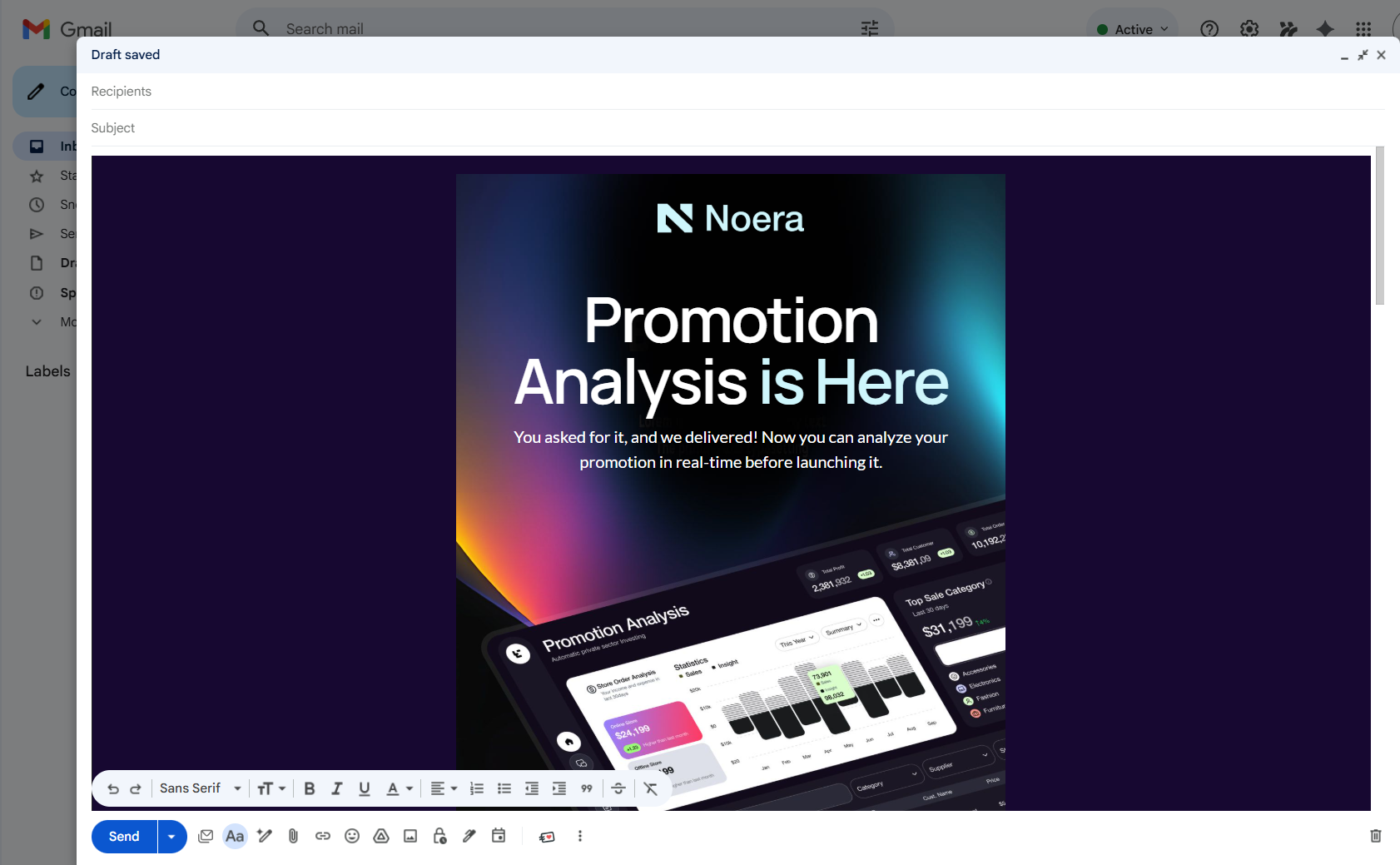
Now you should have the Postcards template in a Gmail email!
You can send yourself a test email to see if the template looks the way you expect.
What we covered
- How to export a Postcards template as an HTML file.
- How to open the developer tools and edit the code in a Gmail draft.
- How to add the Postcards generated HTML to the body of a Gmail draft.