
How to Upload an Email Template in Salesforce
In this tutorial, you’ll learn how to export an HTML email from Postcards, import it into Salesforce as a custom email template, and then use that template inside a Salesforce campaign.
Prerequisites
- A Designmodo account
- A Salesforce account
- A text editor that can open HTML files
Important: If you plan to send this template through Salesforce List Email in Lightning, keep the HTML as lightweight as possible. Salesforce limits List Email to 32,000 characters in the body, and that count includes the full HTML markup, not just the visible text. Because of that, a template that looks fine in Gmail can still be cut off sending via Salesforce. If you need to work with larger email bodies, Salesforce Classic offers other sending flows, including Mass Email for Contacts and Leads, and Classic also has a separate Send an Email compose flow that supports up to 384,000 characters in the email body. Those are different workflows from Lightning List Email, so the larger limit does not apply to campaign list emails in Lightning.
To switch to Salesforce Classic, open your profile/avatar menu and use the switcher to move from Lightning Experience to Salesforce Classic. Please be reminded that you may need to change permissions to allow switching to Classic.

1. Create your Postcards template and optionally add Salesforce merge fields
Start by creating your email in Postcards.
If you want to personalize the email, you can insert Salesforce merge fields directly into Postcards as plain text. Since merge fields are just placeholders, Salesforce can replace them with the correct record data when the email is sent, as long as the syntax is valid for Salesforce. For more information about merge fields visit this link.
For example, you can click into any text element in Postcards and type a Salesforce merge field directly into the text, such as:
{!User.FirstName}

You can place this inside a heading, paragraph, button label, or any other text area where you want Salesforce to insert dynamic content later. If you prefer, you can also leave the Postcards design as-is.
Once your design is ready, you can move on to exporting the template from Postcards.
2. Add the Designmodo image host to Trusted URLs in Salesforce
If your Postcards template uses online hosted images, Salesforce may block them in the email preview or in the Send List Email window until that image host is added to Trusted URLs. In Lightning, Salesforce uses Content Security Policy (CSP), which blocks external images and other resources by default unless you explicitly trust that domain. External resources must also use HTTPS.
To fix this, add the Designmodo image host used in your exported HTML to Salesforce Trusted URLs.
- In Salesforce, click the gear icon in the top-right corner and open Setup.

- In the Quick Find box, search for Trusted URLs.

- Open Trusted URLs and click New Trusted URL.

-
We will need to create two separate Trusted URLs.
When adding each one, use a name that is easy to recognize, such as Designmodo Images, in the API Name.
In the URL field, enter:
https://s1.designmodo.comfor the first Trusted URLhttps://postcards-cdn.designmodo.comfor the second Trusted URL, used for CDN hosting
- Then toggle Active and save each new Trusted URL.

This step is especially helpful if your template imports correctly and the text displays as expected, but the image areas show broken placeholders instead of the actual images.
3. Export the HTML from Postcards
Once your design is ready, the next step is to export the HTML from Postcards so you can import it into Salesforce. Postcards gives you two ways to do this through the Export menu:
- Copy Email Code — this is the quickest option. It copies clean, production-ready HTML directly to your clipboard, so you can paste it right away into Salesforce:
- Click Export in the top-right corner.
- Select Copy Email Code.
- The full HTML will be copied automatically to your clipboard.

- Download as ZIP — this downloads the full HTML package of your email, including the
index.htmlfile. Make sure Host images/fonts online is enabled before downloading, unless you plan to use your own hosted image and font files.- Click Export in the top-right corner and select Download as ZIP.

-
Download the ZIP file to your computer.
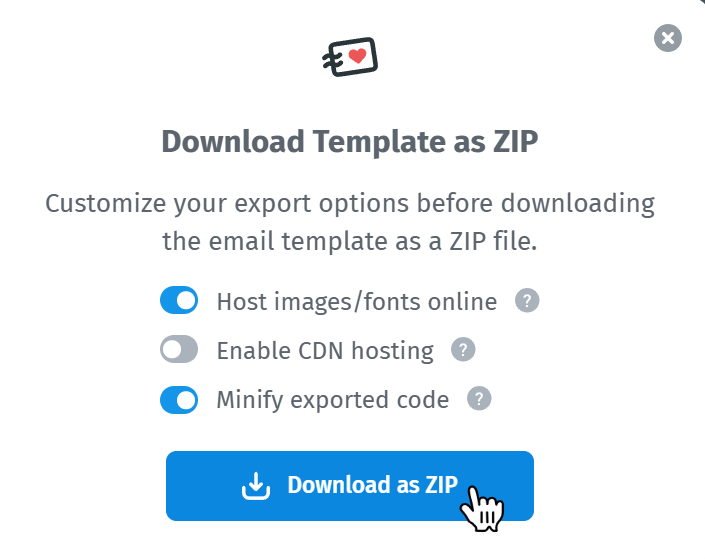
- Open the ZIP and extract the contents into a folder.

- Inside the extracted folder, locate the
index.htmlfile. - Open
index.htmlin a text editor such as Notepad, Notepad++, or Visual Studio Code. - Copy the full HTML code from that file.
4. Import the template into Salesforce
Now that you have the HTML from Postcards, you can create the email template in Salesforce and paste the code in. Salesforce’s custom HTML template workflow uses Classic Email Templates.
Important note: If you do not see Classic Email Templates or a related HTML email template section in your Salesforce UI, this is usually due to one of two reasons: your Salesforce user profile does not have the required permissions enabled, or your Salesforce edition does not include this functionality. In either case, please contact your Salesforce admin first. If needed, Salesforce Support can also help confirm whether this feature is available in your account and assist with enabling access.
- In Salesforce, click the gear icon in the top-right corner and open Setup.
- In the Quick Find box, search for Classic Email Templates and open it.

- Click New Template.

- Select Custom (without using Classic Letterhead), then click Next.

- Fill in your template details and click Next:
- enable Available For Use
- enter the Email Template Name
- enter the Subject
- set Encoding to Unicode (UTF-8)

- In the HTML Body field, paste the full HTML code you exported from Postcards and click Next.

- Salesforce will then let you add a text-only version of the email. Click Save.
At that point, your Postcards template is imported into Salesforce and ready to use. At this point, your template is ready to test.
In this step you can click Send Test and Verify Merge Fields to send yourself a preview email and confirm that your merge fields are rendering correctly.
- Click Send Test and Verify Merge Fields.

- In the pop-up window, check Send email preview to:
- Enter your email address and click OK.

Salesforce will then send a test version of the template to your inbox so you can review the layout, images, and merge field output before using it in a campaign. My preview looks like this:

5. Create your campaign and insert the template
Now you can create your campaign and send your template.
Head over to your Salesforce App Launcher in the top-left corner and type Campaigns.

On the Campaigns page, click New to create a new campaign.

Enter your campaign name, fill in any other details you want to use, and click Save.

Once saved, you’ll be redirected to your new campaign page. To send an email, click Send Email in the top-right corner.

In the email pop-up, click the template icon in the bottom-left corner next to the clip icon.

From there, select the template you imported earlier.

Salesforce will insert it into the email body:

At this point, you can review the content, confirm your images and merge fields are displaying correctly, and continue with your normal sending flow in Salesforce.
What we covered
In this tutorial, we covered:
- How to add Salesforce merge fields in Postcards
- How to add the Designmodo image host to Trusted URLs in Salesforce
- How to export the HTML from Postcards
- How to import the template into Salesforce as a custom HTML email template
- How to send yourself a test email
- How to create a campaign and insert your imported template into the email composer